Analyze Smart Sizing Insights and Manage Scale to Zero
Smart Sizing involves adjusting resource requests and limits to ensure your applications have the optimal amount of resources to operate efficiently. This prevents over-provisioning, which can increase costs unnecessarily, and under-provisioning, which may cause performance problems.
The management console provides a separate tab for tracking the Smart Sizing recommendations for your applications.
Analyze Smart Sizing Overview
To analyze the Smart Sizing recommendations on the Overview:
-
Go to CPU Scaling on the left sidebar and click Smart Sizing from the menu.
-
On the Smart Sizing page, use the drop-down lists to select a cluster on which your application is smart sized. You can only view recommendations for all namespaces' and microservices of your application.
-
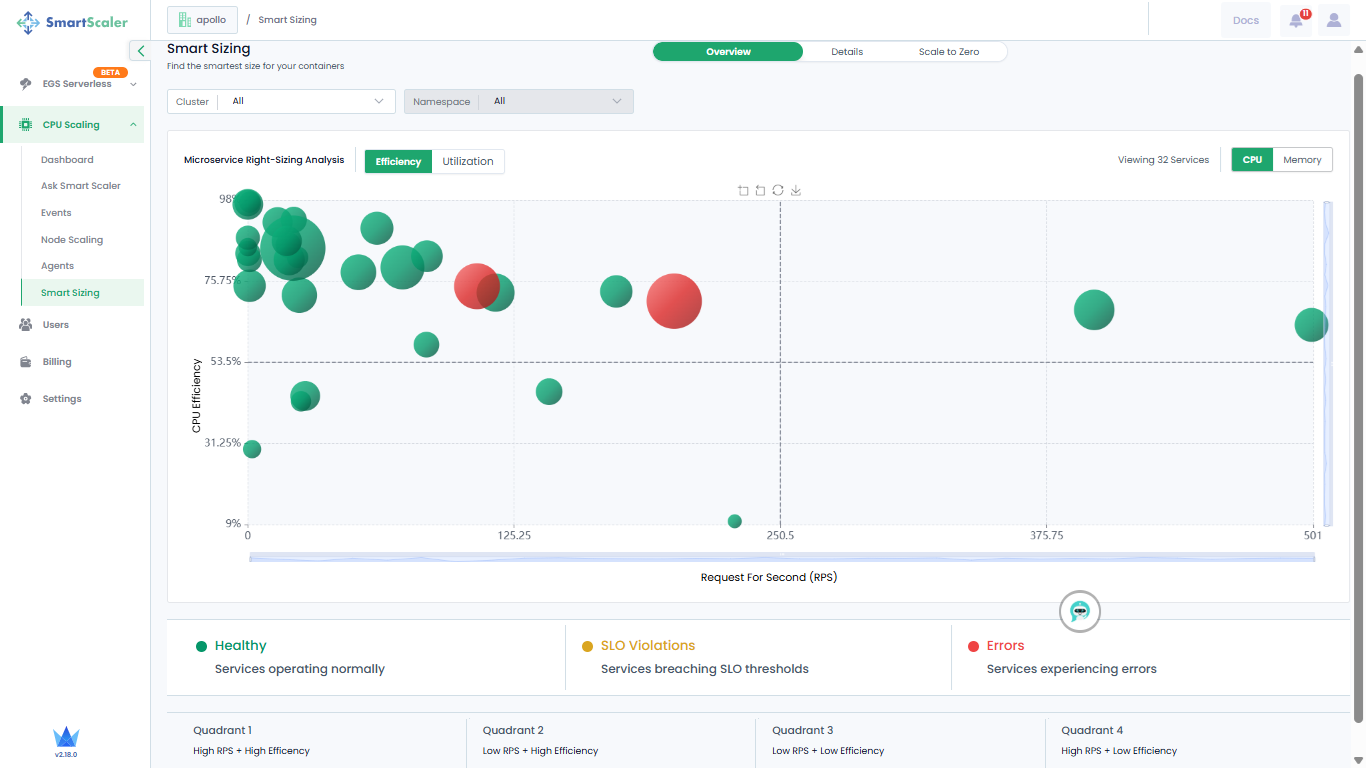
By default, you view CPU Efficiency versus Request per Second recommendations.
-
The visualization is a bubble graph chart where each bubble represents an individual microservice. The color of the bubble indicates the health status of the microservice it represents. The different health statuses are:
- A green bubble is an indication that the microservice is healthy.
- A yellow bubble is an indication that the microservice breached SLO thresholds.
- A red bubble is an indication that the microservices contains errors.
-
Do a mouse hover on each bubble to see more details of the microservice.
-
The microservices are categorized into four quadrants, which indicate:
- Quadrant 1: High RPS + High Efficiency
- Quadrant 2: Low RPS + High Efficiency
- Quadrant 3: Low RPS + Low Efficiency
- Quadrant 4: High RPS + Low Efficiency
-
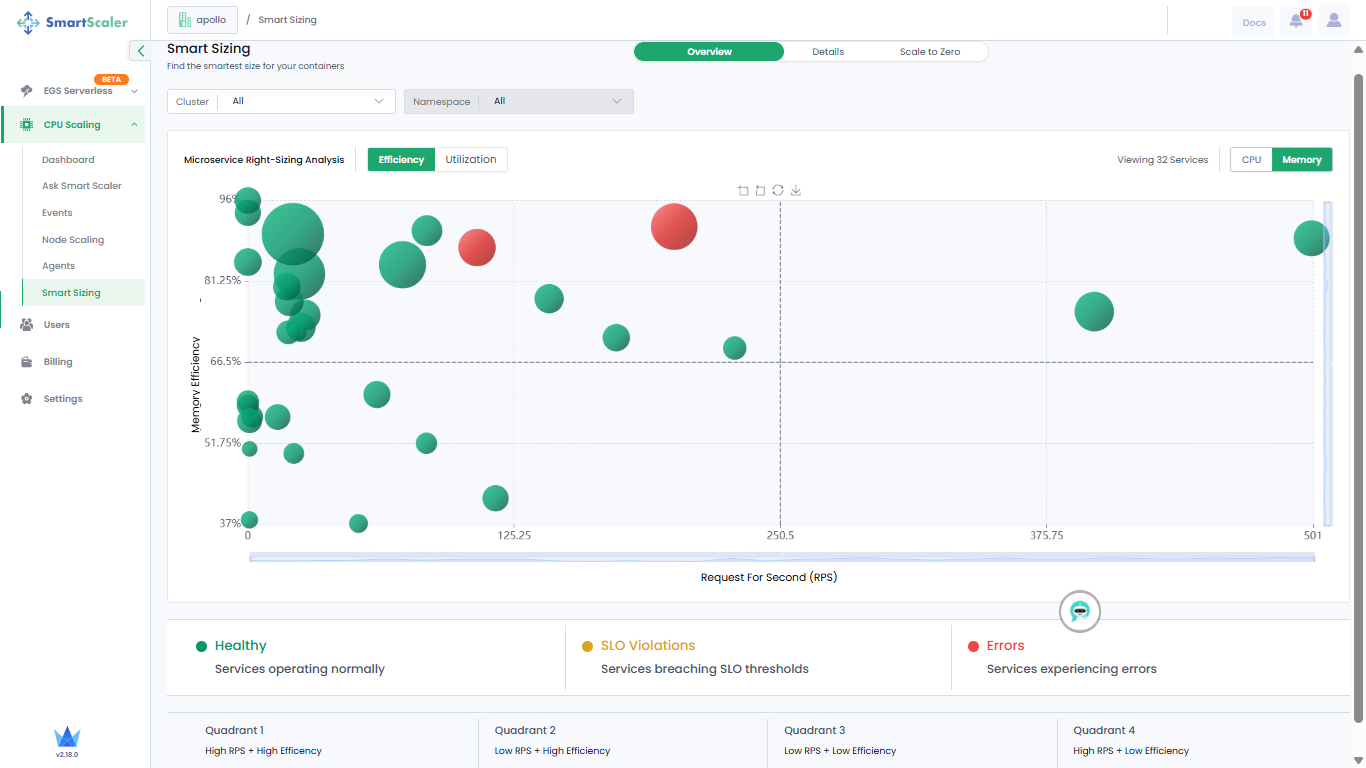
On the top-right, go to Memory to view Memory Efficiency versus Request per Second recommendations.
-
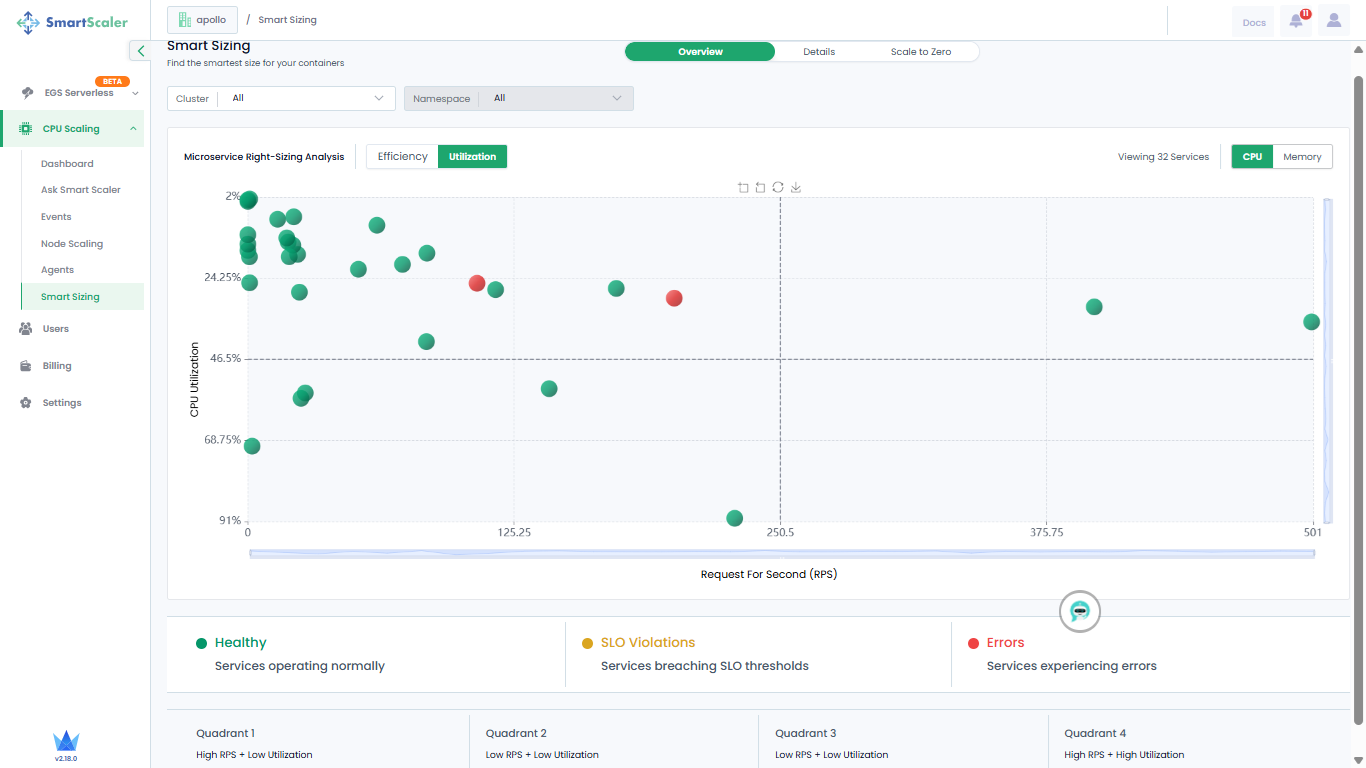
Next to Efficiency, go to Utilization to see the recommendations for CPU utilization.
-
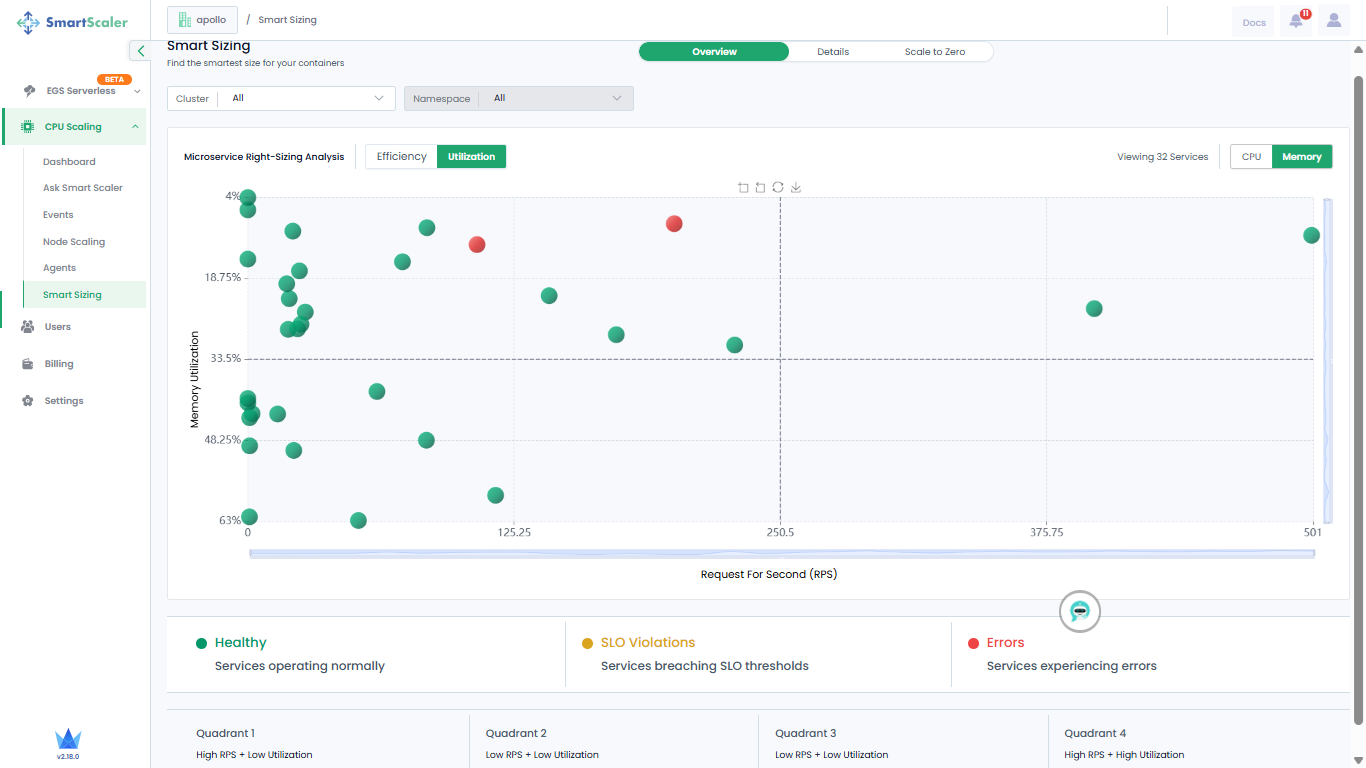
On the top-right corner of the page, go to Memory to see the recommendations for memory utilization.
Analyze Details of Smart Sizing Recommendations
To find the smartest size for your containers:
-
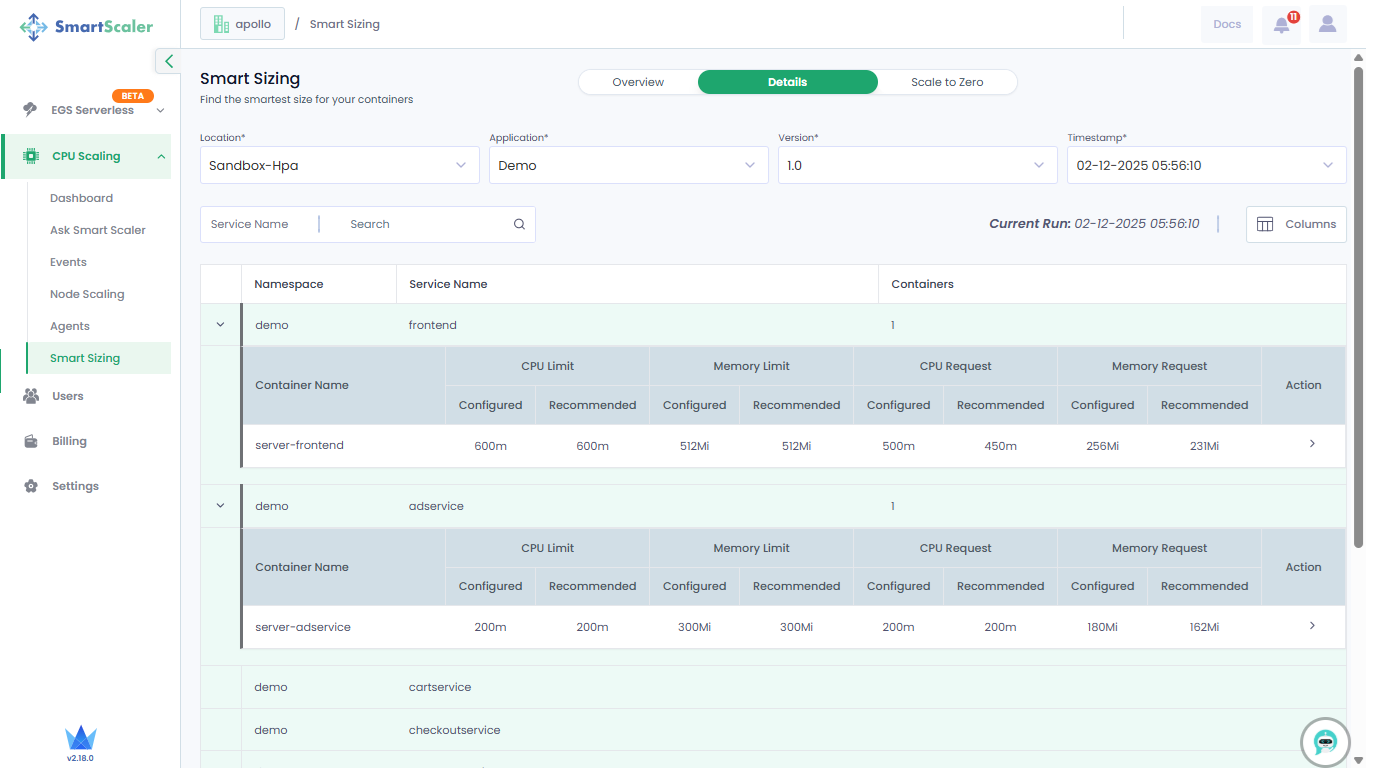
On the top of the page, next to Overview, go to Details.
-
Use the drop-down lists to select a cluster, application, and version, and the timestamp at which your application is smart sized.
-
Expand a micro service to see its details.
-
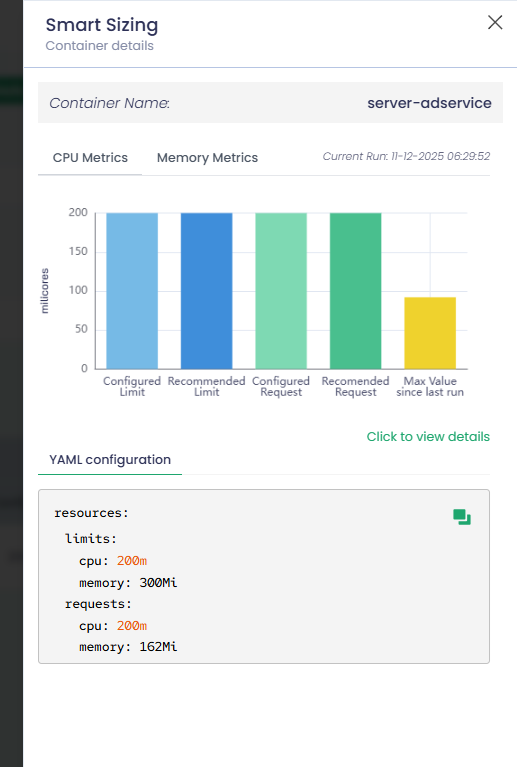
Click on the details to see the container details.
-
(Optional) To know more details, click the hyperlink, Click to view details, which redirects you to the Smart Sizing Details on the dashboard.
Manage Scale to Zero Schedules
You can schedule scale to zero for namespaces and schedule a cluster shutdown.
For scheduling scale to zero on your cluster, you must enable it in the ss-agent-values.yaml file.
For more information, see Configure Scale to Zero in the Smart Scaler Agent.
Smart Scaling or inference must be enabled on your cluster for Scale to Zero to work.
Create a Scale to Zero Schedule
-
Expand CPU Scaling on the left sidebar and go to Smart Sizing.
-
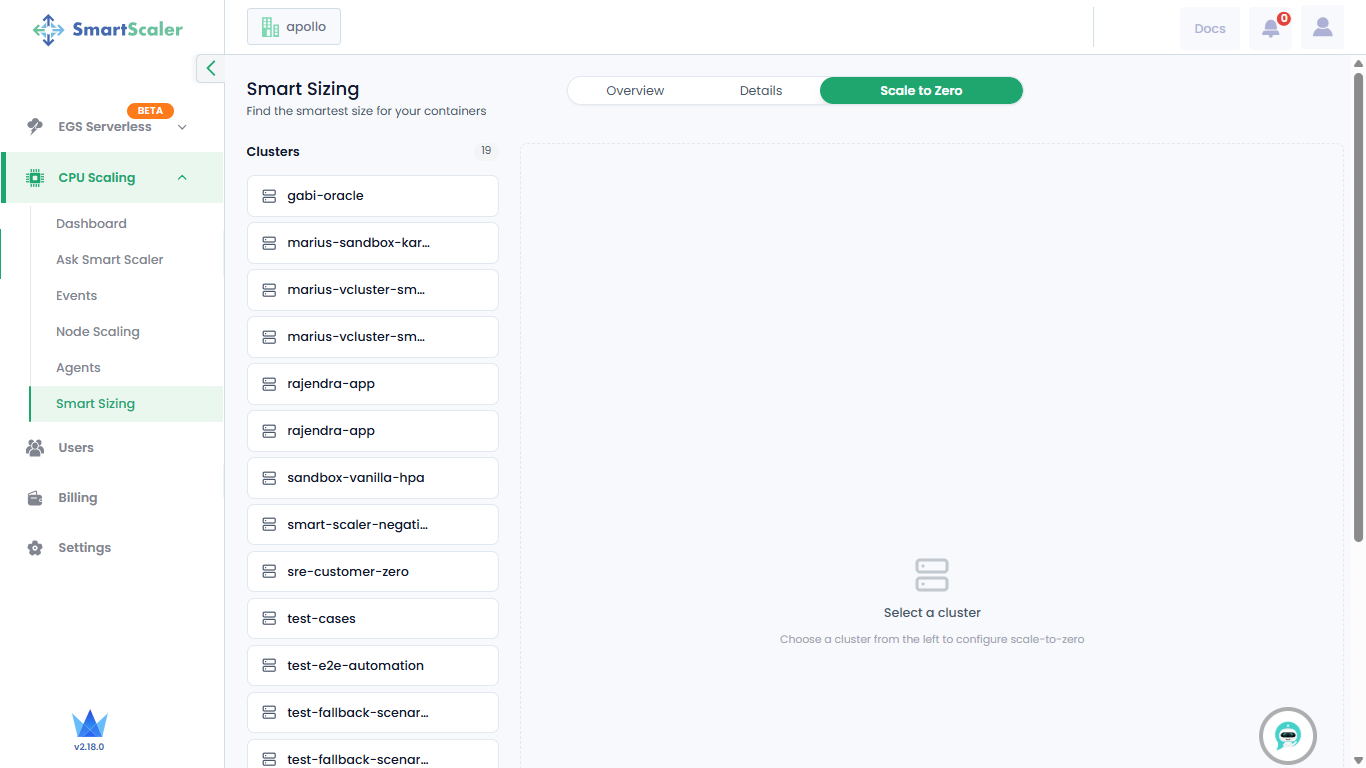
On the Smart Sizing page, go to Scale to Zero.
-
Select the cluster whose workloads you want to schedule for scale to zero.
-
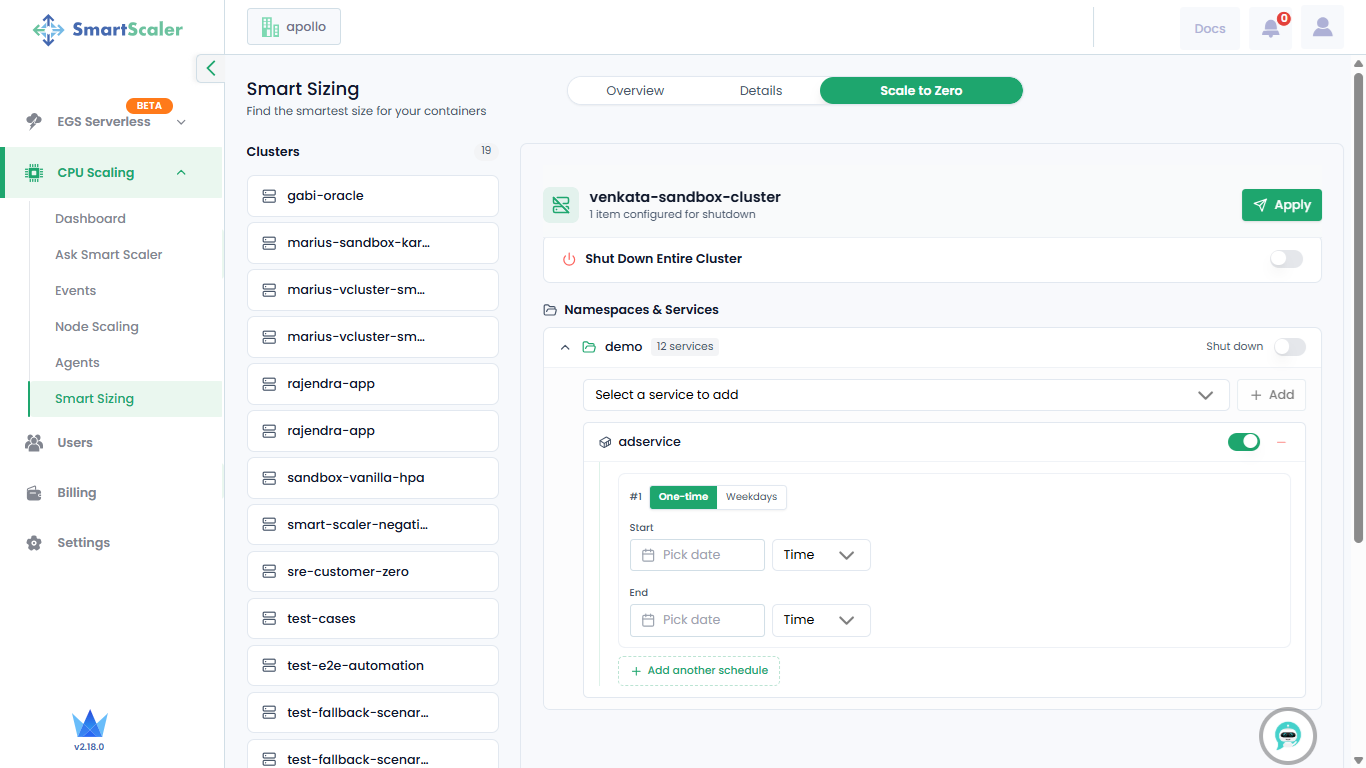
On the cluster page, under Namespaces & Services, select the microservice you want to schedule for scale to zero from the drop-down list.
-
Click Add next to the drop-down list to create either a one-time or weekday schedule.
-
To create a one-time schedule:
- Under One-time, set the start date and time below Start, and set the end date and time below End.
- Click Apply on the top-right of the page to add this schedule.
-
Click Add another schedule to set a different schedule for the same microservice.
-
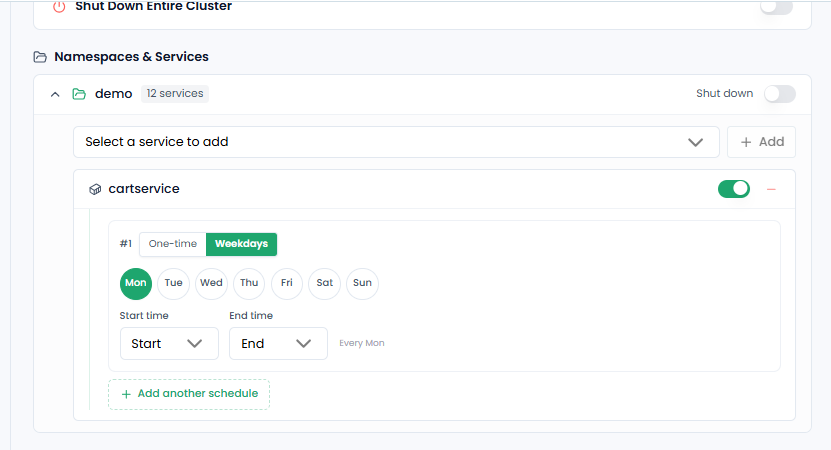
To schedule a weekday scale to zero:
-
Under the microservice, go to Weekdays.
-
Select the day and set start and end time.
-
Click Apply on the top-right of the page to schedule for scale to zero on the same day and time every week.
-
-
Click Add another schedule to set a different schedule for the same microservice.
Schedule Cluster Shutdown
A cluster shutdown can be scheduled when all jobs are complete and no pods are pending or running.
To schedule cluster shutdown:
-
Expand CPU Scaling on the left sidebar and go to Smart Sizing.
-
On the Smart Sizing page, go to Scale to Zero.
-
Select the cluster for which you want to schedule a shutdown.
-
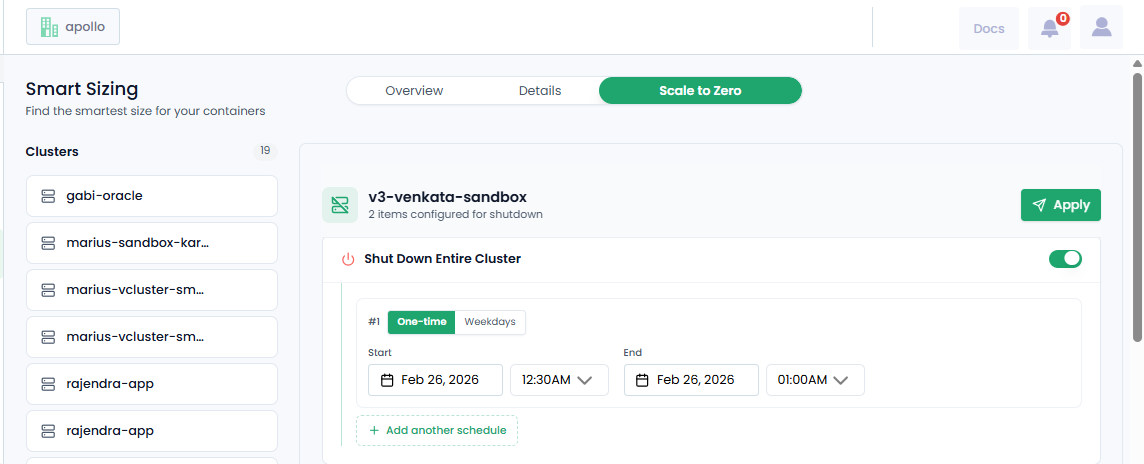
On the cluster page, enable Shut Down Entire Cluster.
-
To schedule cluster shutdown one time:
- Under One-time, set the start date and time below Start, and set the end date and time below End.
- Click Apply on the top-right of the page to add this schedule.
-
[Optional] To add another cluster shutdown schedule, click Add another schedule.
-
To schedule cluster shutdown on a weekday:
- Under the microservice, go to Weekdays.
- Select the day and set start and end time.
- Click Apply on the top-right of the page to schedule cluster shutdown on the same day and time every week.
-
[Optional] To add another cluster shutdown schedule, click Add another schedule.
View Scale to Zero Schedules
- Expand CPU Scaling on the left sidebar and go to Smart Sizing.
- On the Smart Sizing page, go to Scale to Zero.
- On the Scale to Zero page, select the cluster whose scale to zero schedules you want to view.
- On the cluster page, you can view the schedules. The number of schedule jobs are listed just below the cluster name too.
Disable Scale to Zero Schedules
- Expand CPU Scaling on the left sidebar and go to Smart Sizing.
- On the Smart Sizing page, go to Scale to Zero.
- Locate the schedule that you want to disable under Namespaces & Services.
- To disable the schedule, disable the toggle button.
- To remove the service from the schedule list, click the hyphen or minus sign next to the toggle button.
Disable Shut Down Cluster Schedule
- Expand CPU Scaling on the left sidebar and go to Smart Sizing.
- On the Smart Sizing page, go to Scale to Zero.
- Under Shut Down Entire Cluster, disable the toggle button.