Manage Billing
This topic describes the billing cycle and how to add a payment method for deploying a model using EGS Serverless, and view your invoices.
Billing Cycle
We use a usage-based billing model for GPU compute. Customers are billed for GPU-minutes consumed by their inference endpoints. All invoicing and payment processing are handled through Stripe using an automated billing-threshold mechanism.
Automatic Subscription
When a customer adds a payment method, a subscription is automatically created. This subscription includes pricing for all supported GPU types and ensures accurate billing for any GPU resources consumed.
Billing Threshold
- Threshold Amount: $10.00 USD
- Trigger: An invoice is generated and charged immediately when cumulative usage reaches $10.00.
- Fallback: If the threshold is not reached, billing occurs on a weekly schedule.
Billing Frequency
Billing events occur based on two triggers:
- Threshold-Based Billing: Automatic invoicing upon reaching $10.00 in usage
- Weekly Billing: Scheduled weekly invoicing if the threshold has not been met
Usage Tracking
- Usage is tracked in five-minute windows aligned to exact clock boundaries.
- Usage data is reported to Stripe every five minutes.
- Charges are calculated based on:
- GPU type (A10, A100, L40s, RTX4000, and so on)
- Duration of usage (in minutes)
- Per-minute pricing for each GPU type
Automatic Payments
- Payments are processed automatically using the default payment method.
- No manual intervention is required.
- Stripe sends email notifications for all generated and paid invoices.
Invoice Generation
Invoices are generated when:
- The customer reaches the $10.00 usage threshold, or
- The weekly billing cycle completes
Each invoice includes:
- Line items for each GPU type used
- Total minutes consumed
- Per-minute pricing
- Total charges for the billing period
Invoices are available in the billing dashboard and delivered through email.
Payment Method Management
- Customers can add, update, or remove payment methods at any time.
- The default payment method is used automatically for all charges.
- If a payment fails, customers are notified and can update their payment details.
Payment Failure Handling
If a payment fails, all inference endpoints are automatically undeployed to prevent additional charges. Service resumes after the payment method is updated and the outstanding invoice is successfully paid.
Billing Period
A new billing period begins when a subscription is created or after the previous billing period closes. Usage accumulates until:
- The $10.00 threshold is reached (immediate billing), or
- The weekly billing date arrives (scheduled billing)
Example Scenarios
Scenario 1: Threshold Reached
- Monday: $3.00 usage
- Tuesday: $5.00 usage
- Wednesday: $2.50 usage
- Result: Invoice generated Wednesday for $10.50. A new billing period begins.
Scenario 2: Weekly Billing
- Weekly Usage: $7.00
- Result: Weekly invoice generated for $7.00. A new billing period begins.
Scenario 3: Mixed Usage
- Monday to Thursday: $8.00 usage
- Friday: $3.00 usage
- Result: Threshold exceeded; invoice generated Friday for $11.00. A new billing period begins.
Must-know Billing Details
- Usage is tracked and updated in real time.
- Customers can view current period usage and projected costs in the usage dashboard.
- All invoices remain accessible under Billing. For more information, see View Payment Methods and Invoices.
- Payment methods must be kept up to date to avoid service interruptions.
- Failed payments trigger automatic undeployment of inference endpoints.
Add a Payment Method
You must add a payment method before deploying a model.
To add a payment method:
-
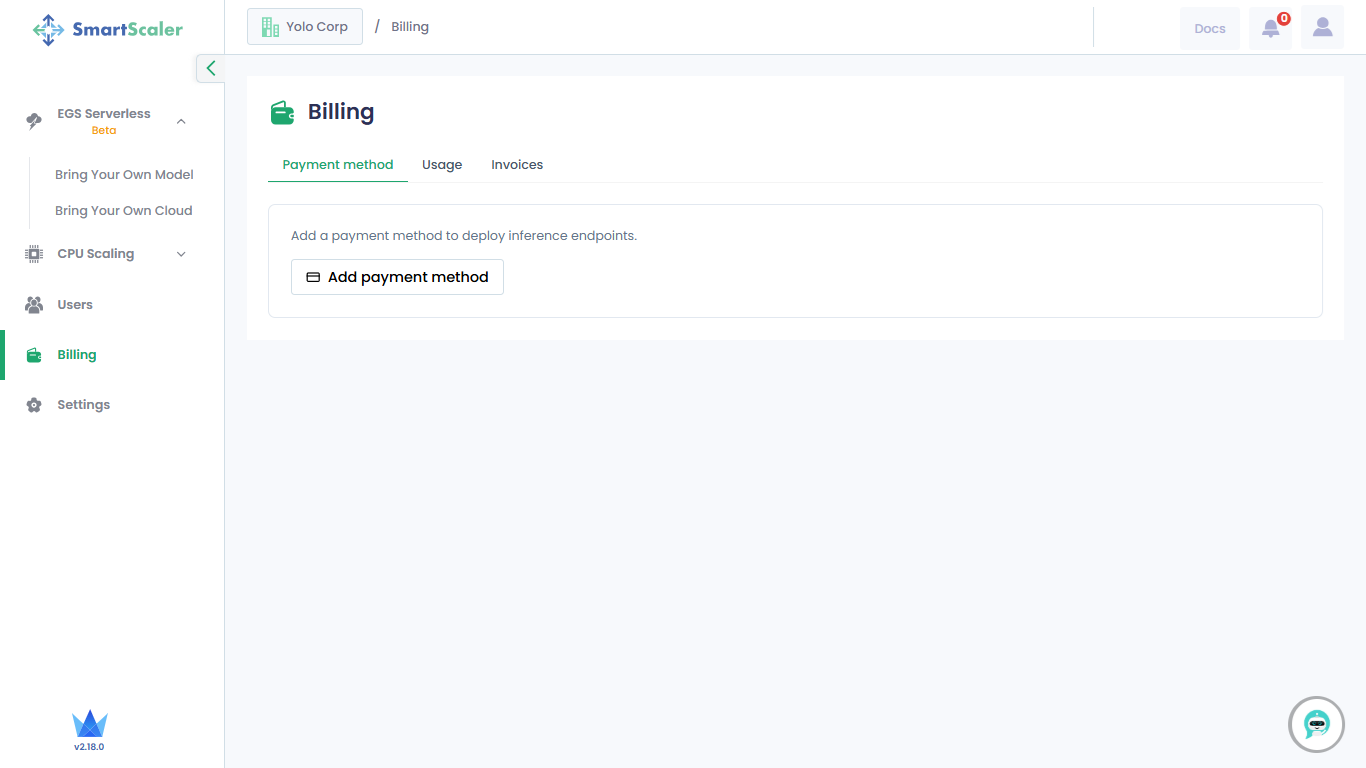
On the SaaS management console, go to Billing on the left sidebar.
-
On the Billing page, under Payment Methods, click Add Payment Method.
-
You are redirected to provide your card details.
-
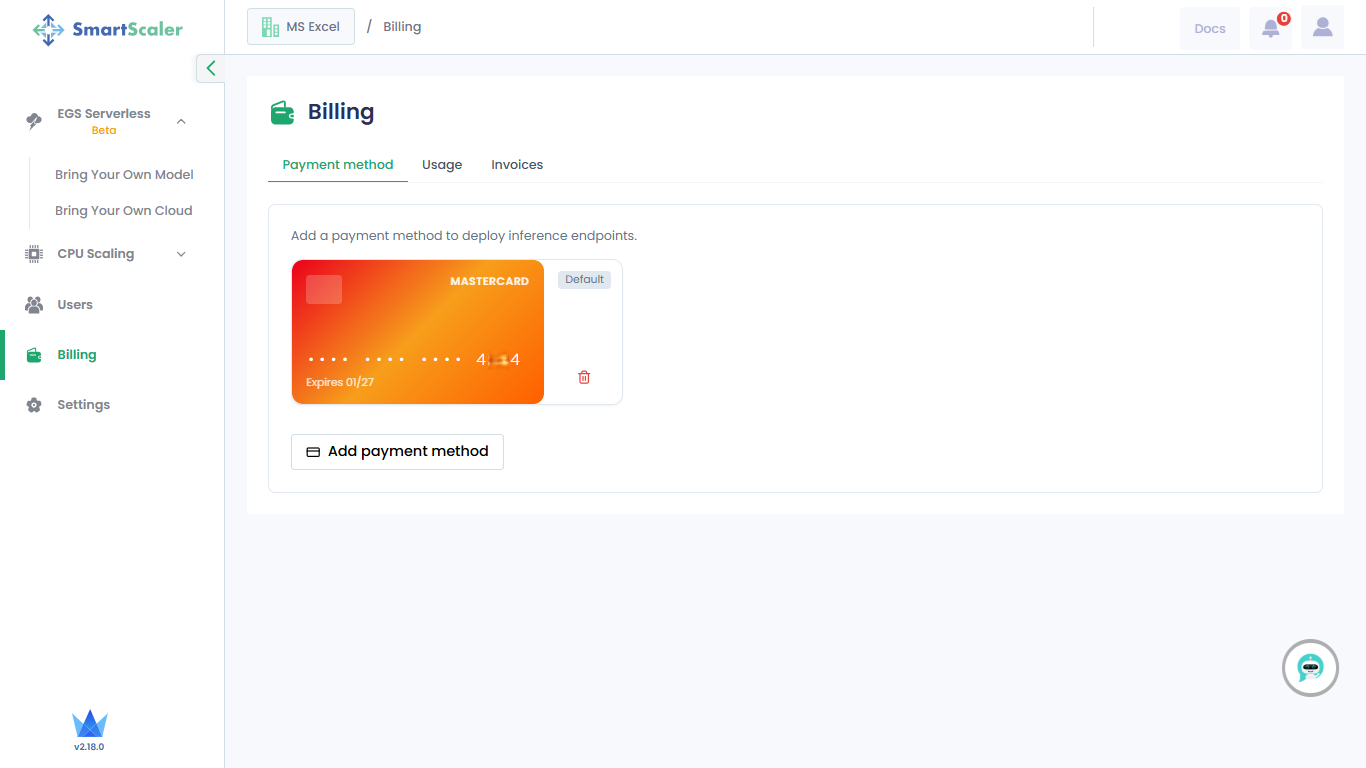
After you payment details are processed, the card is listed under Billing.
View Payment Methods and Invoices
-
To view your payment methods, go to Billing in the left sidebar.
-
On the Billing page, under Payment Methods, you can view your payment method.
-
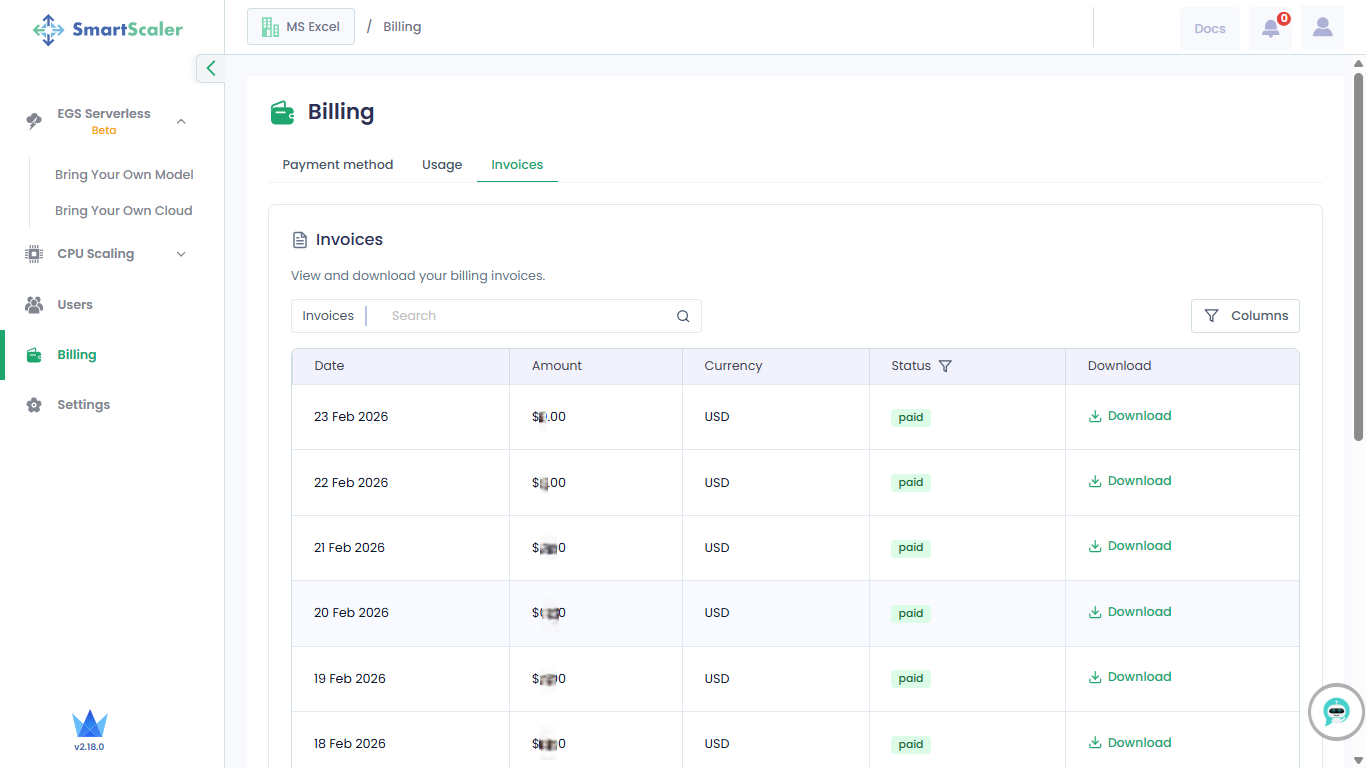
To view you invoices, go to Invoices.
-
Under Invoices, the invoice details are provided in a table.
-
Click Download to save a detailed invoice into your local folder.
View Usage
-
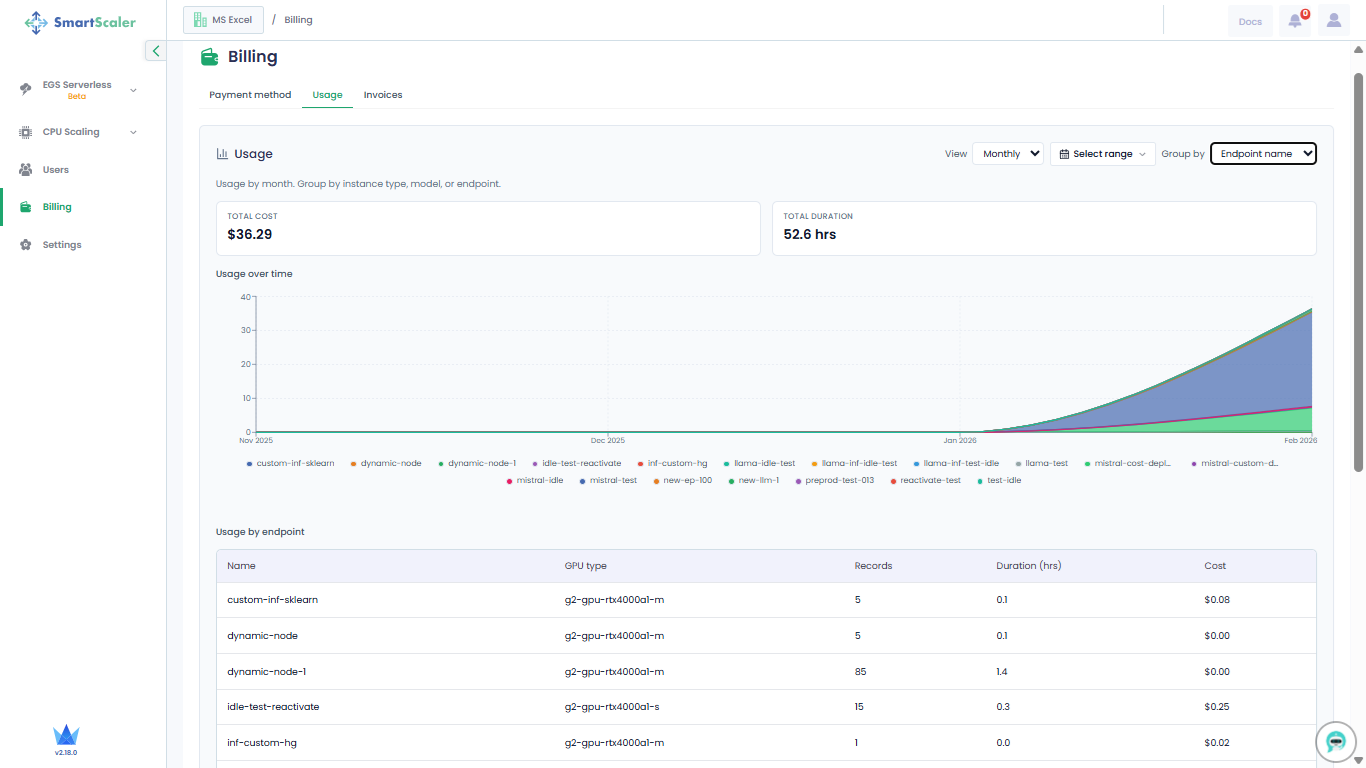
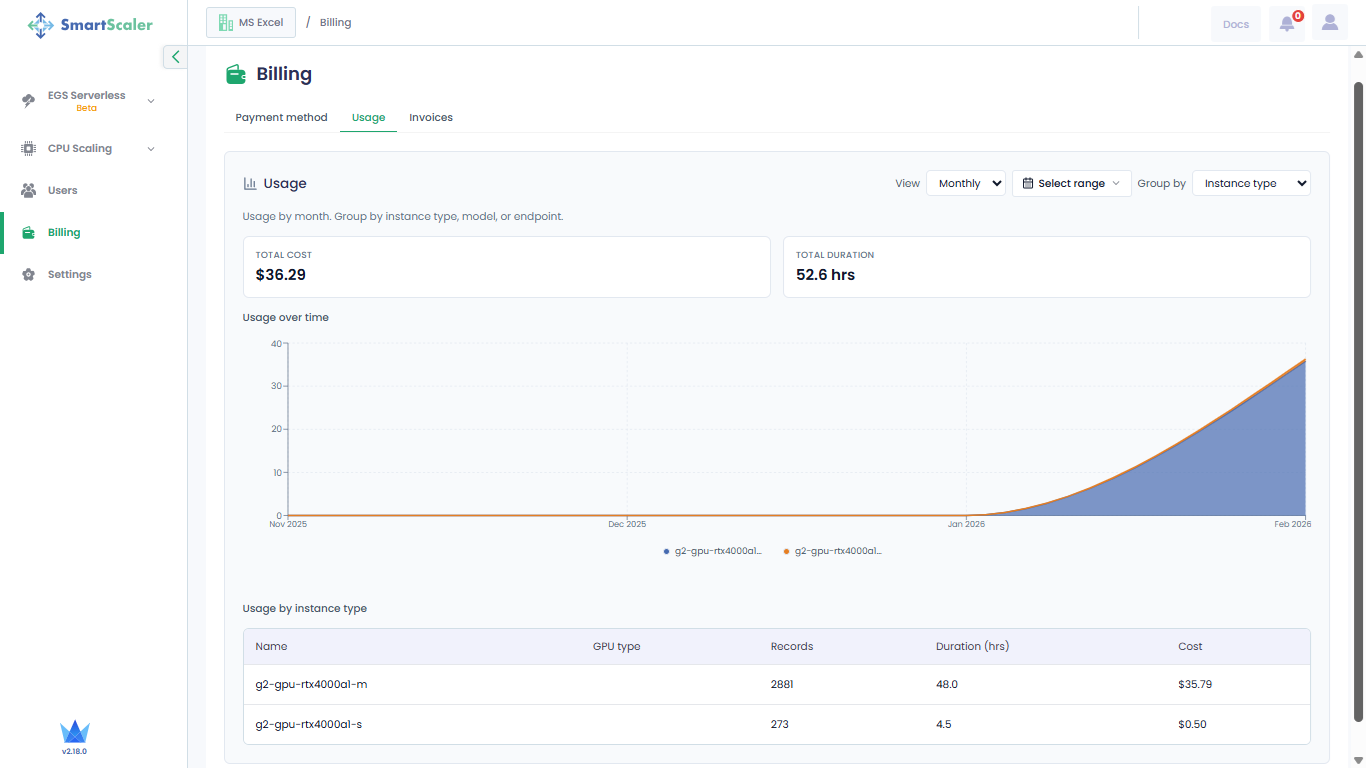
On the Billing page, go to Usage.
-
By default, the monthly usage is grouped by the instance type. From the View drop-down list, you can switch to hourly, daily, and weekly usage.
The View drop-down list has the following default options:
- Hourly: Usage for the last 8 hours
- Daily: Usage for the last 7 days
- Weekly: Usage for the last 4 weeks
- Monthly: Usage for the last 3 months
To view usage for a different time period, select a custom time range.
You can also select the following time range:
- Last 7 days
- Last 14 days
- Last 30 days
- Last month
- Custom range in the dd-mm-yyyy format
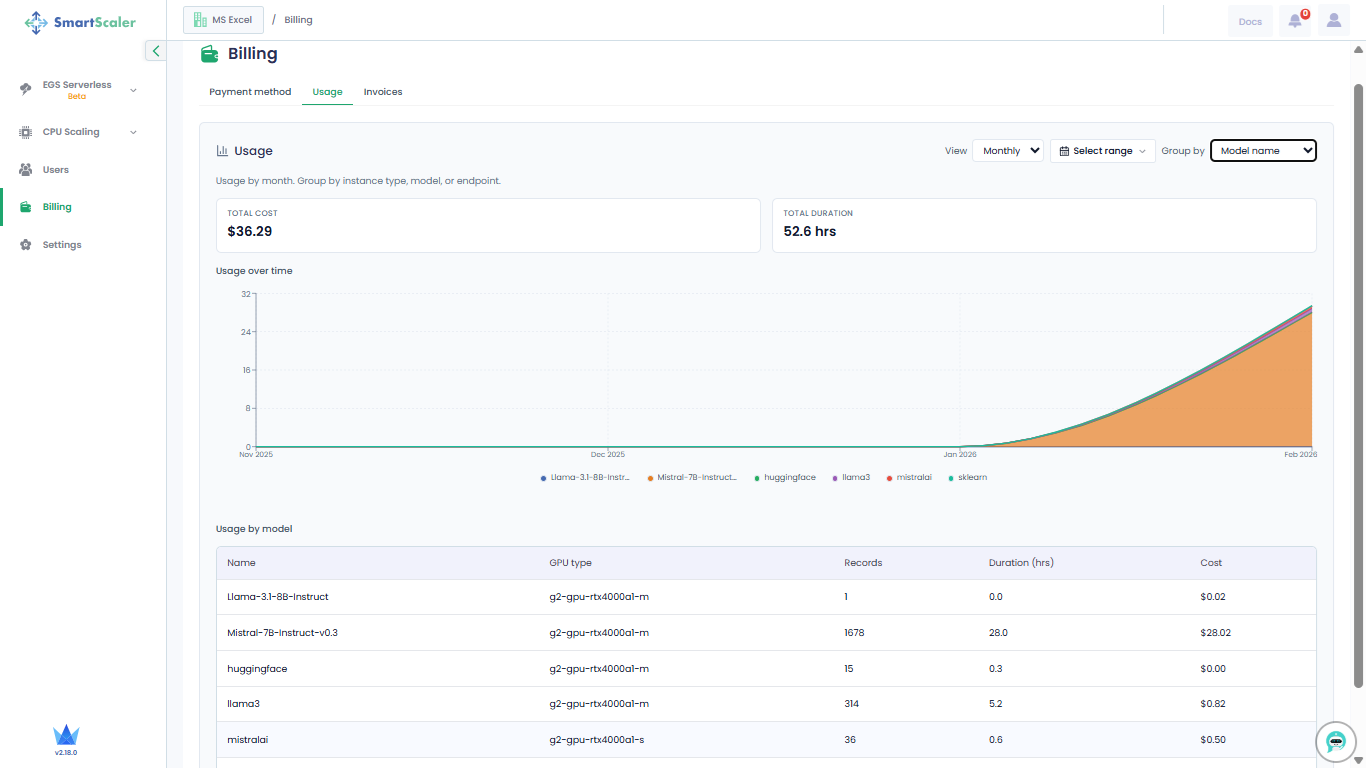
From the Group by drop-down list, you can select Model name or Endpoint name to view the corresponding usage.
-
To view the usage grouped by model, click the Group by drop-down list and select Model name.
-
To view the usage grouped by endpoint, click the Group by drop-down list and select Endpoint name.