Google Gemini
Leverage Google Gemini models to enhance the AI SRE Agent with intelligent automation, contextual reasoning, and multimodal analysis.
Configure your Google Gemini API key and select a required model to activate Gemini-powered capabilities in the Obliq AI SRE Agent.
Configure OpenAI Without an Existing API Key
-
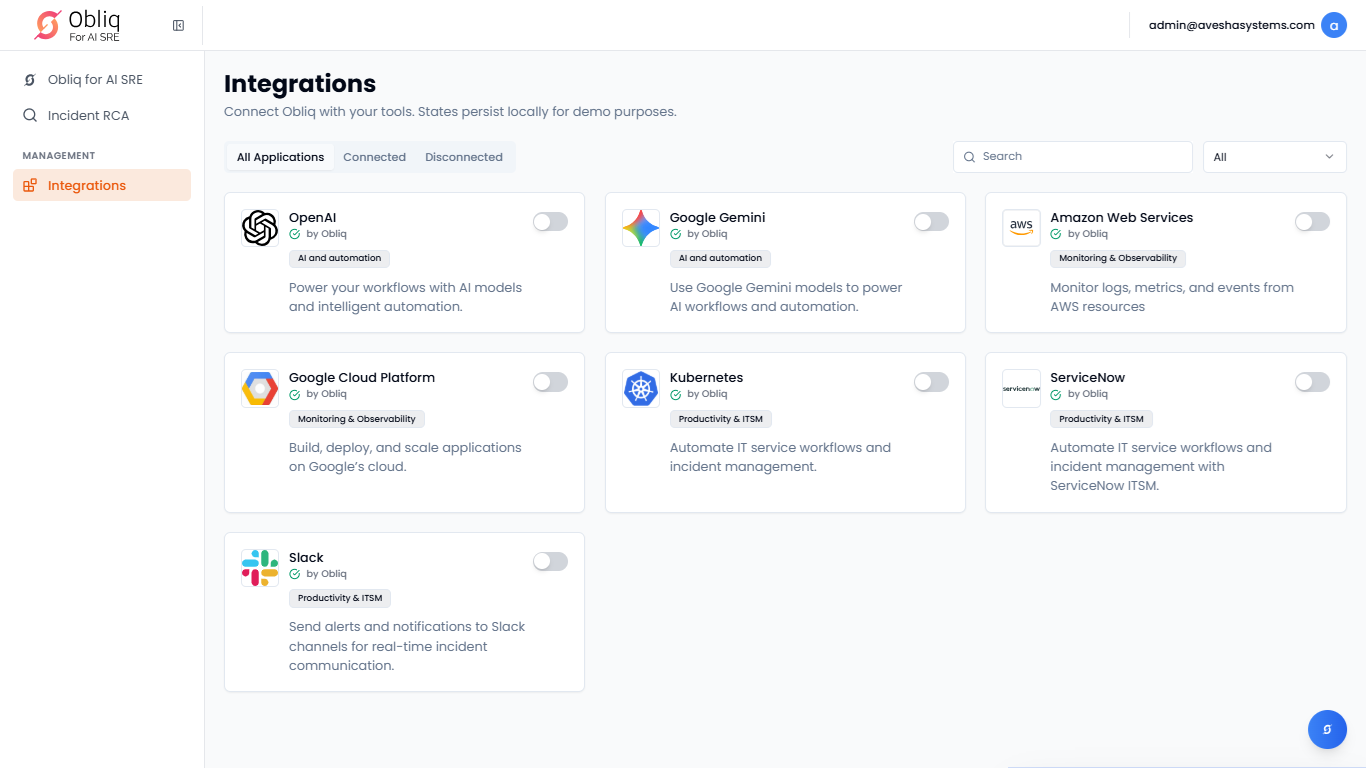
Go to Integrations on the left sidebar.
-
On the Integrations page, click Google Gemini.
-
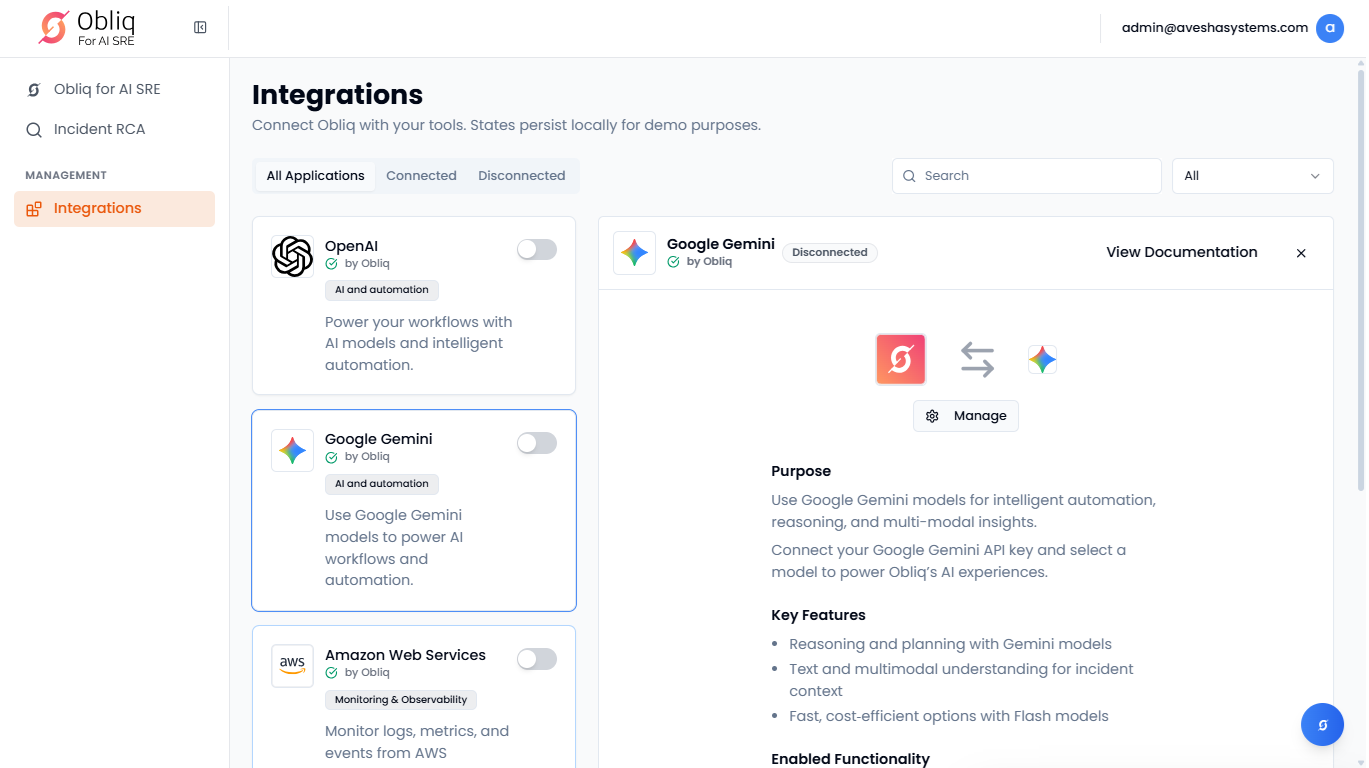
On the Google Gemini page, click Manage.
-
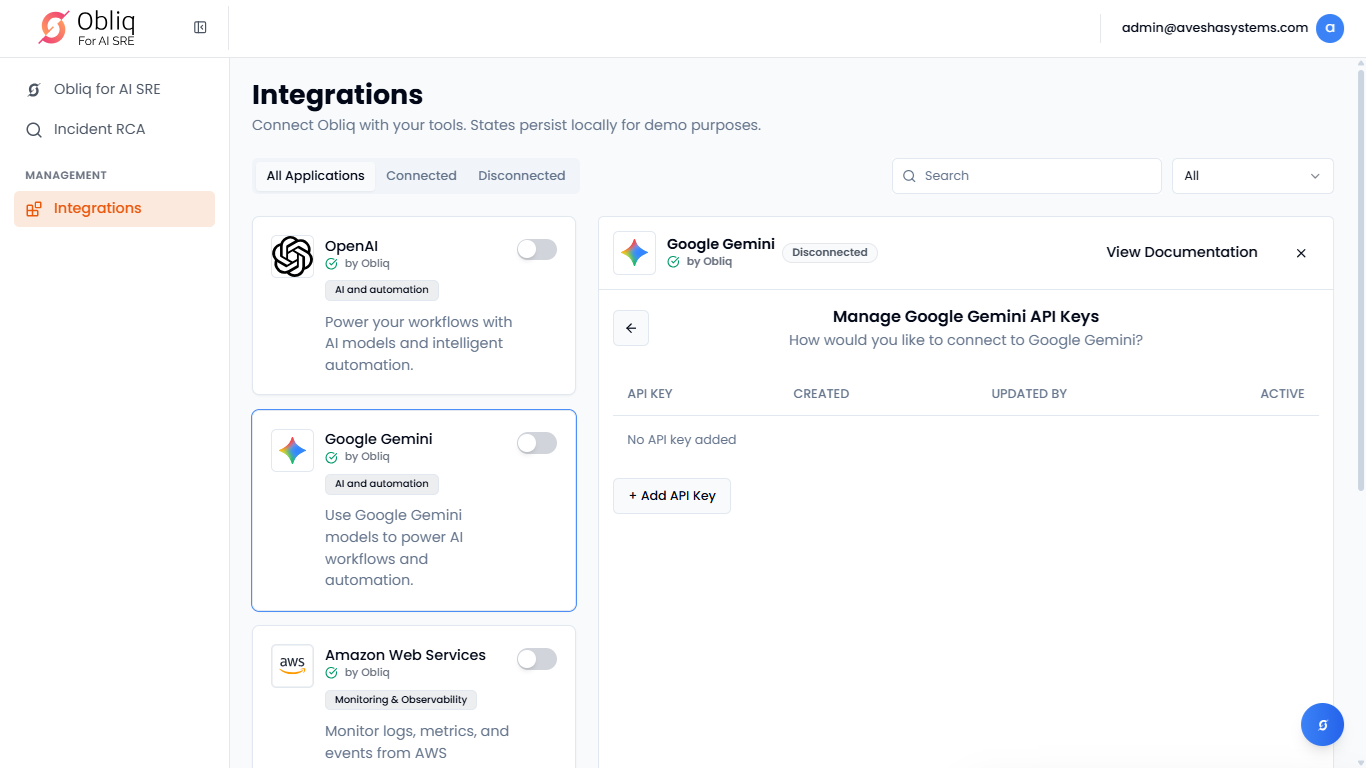
On the Manage Google Gemini API Keys page, click Add API Key.
-
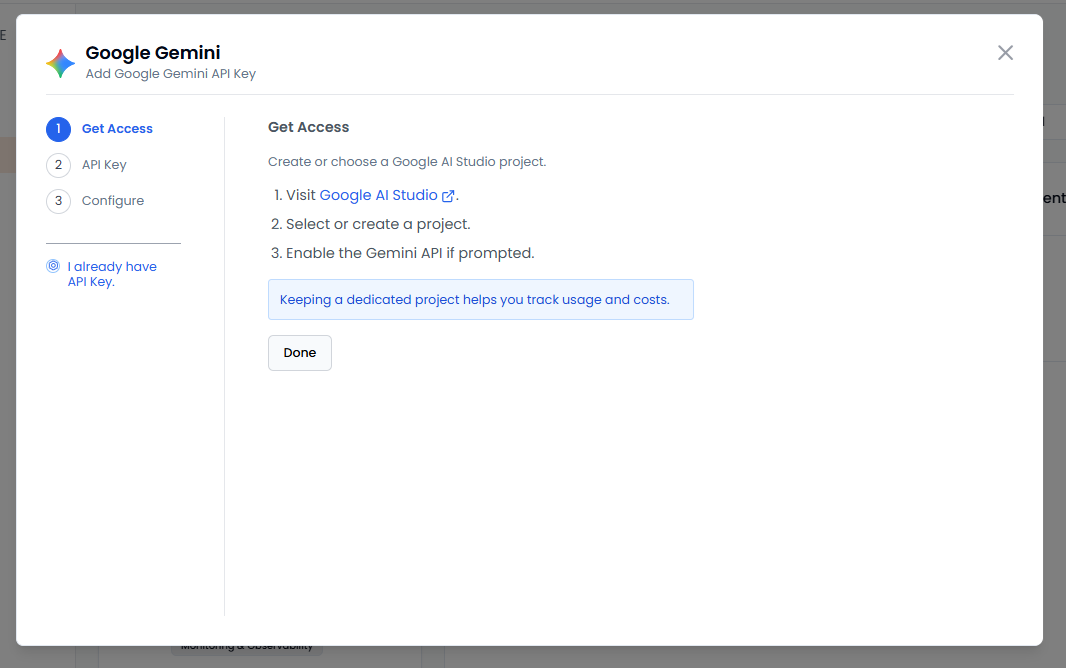
On the Google Gemini pane, the left sidebar contains the steps required for you to do before configuration. By default, you are on the first step, Get Access.
-
You must visit Google AI Studio and create a new project or select an existing project, and enable Gemini API if prompted.
-
Click Done after creating or selecting a project to proceed to the second step, API Key.
-
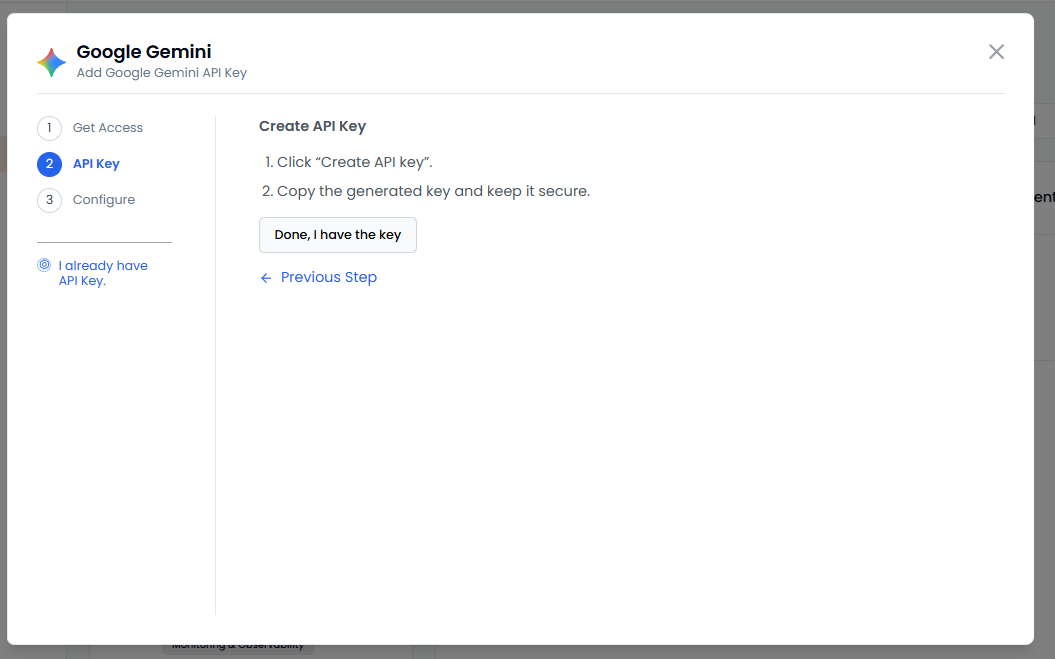
Under Create API Key, follow the steps to create an API key and copy the generated key for later use.
-
Click Done, I have the key to proceed to the third step, Configure.
-
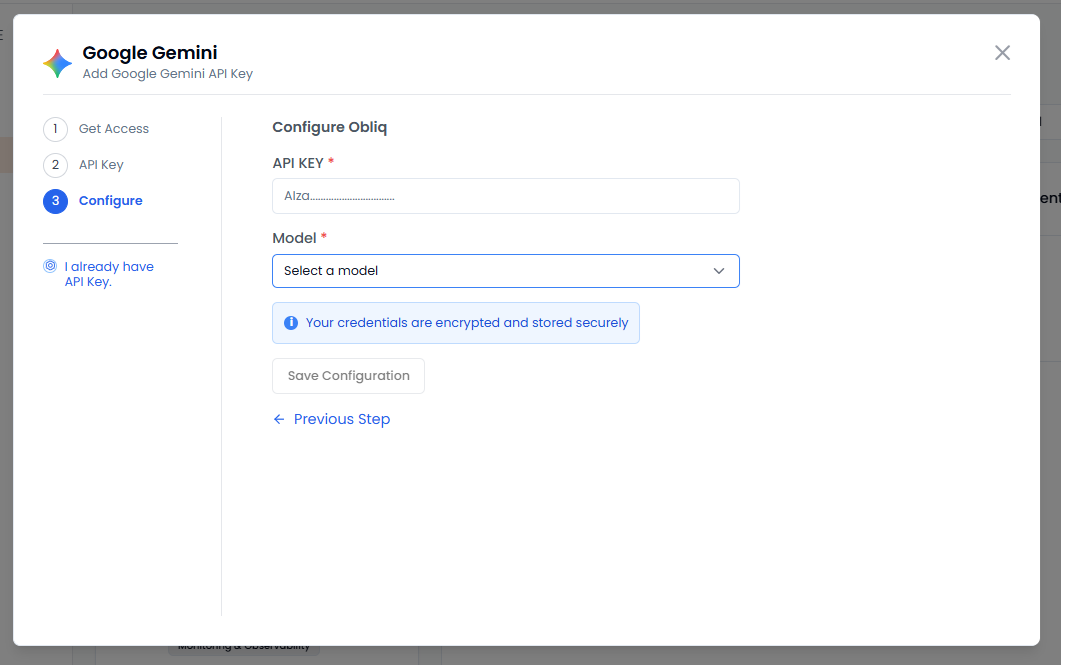
Under Configure Obliq, enter the API key that you have copied earlier in the API KEY text box.
-
Select a required Google Gemini model from the Model drop-down list.
-
Click Save Configuration to save the API key.
Configure OpenAI with an Existing API Key
-
Go to Integrations on the left sidebar.
-
On the Integrations page, click Google Gemini.
-
On the Google Gemini page, click Manage.
-
On the Manage Google Gemini API Keys page, click Add API Key.
-
On the Google Gemini pane, in the left sidebar, click I already have API Key.
-
Under Configure Obliq, enter the existing API key in the API KEY text box.
-
Select a required Google Gemini model from the Model drop-down list.
-
Click Save Configuration to save the API key.