Access the Workspace
This topic describes how the user (or team) can access a workspace. The EGS admin allocates the workspace to the user.
Across our documentation, we refer to the workspace as the slice workspace. The two terms are used interchangeably.
Get Access to a Workspace
A user (or a team) can have one or more workspaces allocated, where AI models are deployed. A workspace can be a single cluster scoped or span across multiple clusters.
The administrator creates a workspace and registers the user details.The user receives login credentials from the administrator
to access the user portal. Upon logging in, the user is issued an access token that authorizes access to the designated workspace.
If required, the user can download their kubeconfig file through the portal. This file allows them to provision and
manage applications within their assigned workspace or namespace.
Login to the User Portal
Users can log in to the portal using one of the following methods:
- An access token provided by the administrator
- Identity Provider (IDP) credentials
The portal enables workflows to manage the life cycle of GPU provision requests (GPRs) and deep GPU observability for the user AI workloads.
View a Workspace Details
After a successful login, you see the Dashboard page as the landing page. This page provides an overview of GPU allocation, utilization, cost analysis, and other relevant metrics for the user's assigned workspaces.
An administrator allocates one or more workspaces to the user. You can a You can access the allocated workspace . You can create a GPU request and deploy AI models on these allocated workspaces. This interface enables users to manage their GPU needs and AI workloads within the scope of their assigned workspaces.
To view the details of a specific workspace:
-
On the Workspaces page, select the workspace you want to view.
-
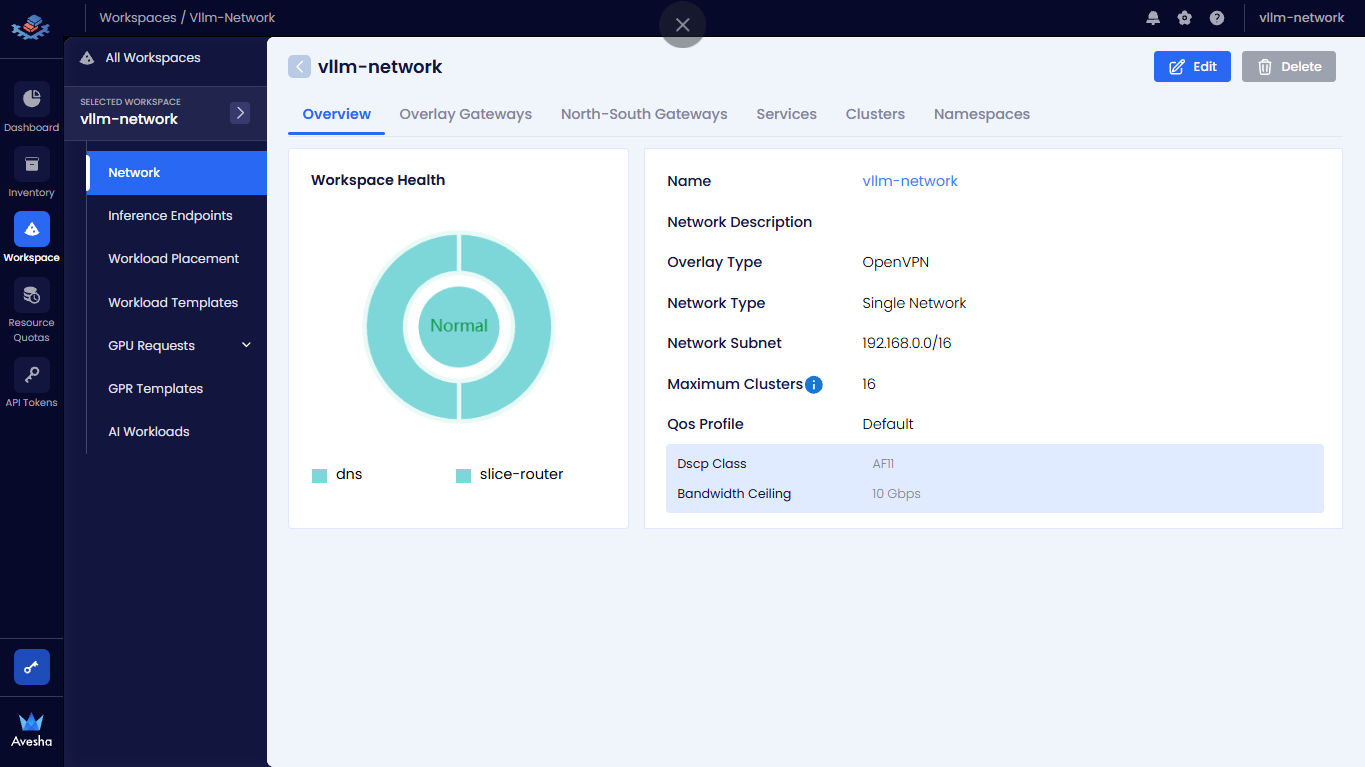
On the selected workspace page, you see the following menus to view the workspace details:
-
Network:
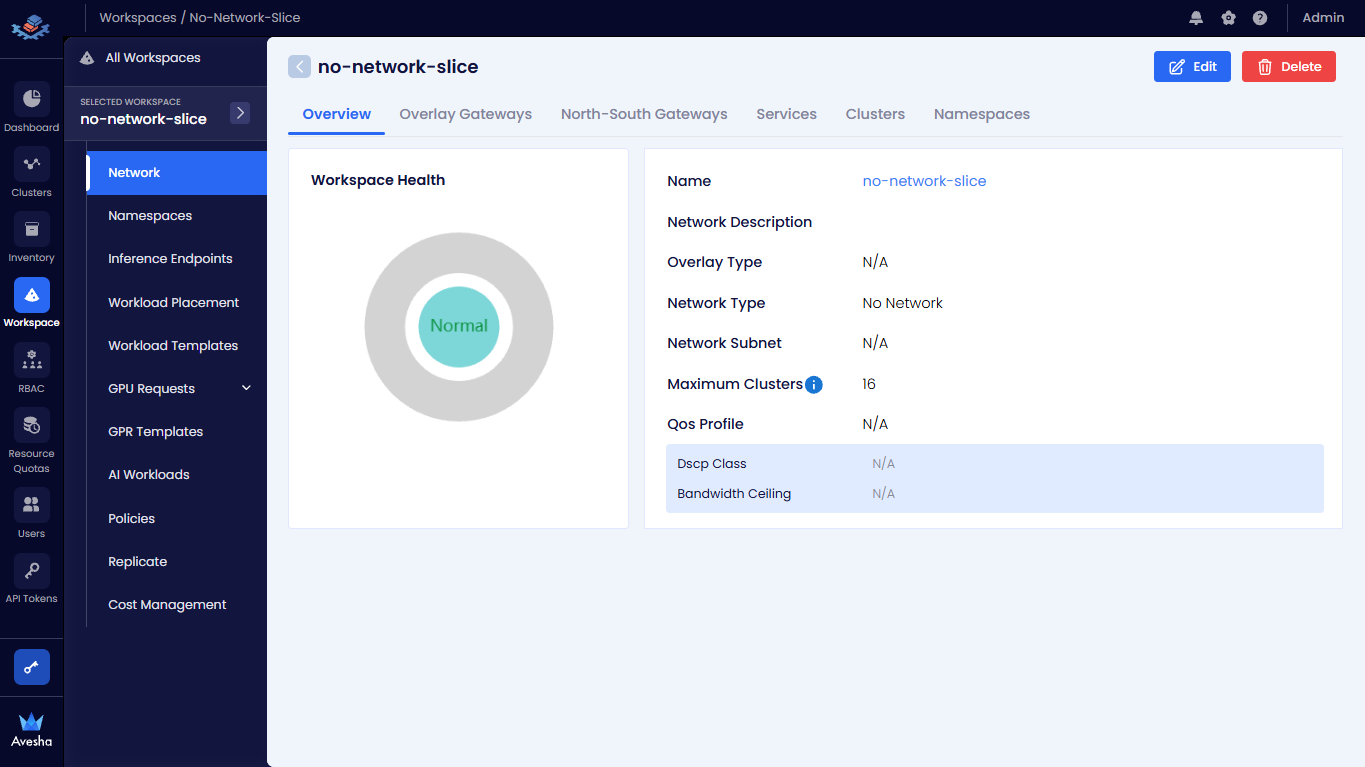
Overviewis the default page that shows the workspace network details, including the workspace name, description, network type, subnet, QoS configuration, and connected clusters. This page shows the network health of the workspace. For more information, see the View the Workspace Network Health section below. -
Inference Endpoints: This page shows all inference endpoints deployed in the workspace. For more information, see Manage Inference Endpoints.
-
Workload Placement: This page shows the workload placement details of the workspace. For more information, see Manage Workload Placement.
-
Workload Template: This page shows all workload templates in the workspace. For more information, see Manage Workload Templates.
-
GPU Requests: This page shows all GPU requests in the workspace. For more information, see Manage GPU Requests.
-
Priority Queue: This page shows all priority queues in the workspace. For more information, see Manage Priority Queues.
-
GPR Templates: This page shows all GPR templates in the workspace. For more information, see Manage GPR Templates.
-
View the Workspace Network Health
To view the health of a workspace that has on overlay network configured (Single Network):
-
Go to Workspace on the left sidebar.
-
Select All Workspaces on the top left.
-
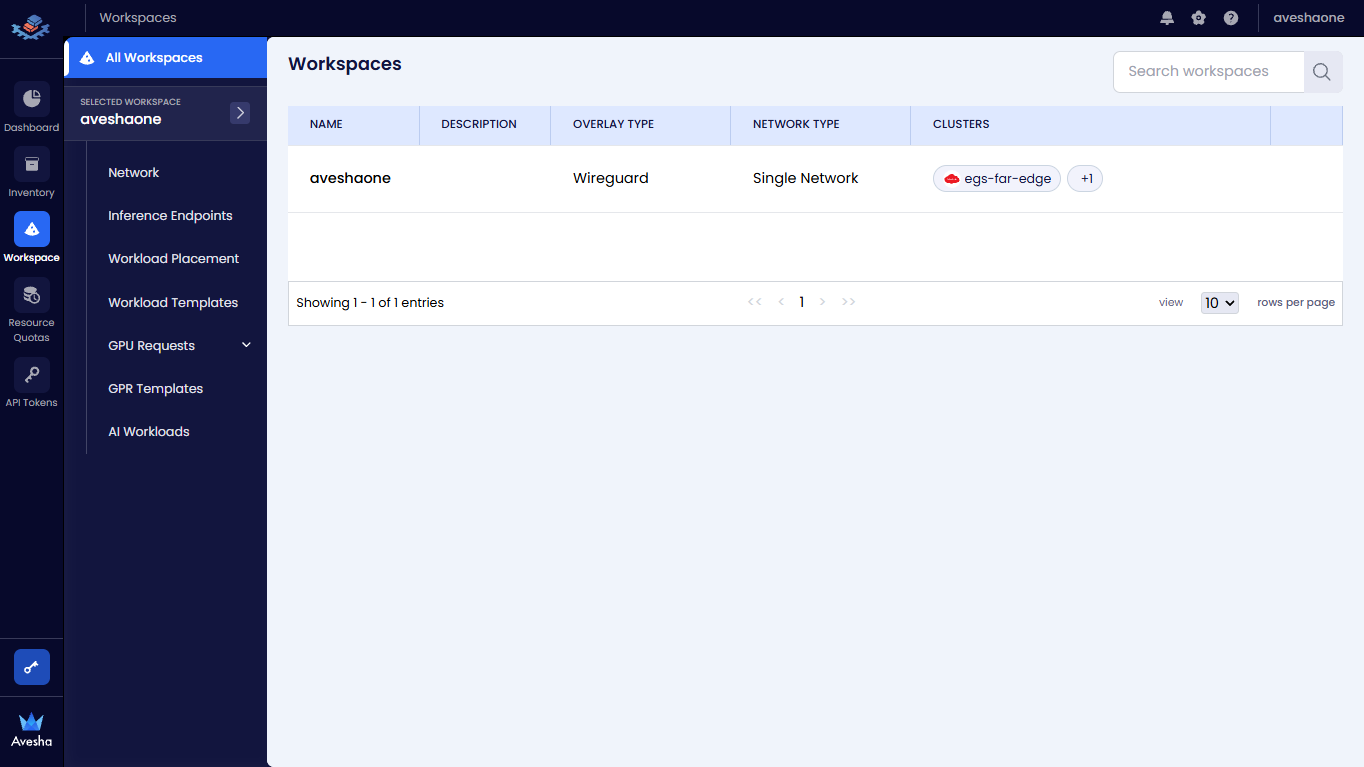
On the Workspaces page, select the workspace you want to view its health.
-
On the selected workspace page, you can view the workspace health and network details on the Overview tab.
-
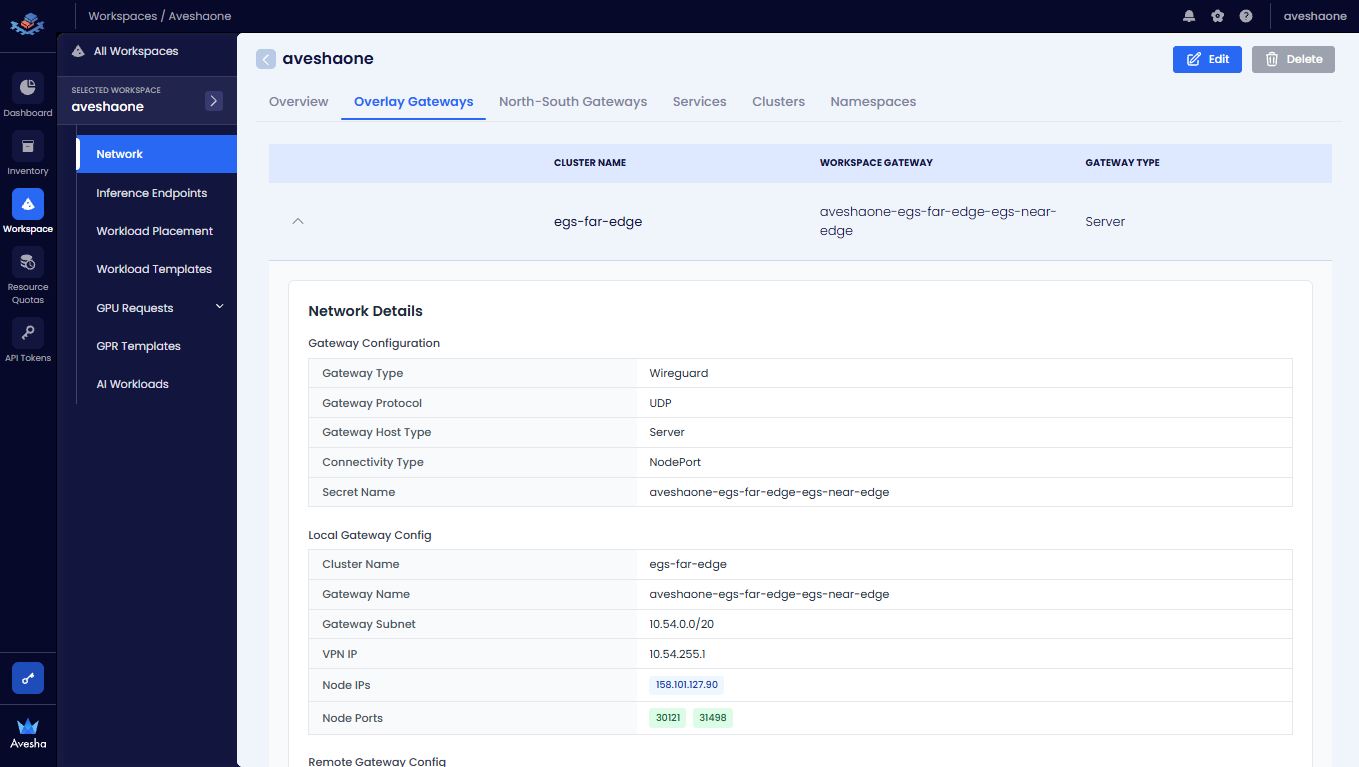
To view overlay gateways connected to the workspace, click the Overlay Gateways tab.
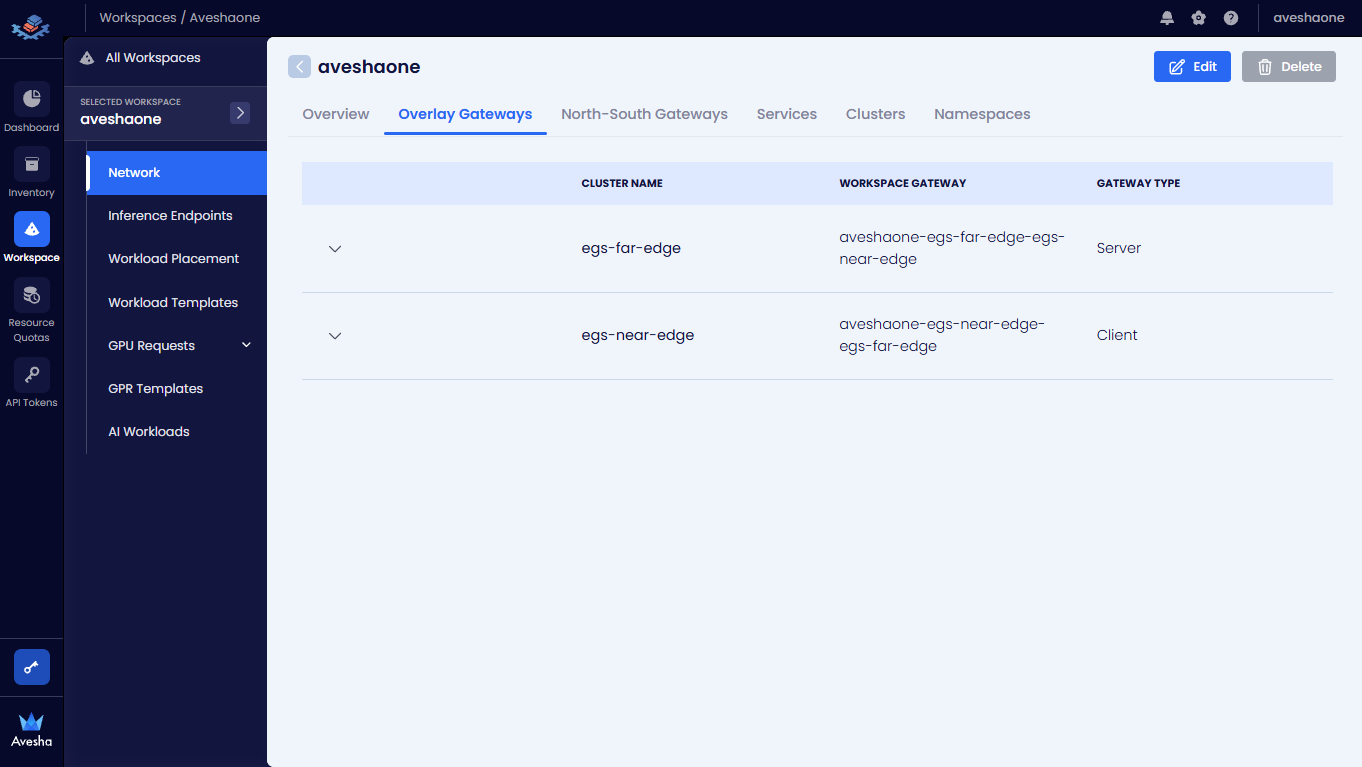
Click the down arrow icon to view more details of a specific gateway.
-
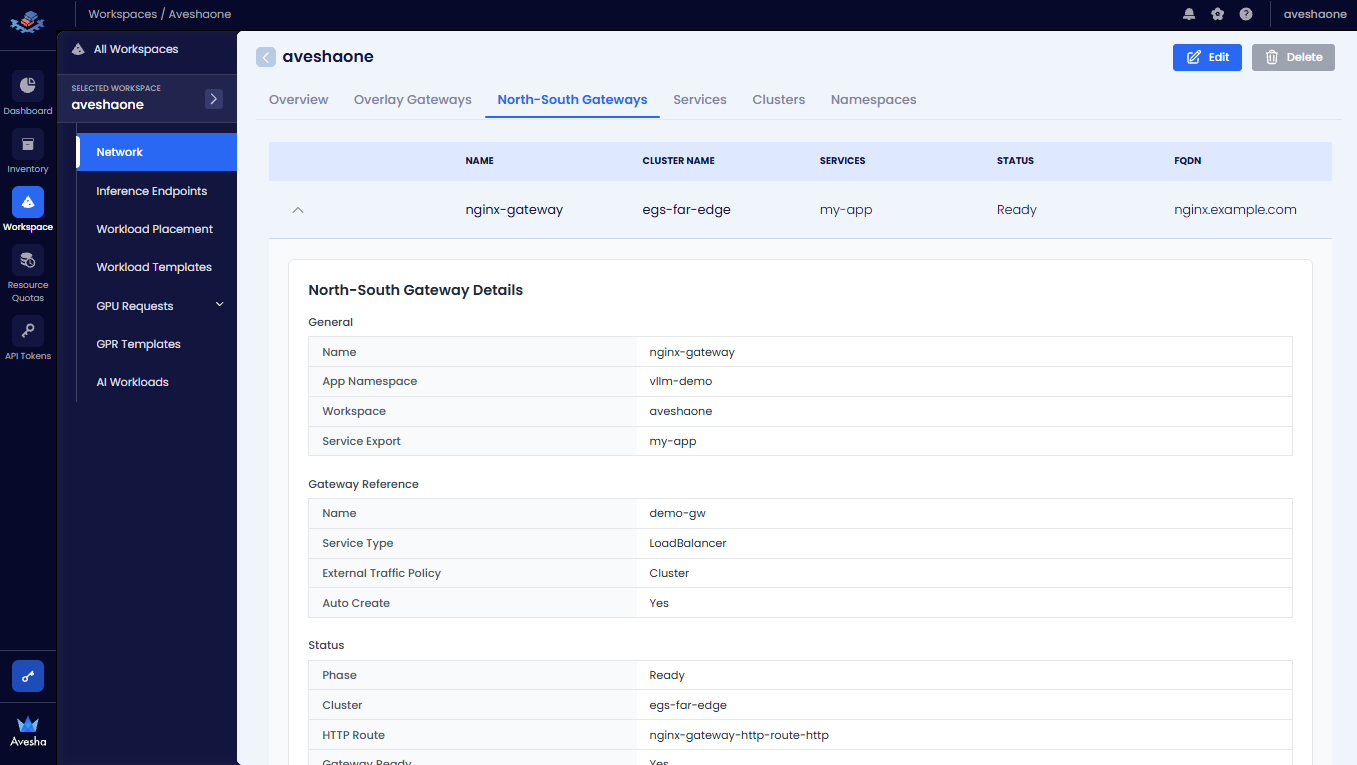
To view north-south gateways connected to the workspace, click the North-South Gateways tab.
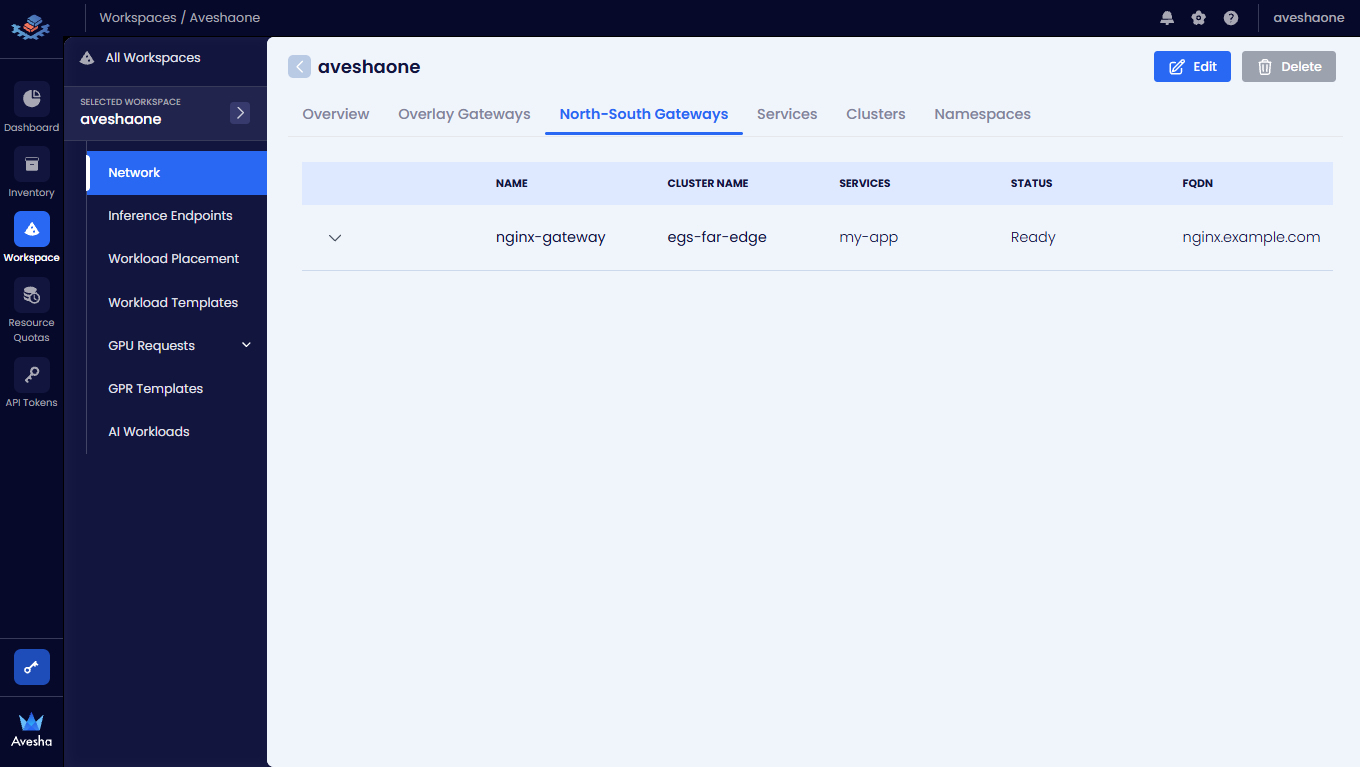
Click the down arrow icon to view more details of a specific gateway.
 info
infoAn Admin can configure north-south gateways on the clusters connected to the workspace to view the north-south gateway details on the Admin/User Portal. For more information, see Workspace NS Gateway.
-
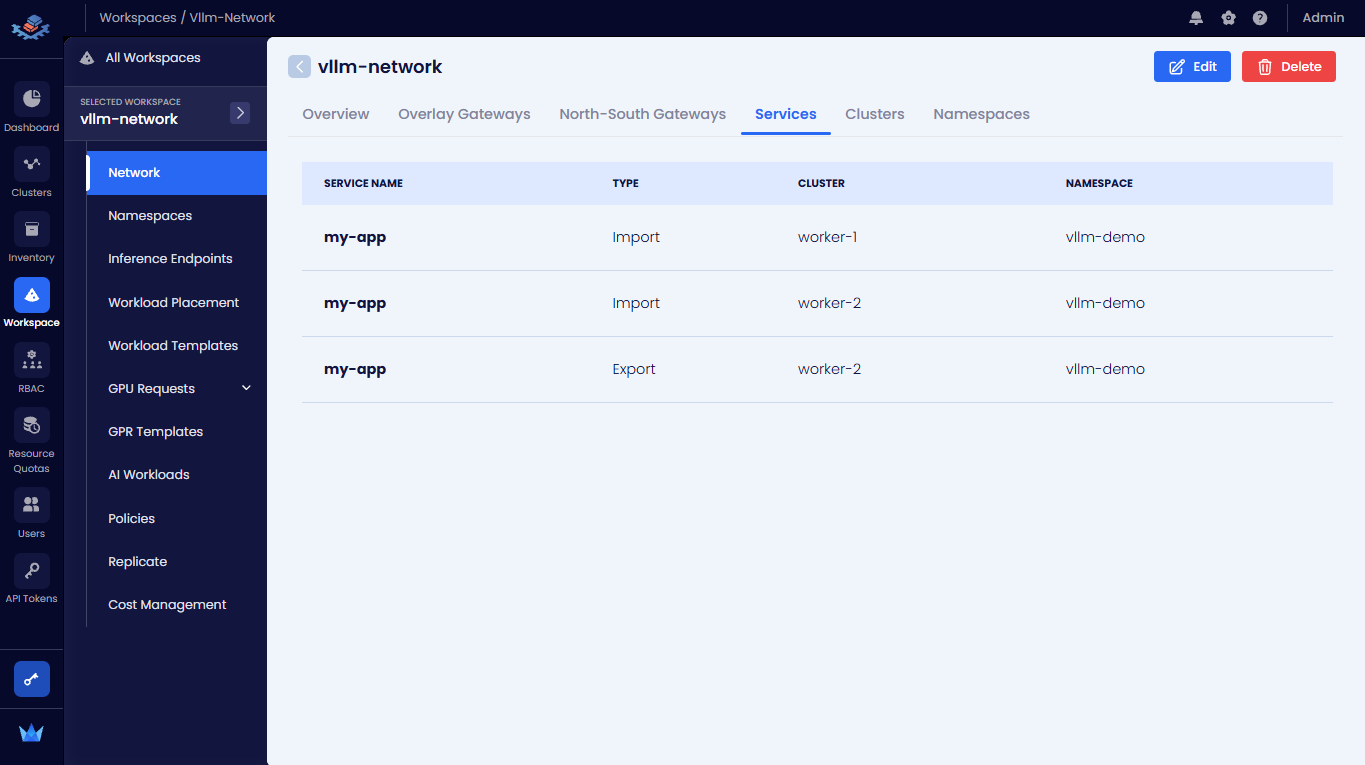
To view services connected to the workspace, click the Services tab.
-
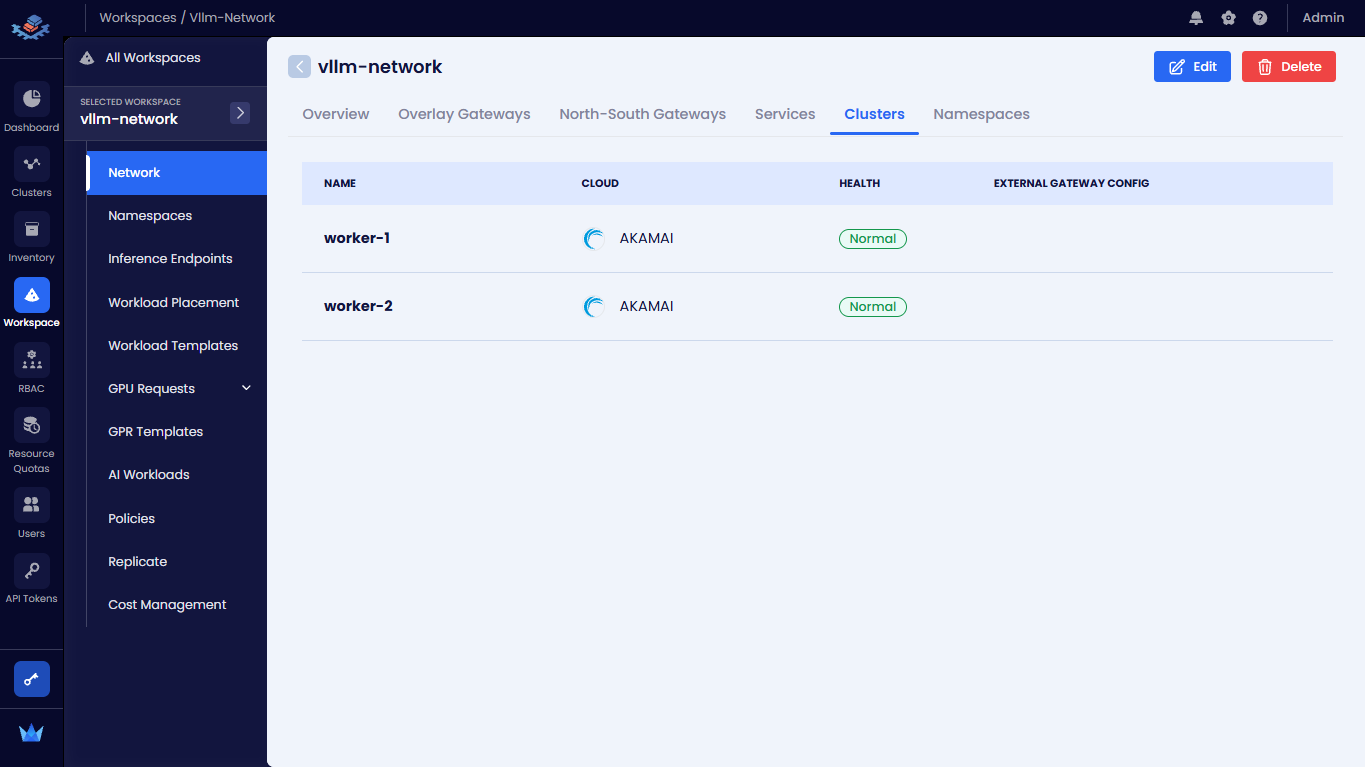
To view clusters connected to the workspace, click the Clusters tab.
-
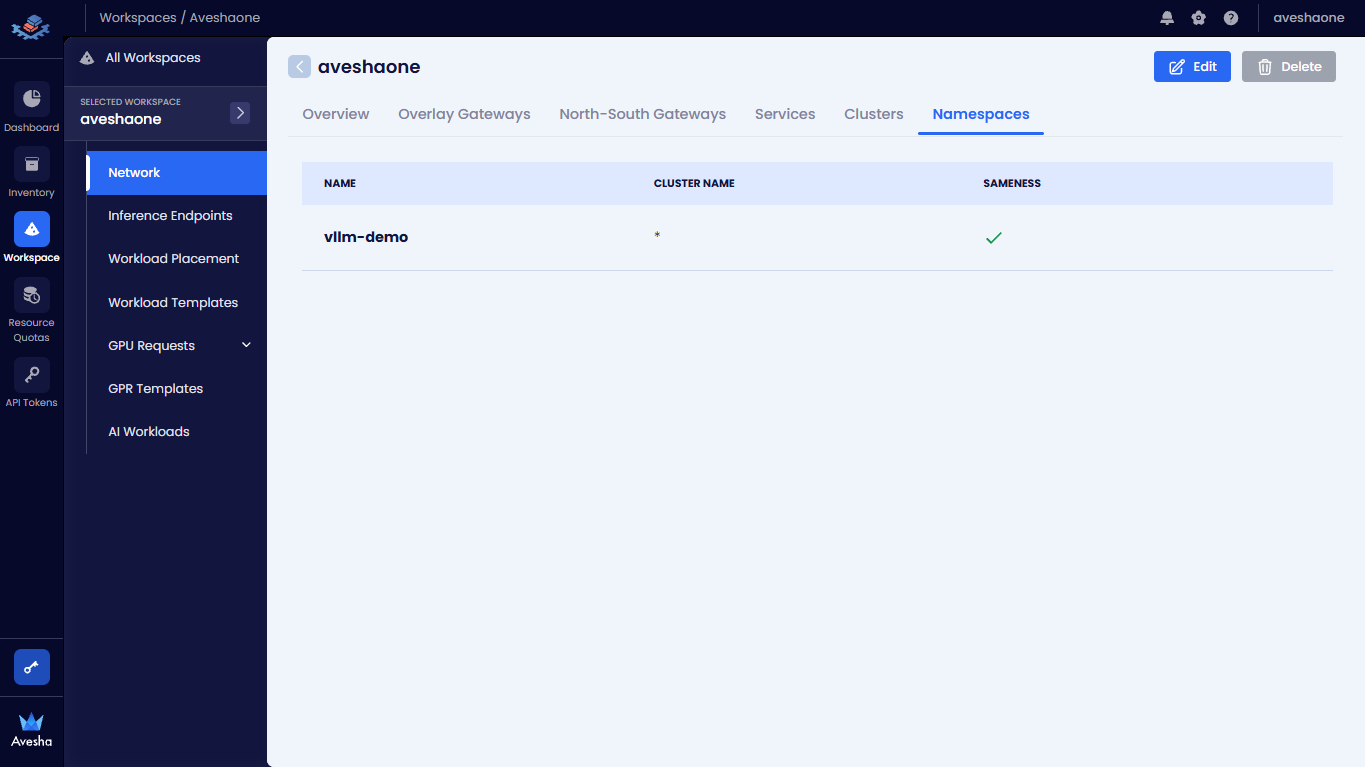
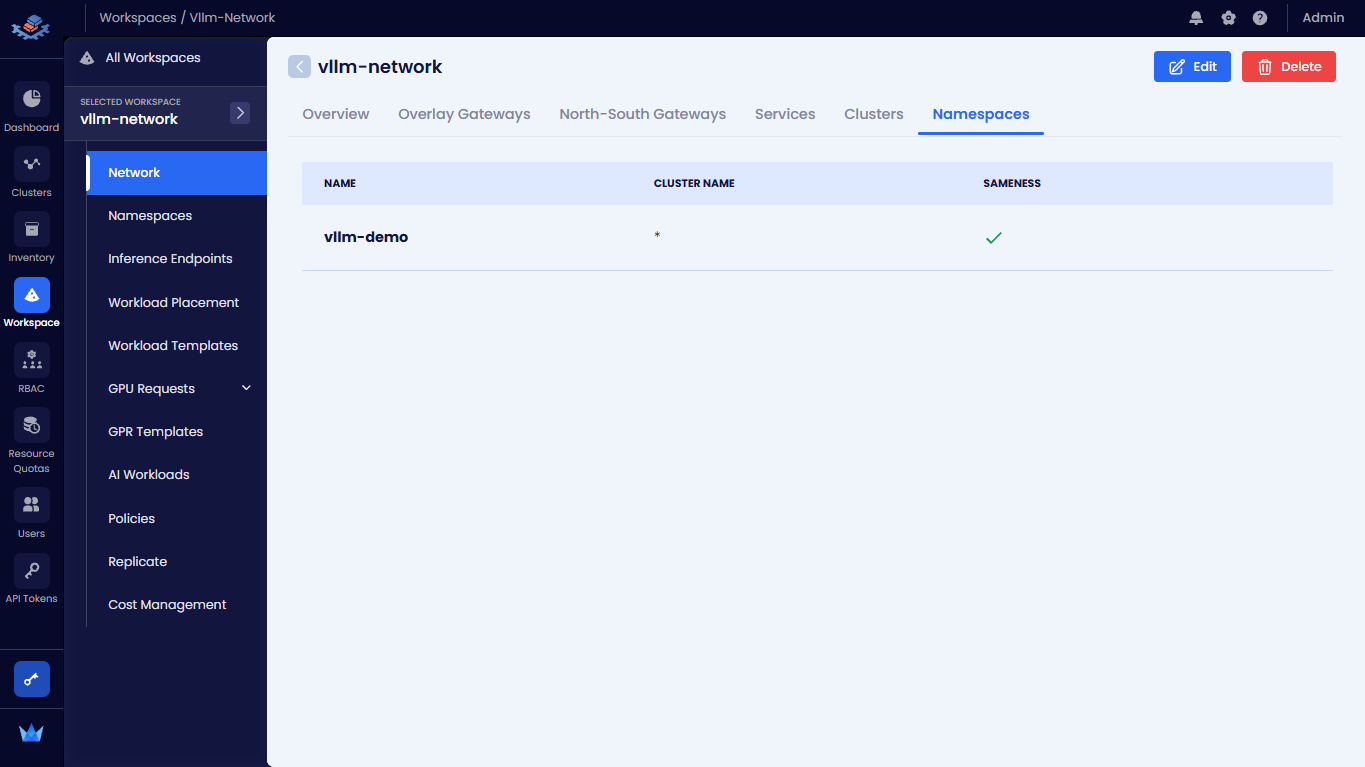
To view namespaces onboarded onto the workspace, click the Namespaces tab.
The workspace that has no overlay network configured (No Network) does not shows the network health details.
Edit a Workspace
-
Go to Workspace on the left sidebar
-
Select All Workspaces on the top left.
-
On the Workspaces page, select the workspace you want to edit settings.
-
On the selected workspace page, click the Edit button on the top right.
-
On the Edit Workspace pane, you can modify the following details under the Details tab:
- Name
- Network Type, you can change the network type from No Network to Single Network but cannot change from Single Network to No Network.
- Subnet
- Description
- Maximum Clusters
- QoS Dscp Class
- QoS Bandwidth ceiling
- Overlay Type
-
In the Connect Clusters tab, you can perform the following:
-
Under All Clusters, to connect more clusters to the workspace, click the plus icon next to each worker cluster in the list.
- Under Workspace Clusters, unselect the cluster to detach it from the workspace. Click the minus icon against a worker cluster to detach it from the workspace, enter the text DETACH to confirm, and click the Detach Cluster button.
-
-
Click the Edit Workspace button to save the changes.