Manage Incident RCAs
This topic covers how to track and manage incident root cause analyses (RCAs).
Currently, the AI SRE Agent only supports the Jira tracking tool.
View Incident RCAs
-
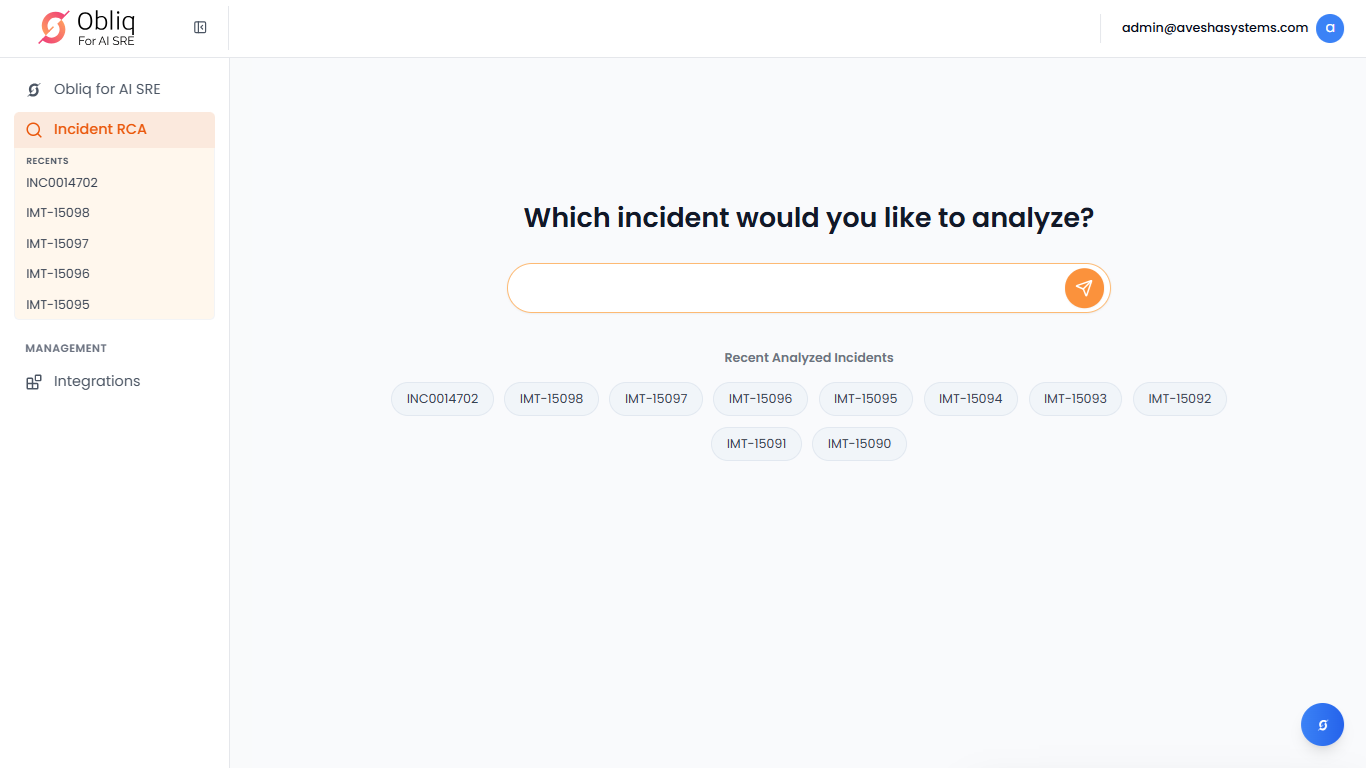
Go to Incident RCA on the left sidebar.
-
On the Incident RCA page, type an incident ID or select an incident ID below the search box or left sidebar, and click the arrow button or press Enter.
-
By default, you go to the Root Cause Analysis tab. View the root cause analysis of this incident.
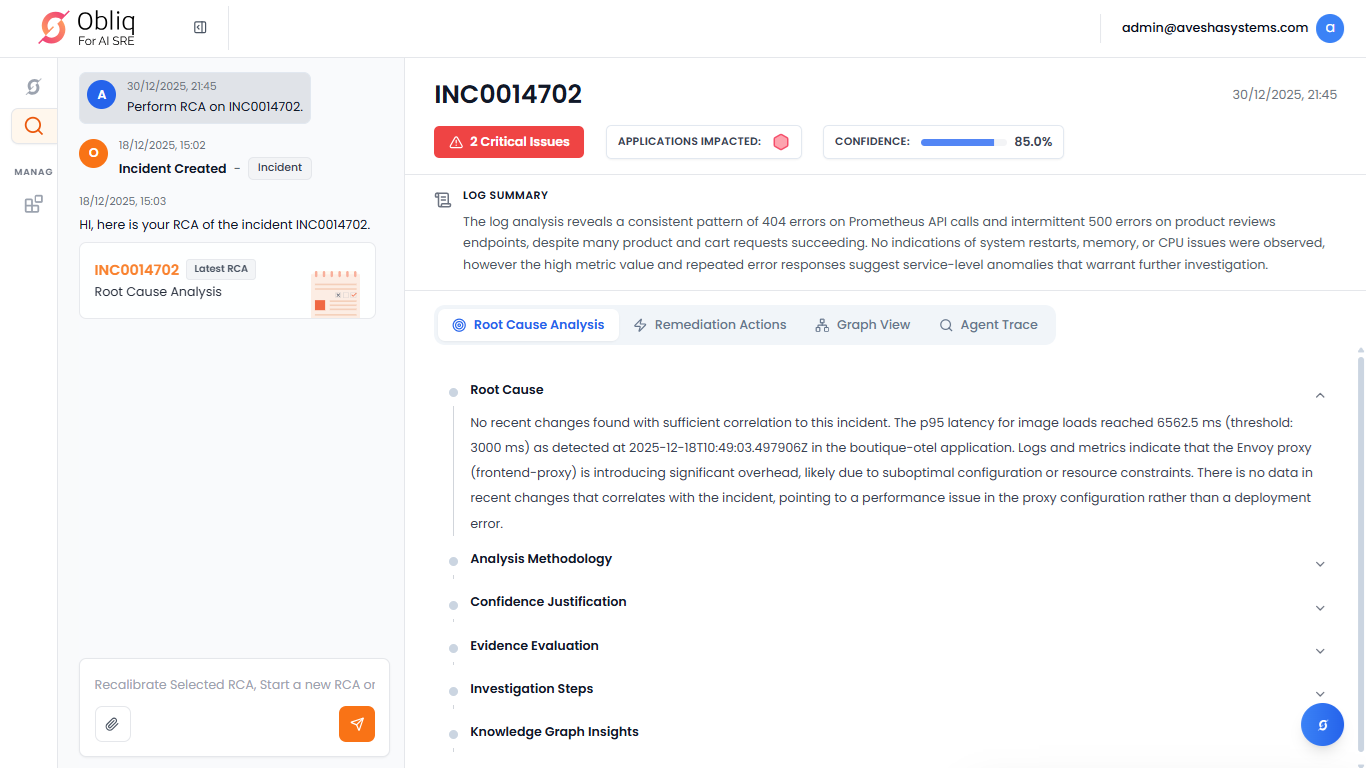 info
infoThe Incident RCA page supports human-in-the-loop coordination. For more information, see Perform Human-in-the-Loop RCA.
-
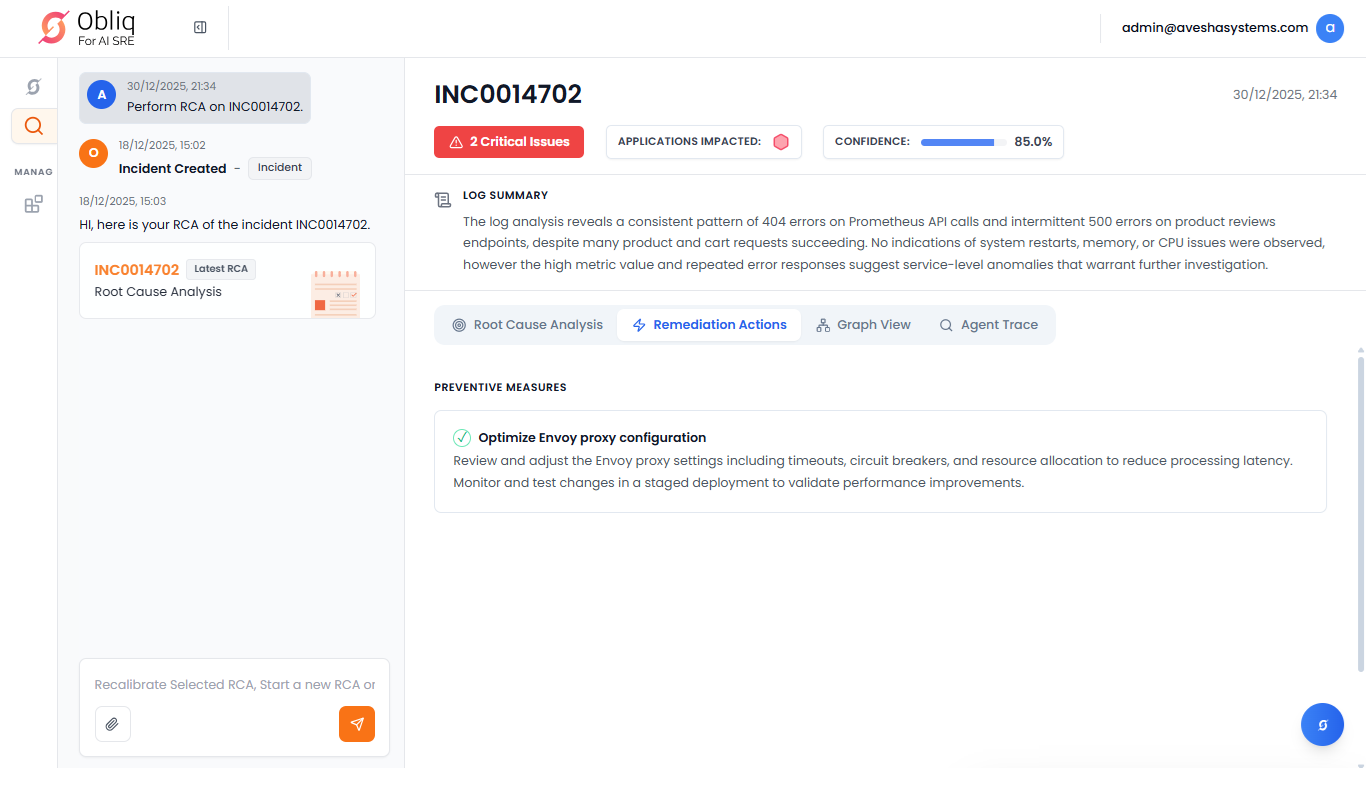
Go to the Remediation actions tab to view remediation action to resolve this incident.
-
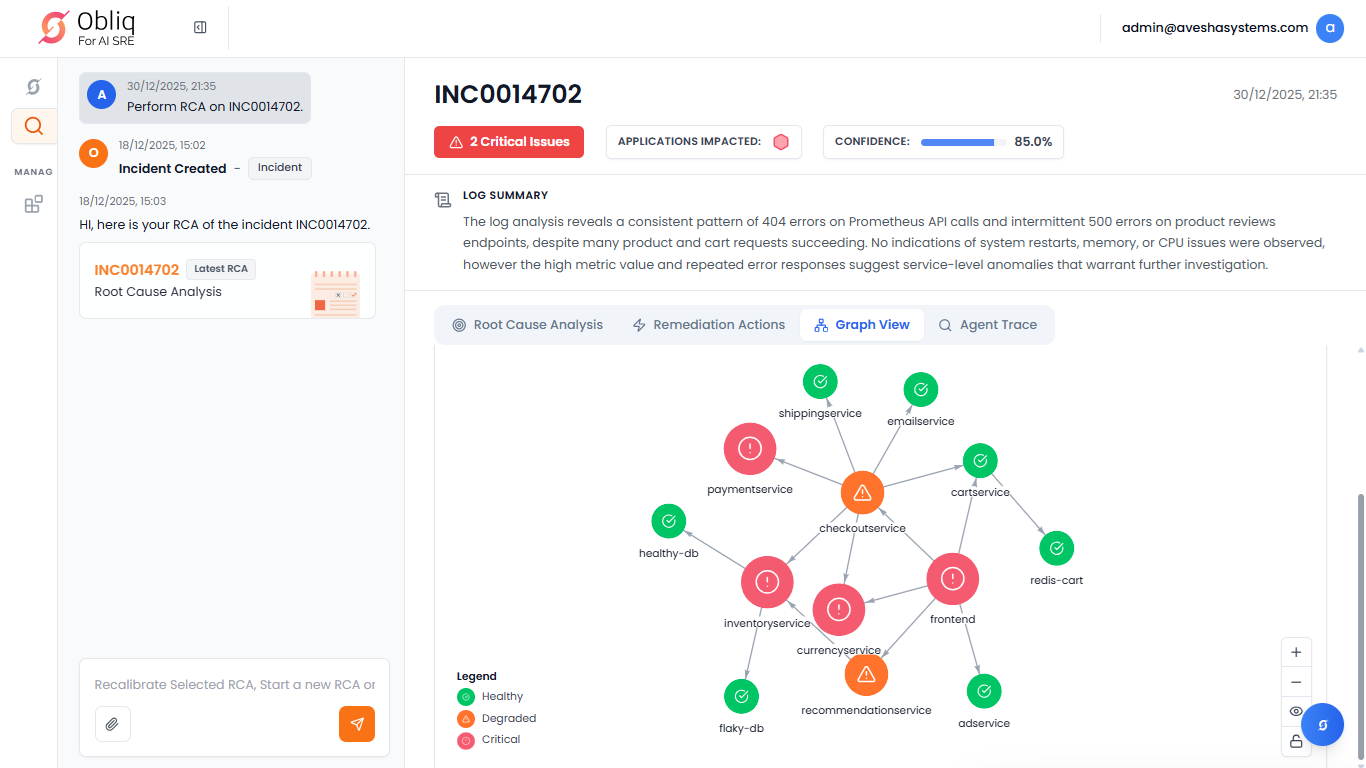
Go to the Graph View tab to view the interactive service graph of this incident. The graph provides a legend that displays the number of critical, degraded, and healthy connections.
-
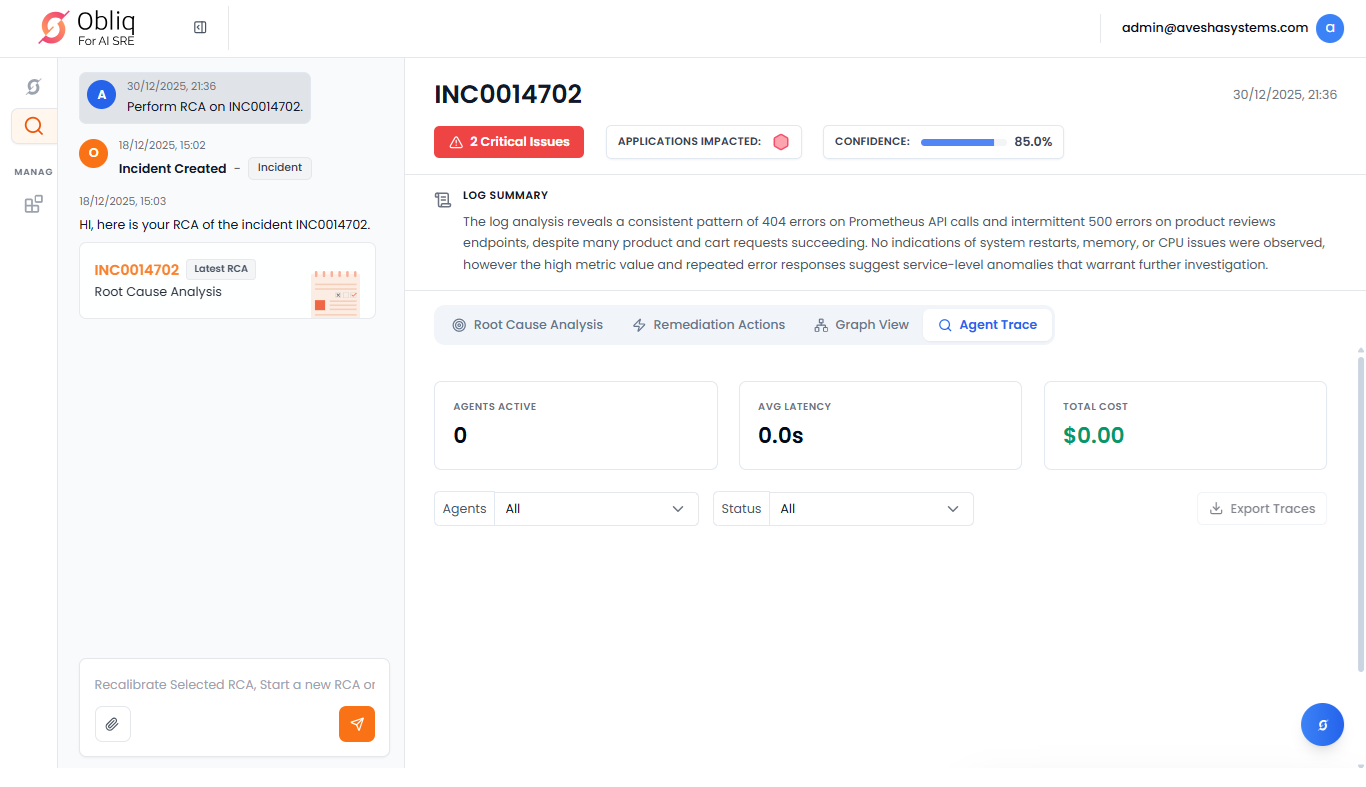
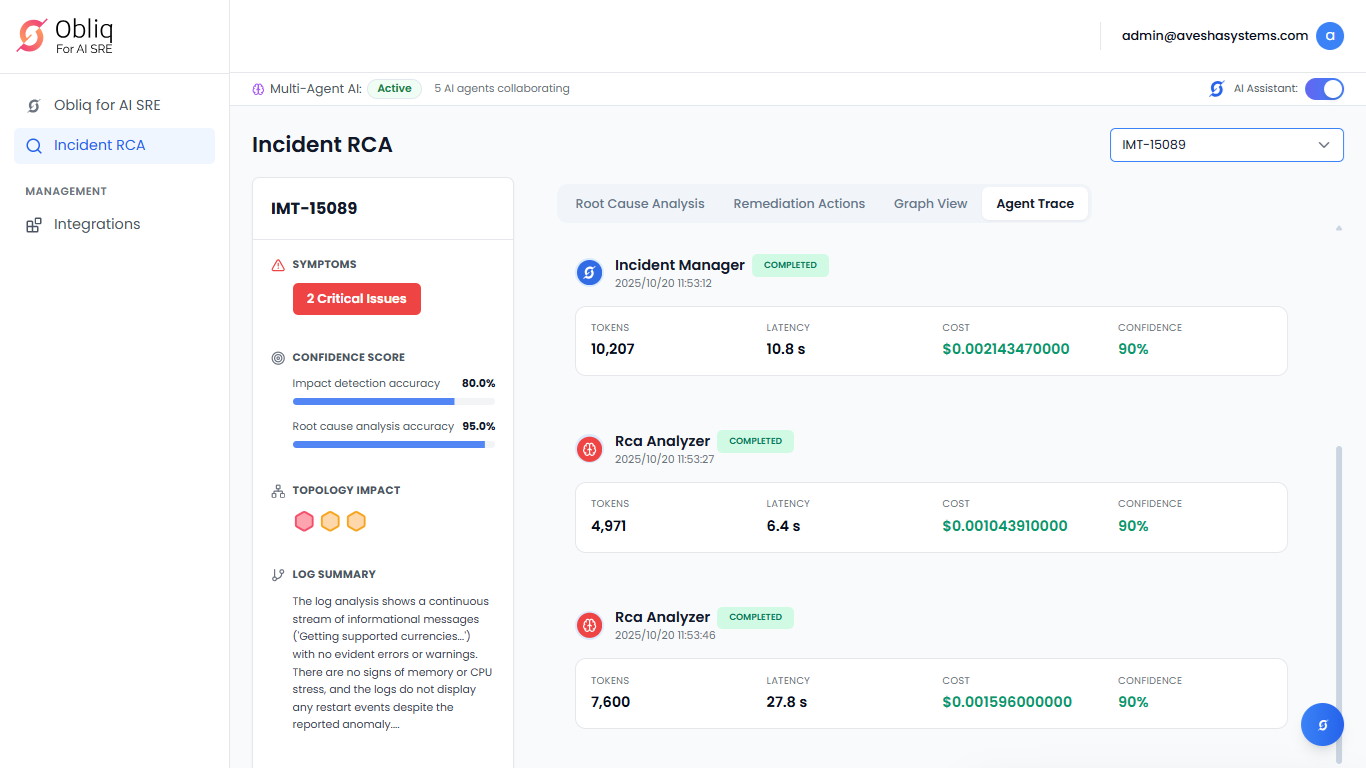
Go to the Agent Trace tab to view real-time visibility into agent processing and LLM calls.
-
Scroll down to view the RCA Analyzer.
View Metadata of an Incident
For every incident, you can view the following attributes/metadata on the top of the Incident RCA page:
-
Click
<Critcal/Degraded/Healthy>Issues. On the Symptoms pane, you can view the list of symptoms with their severity of the incident.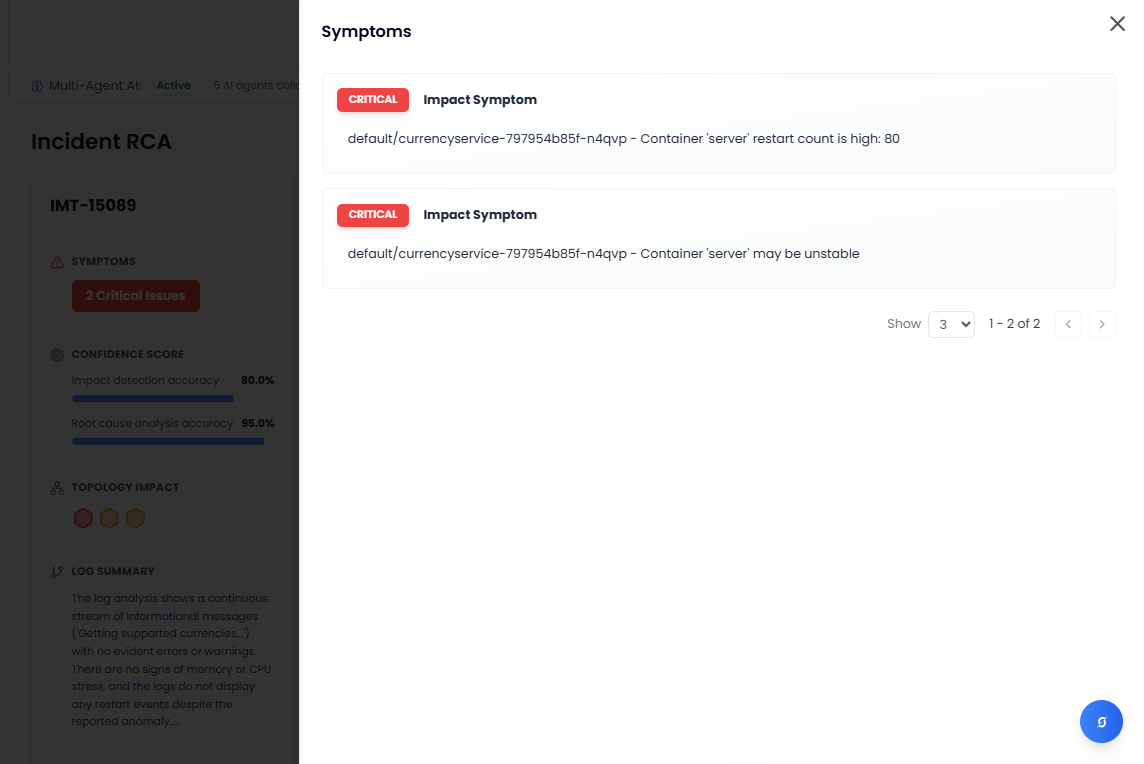
-
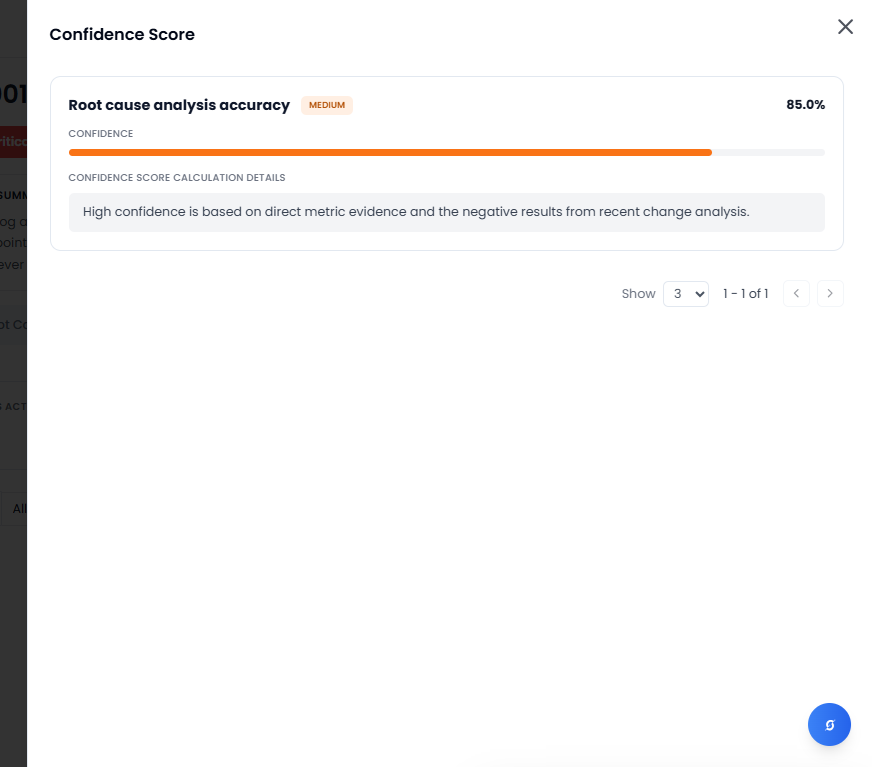
Click **Confidence **. On the Confidence Score pane, you can view the list of tasks with their calculated confidence.
-
Click Application Impact. On the Topology Impact pane, you can view the list of impacted service topology or infrastructure.
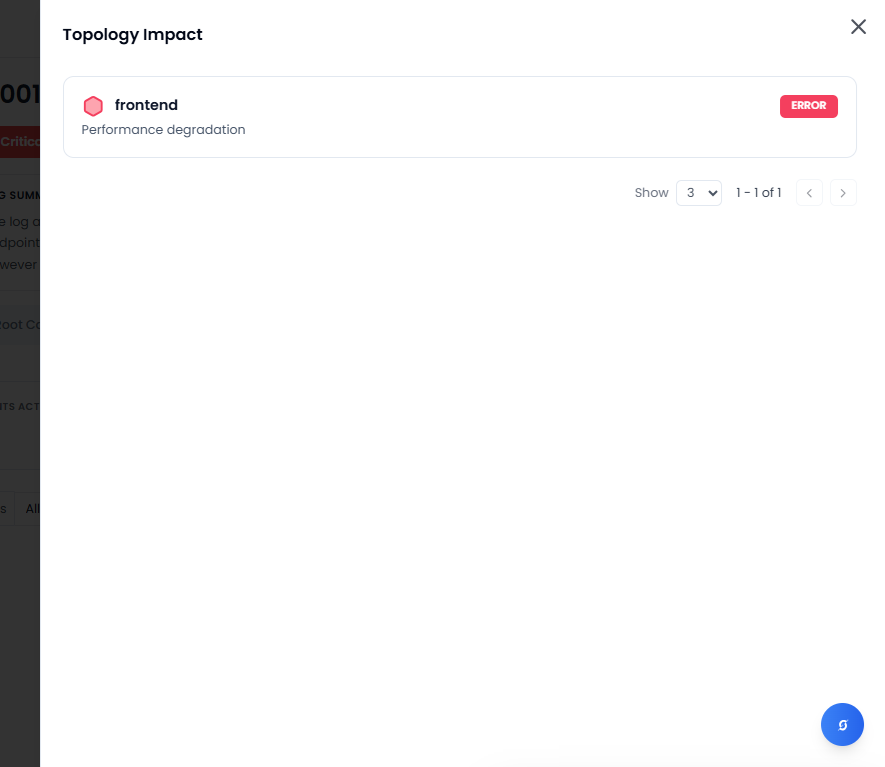
-
Log Summary which is below the above three metadata attributes, provides a summary of log analysis of the incident.
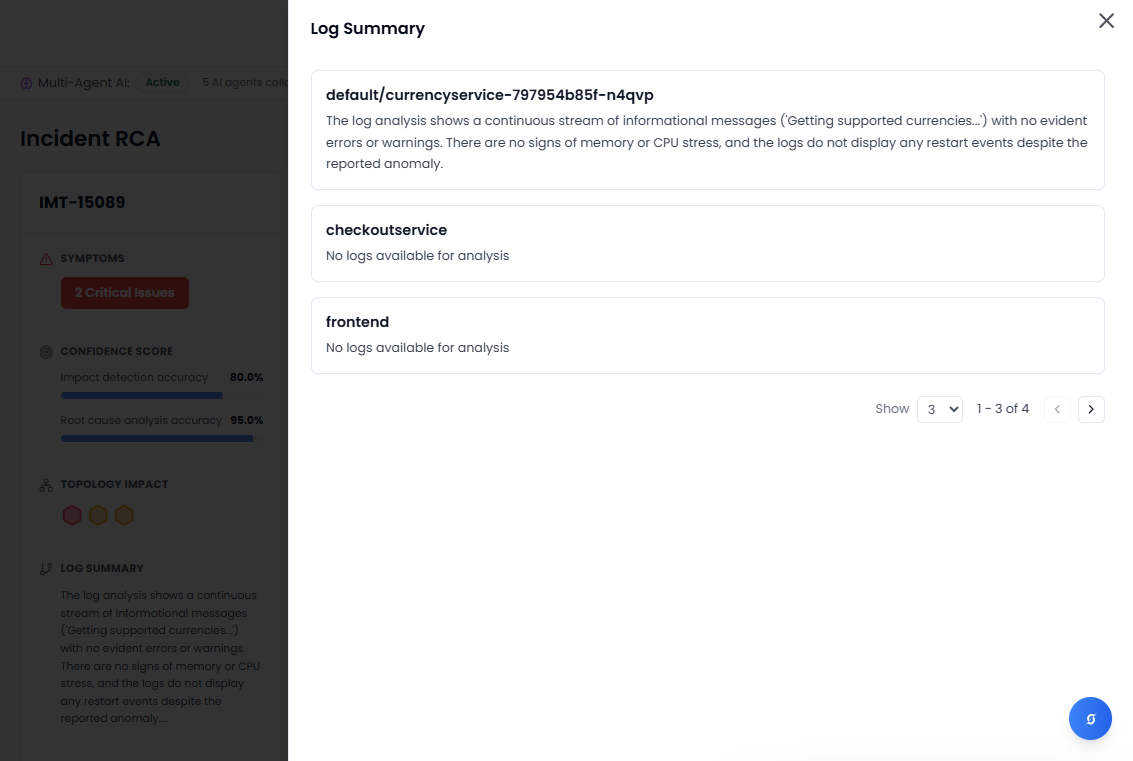
Perform Human-in-the-Loop RCA
-
Go to Incident RCA on the left sidebar.
-
On the Incident RCA page, type an incident ID or select an incident ID below the search box or left sidebar, and click the arrow button or press Enter.
-
On the left-bottom of the page, a text box is available for recalibrating the RCA or start a new RCA.
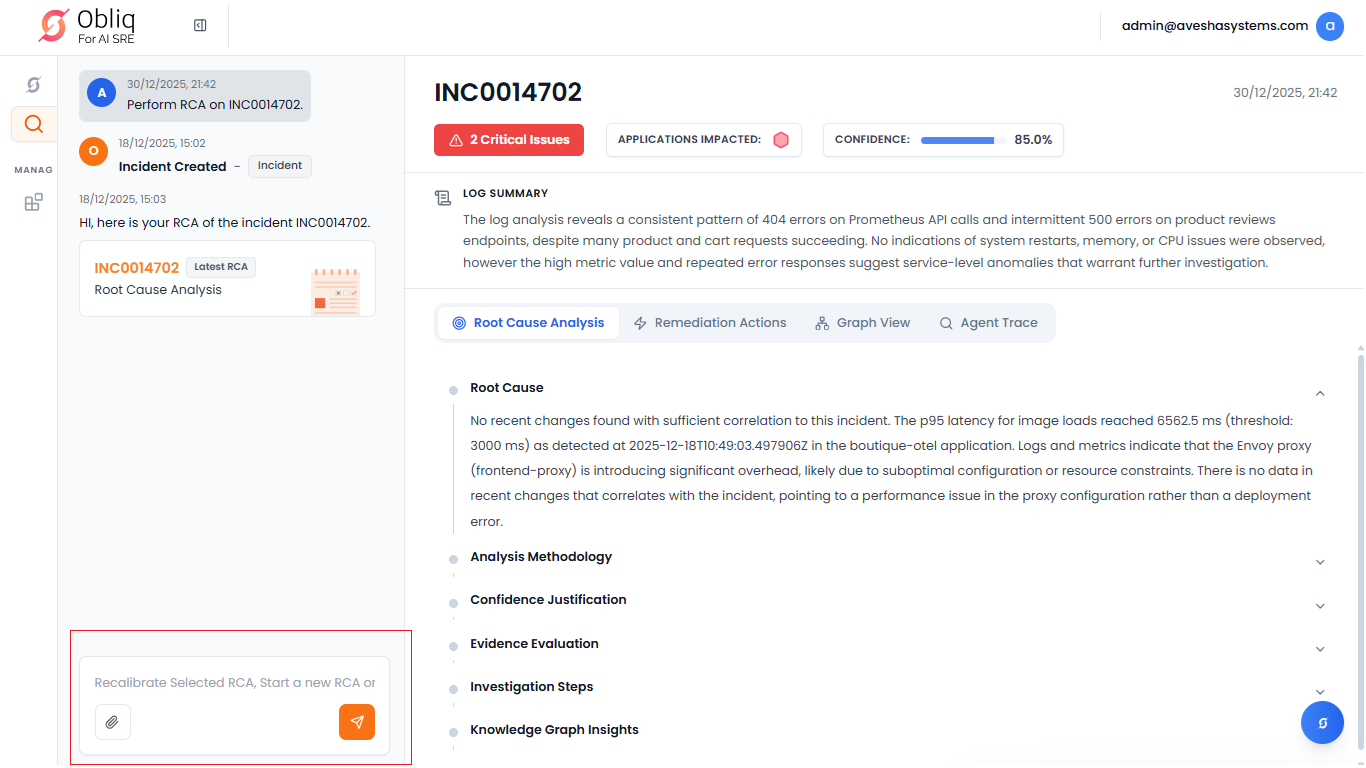
-
In the text box, you can provide feedback on the root cause analysis finding. For example, suggesting a different investigation direction or requesting a review of additional information. If the system does not have access to all the required data, you can attach supporting evidence using the Attach Evidence button.
-
Click the arrow button or press Enter for the AI SRE Agent to generate a recalibrated RCA based on the new information.