OpenAI
The OpenAI integration adds cognitive intelligence and natural language understanding to the AI SRE Agent.
Configure OpenAI Without an Existing API Key
-
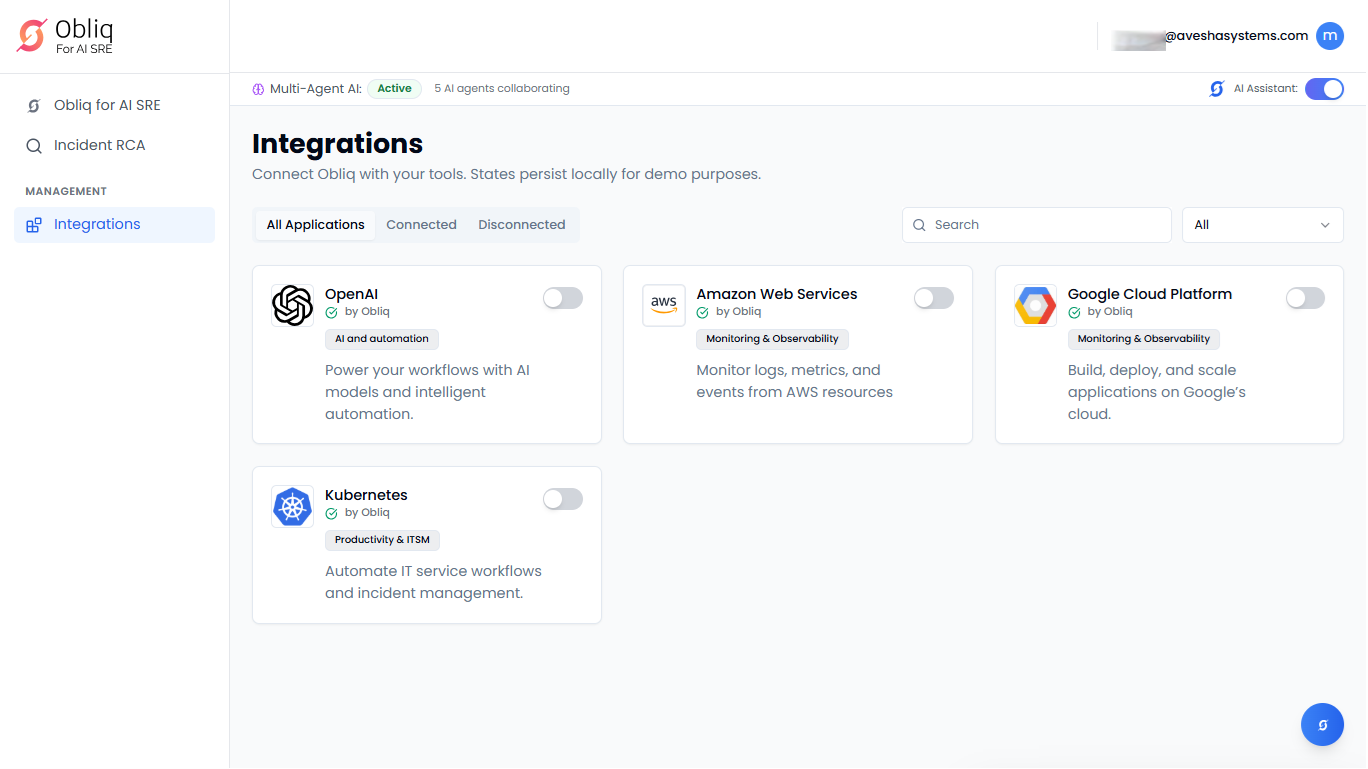
Go to Integrations on the left sidebar.
-
On the Integrations page, click OpenAI.
-
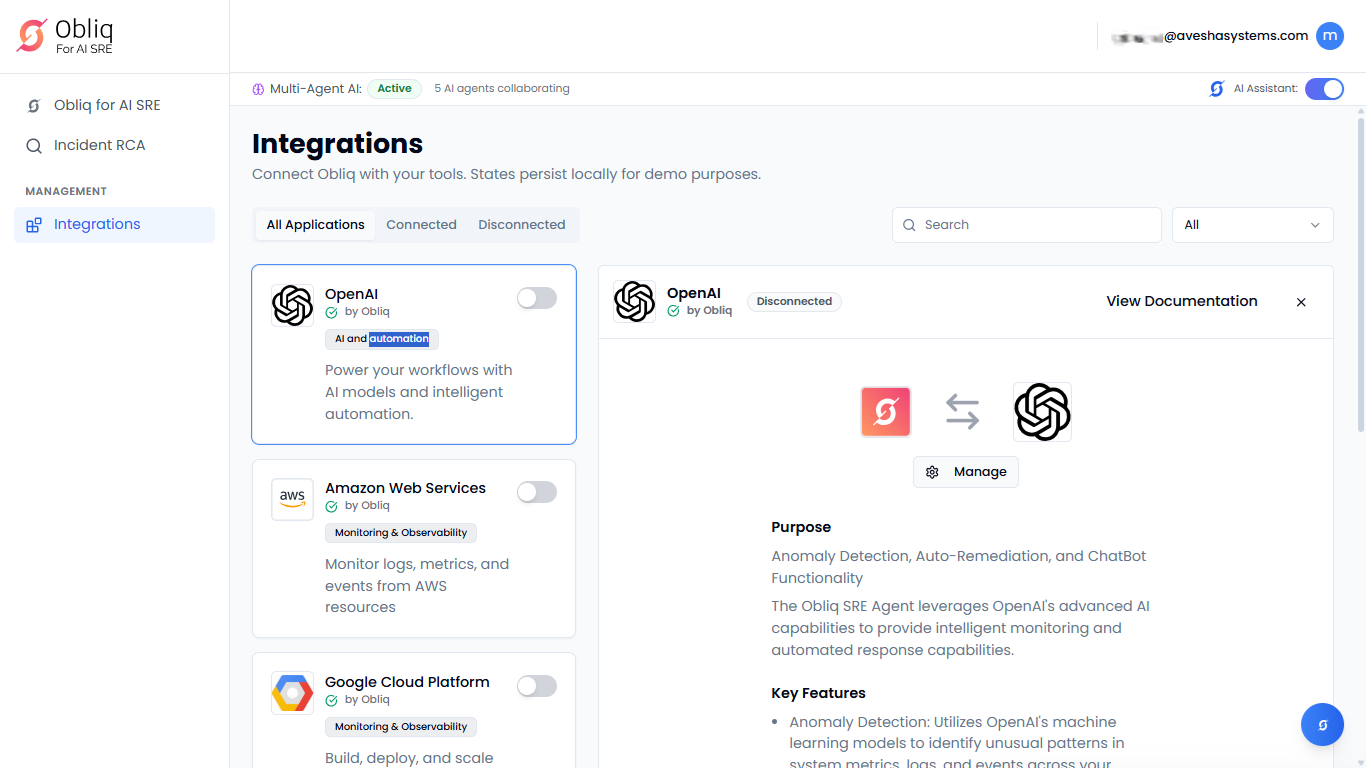
On the OpenAI page, click Manage.
-
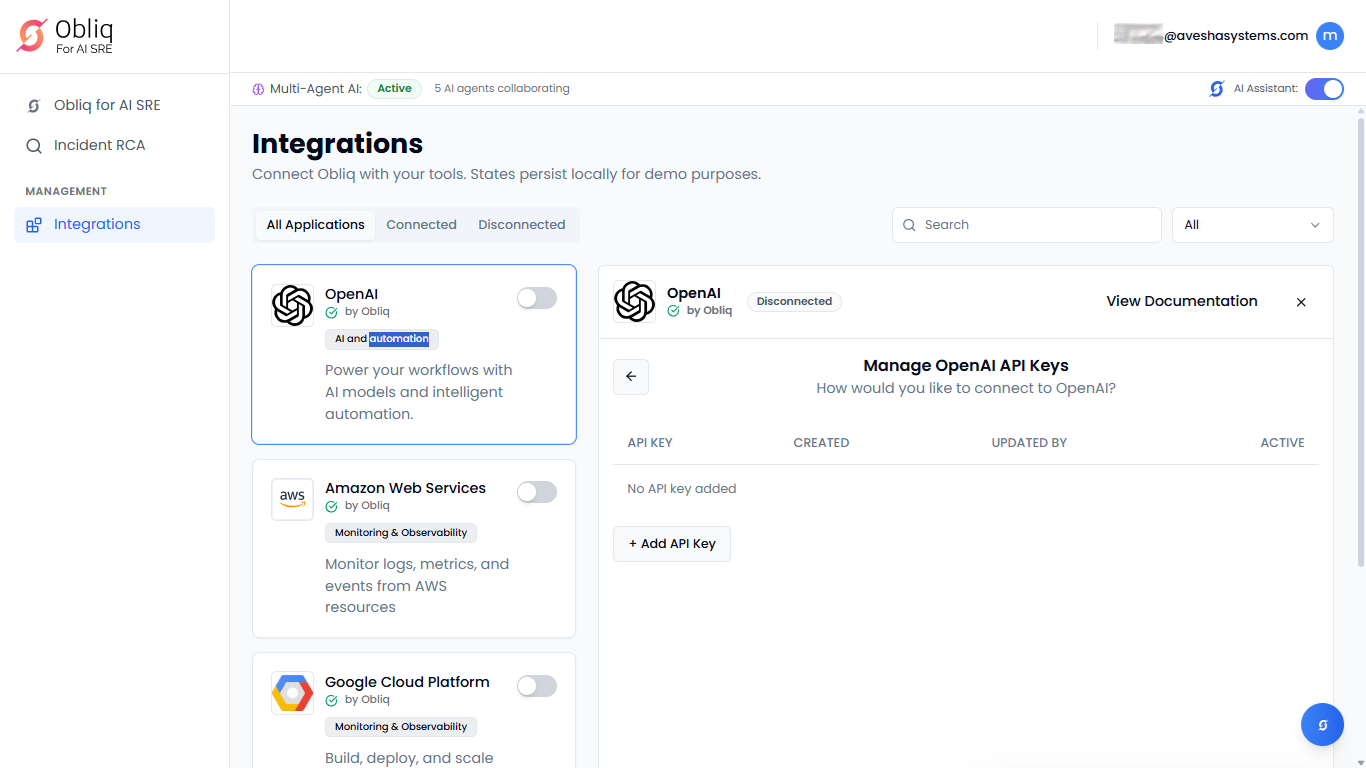
On the Manage OpenAI API Keys page, click Add API Key.
-
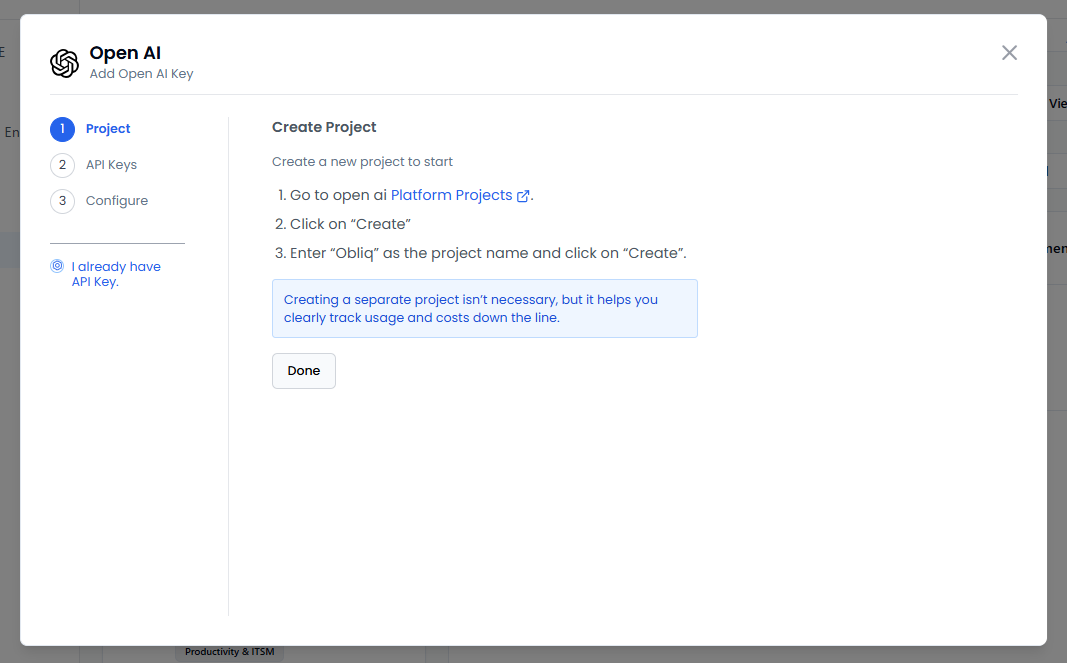
On the Open AI pane, the left sidebar contains the steps required for you to do before configuration. By default, you are on the first step, Create Project.
-
Under Create Project, follow the steps and create a project.
To know more, see Projects.
-
Click Done after creating a project to proceed to API Keys.
-
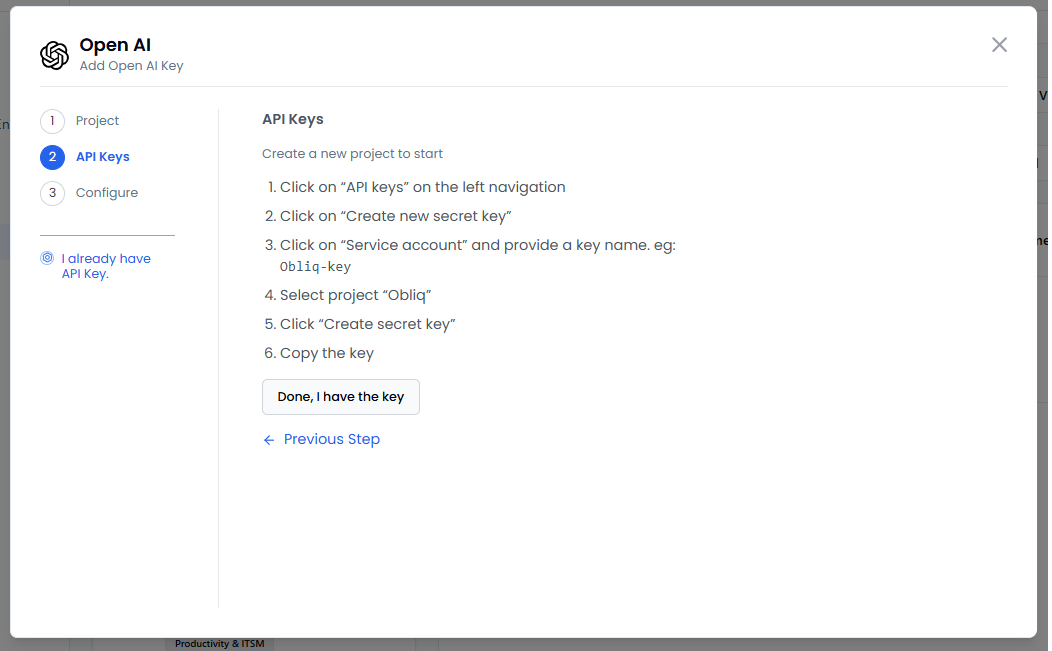
Under API Keys, follow the steps to create a new API key and copy it for later use.
To know more, see API Keys.
-
Click Done, I have the key to proceed to Configure.
-
Under Configure Obliq:
-
Enter the key that you have copied earlier in the API Key text box.
-
Choose a model from the Model dropdown list.
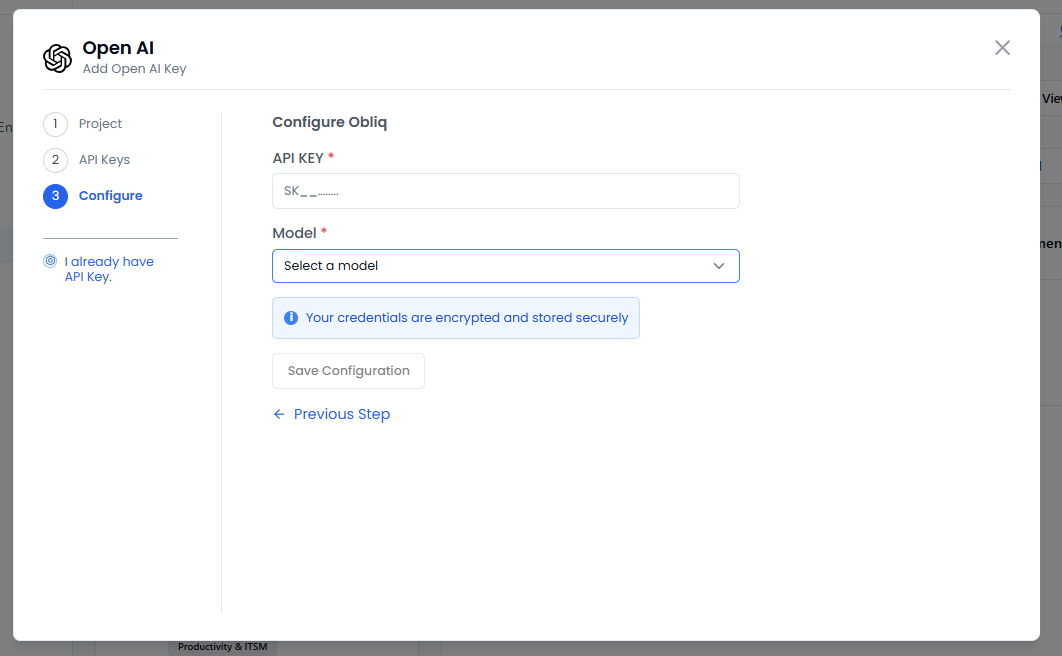
- Click Save Configuration to save the Open AI configuration.
Configure OpenAI with an Existing API Key
-
Go to Integrations on the left sidebar.
-
On the Integrations page, click OpenAI.
-
On the OpenAI page, click Manage.
-
On the Manage OpenAI API Keys page, click Add API Key.
-
On the Open AI pane, click ** I already have API Key** on the left sidebar.
-
Under Configure Obliq:
-
Enter the key that you have copied in the API Key text box.
-
Choose a model from the Model dropdown list. .
- Click Save Configuration to save the Open AI configuration.