Google Cloud Platform
The AI SRE Agent supports integration with Google Cloud Platform (GCP) service accounts. This enables secure authentication and seamless access to GCP resources for automated incident analysis, monitoring, and remediation workflows.
This topic describes how to integrate GCP service account with the AI SRE Agent.
On the left sidebar of the AI SRE Agent console:
-
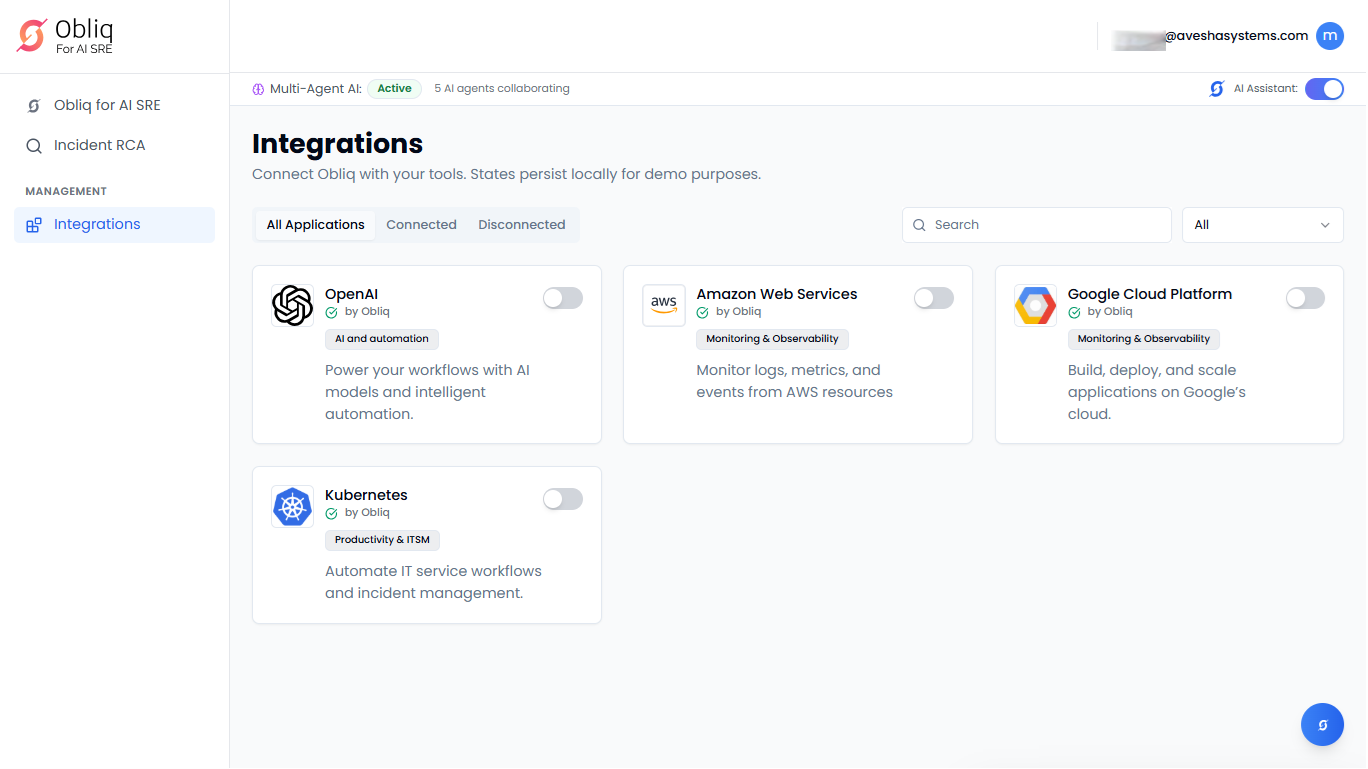
Go to Integrations on the left sidebar.
-
On the Integrations page, click Google Cloud Platform.
.
Configure GCP
-
Go to Integrations on the left sidebar.
-
On the Integrations page, click Google Cloud Platform.
-
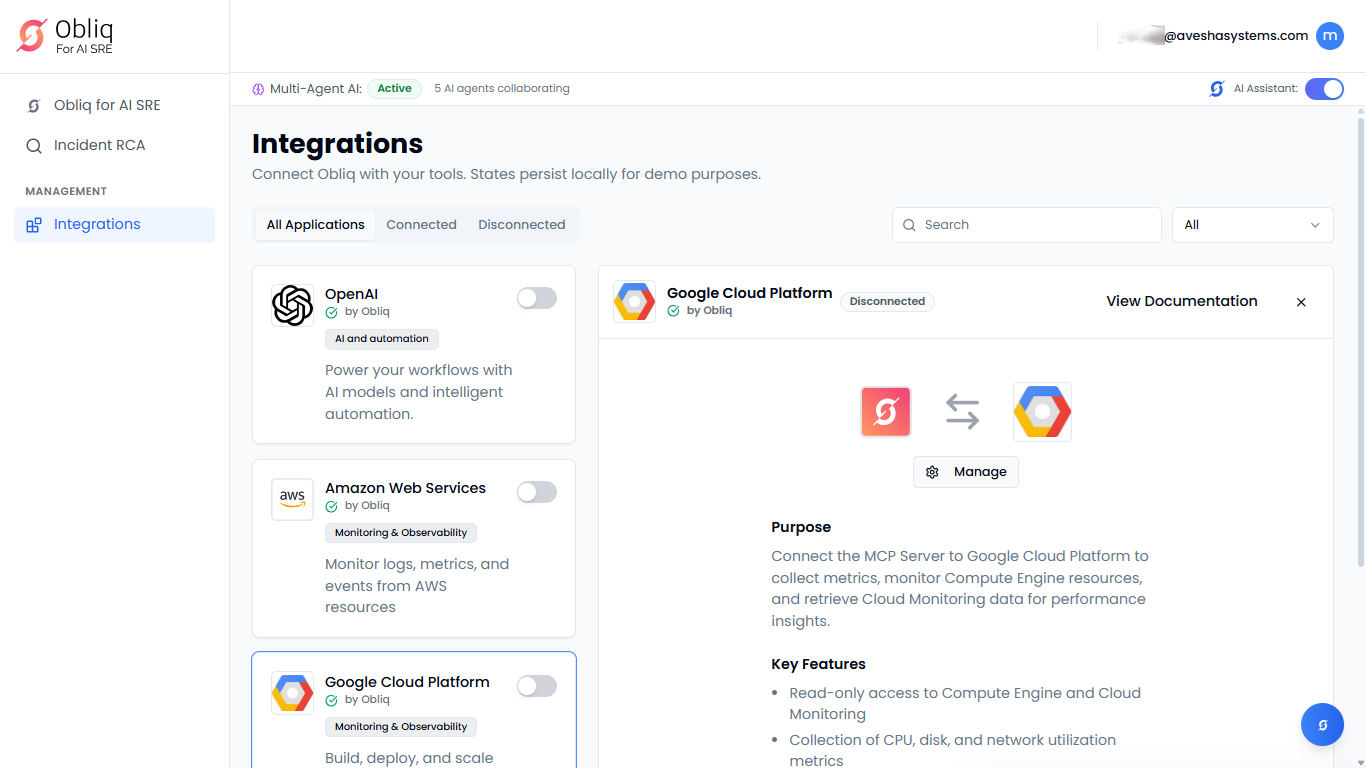
On the Google Cloud Platform page, click Manage.
-
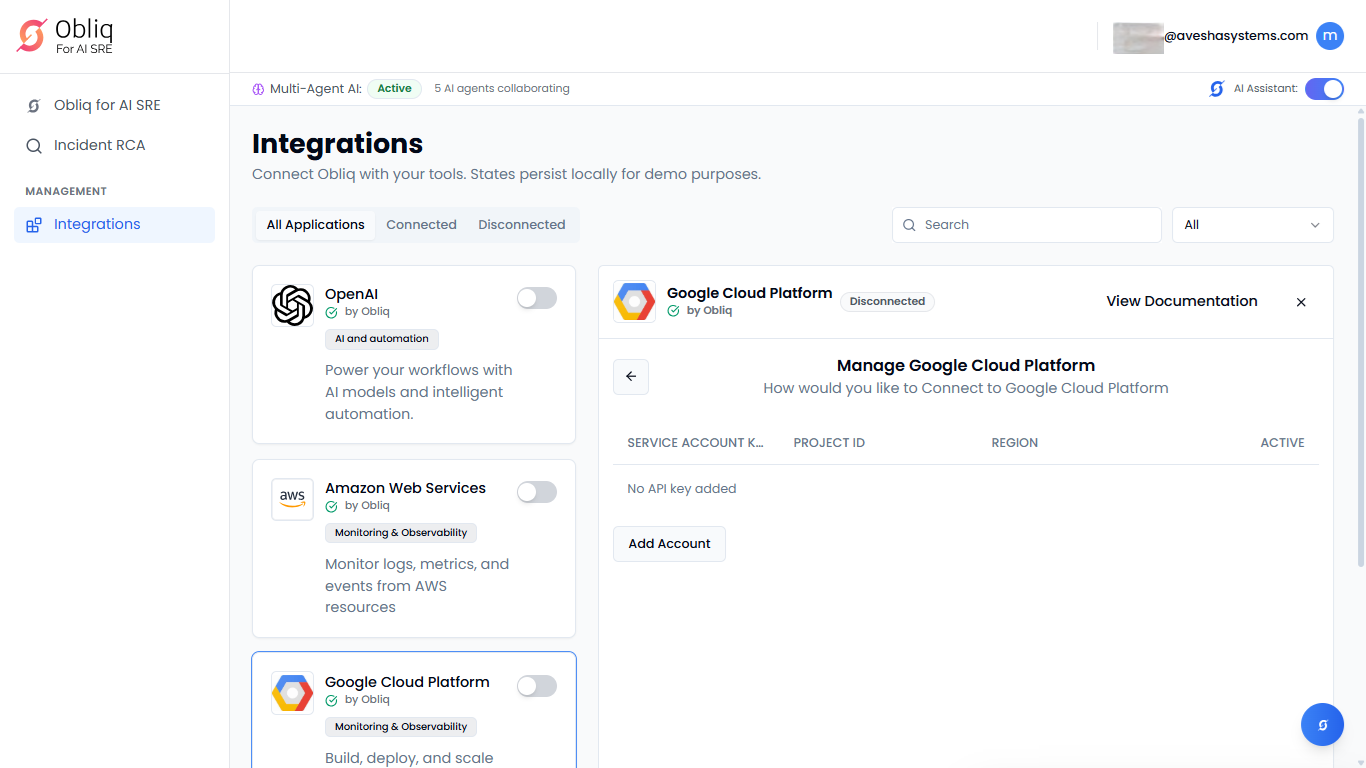
On the Manage Google Cloud Platform page, click Add Account.
-
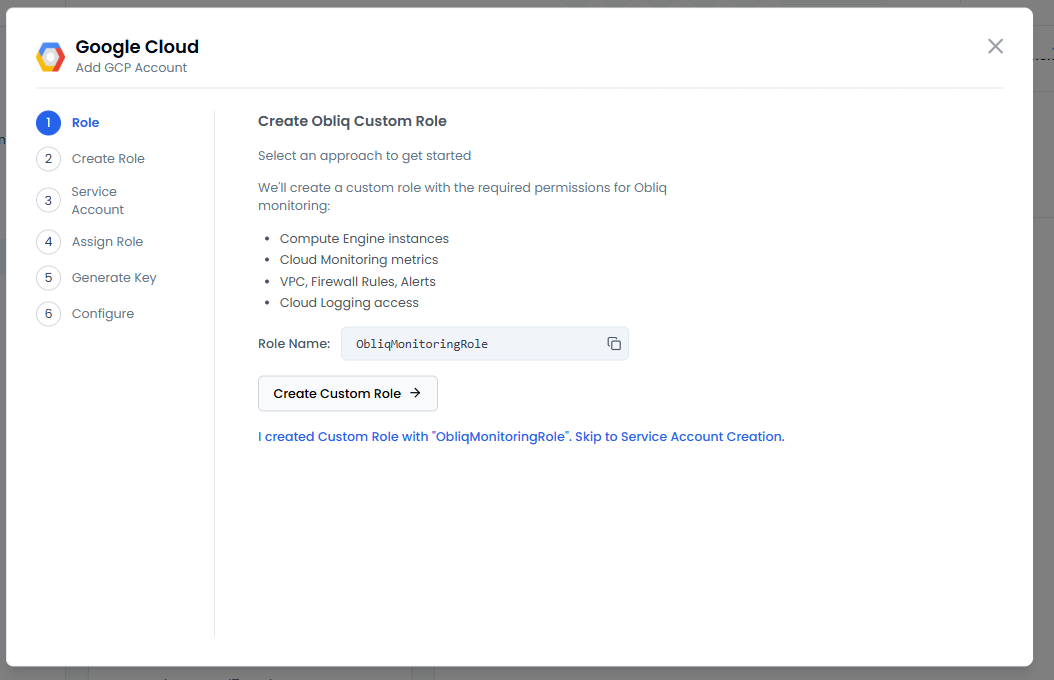
On the Google Cloud pane, the list of steps that you need to perform are listed before you configure.
-
On the left sidebar, the first step, Role that provides the list of approaches along with the role name that are used to create a custom role.
-
Click Create Custom Role.
-
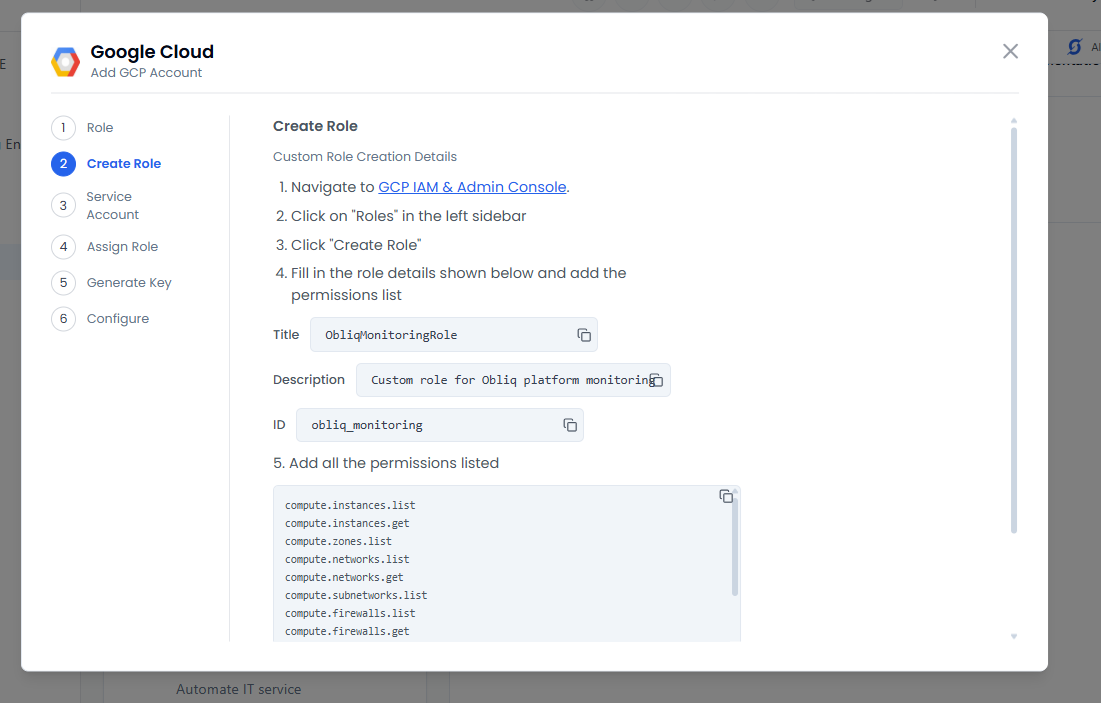
Under Create Role, the steps that you need to create a role on GCP are explained clearly.
-
Click Done, I have created Role to proceed to Service Account.
-
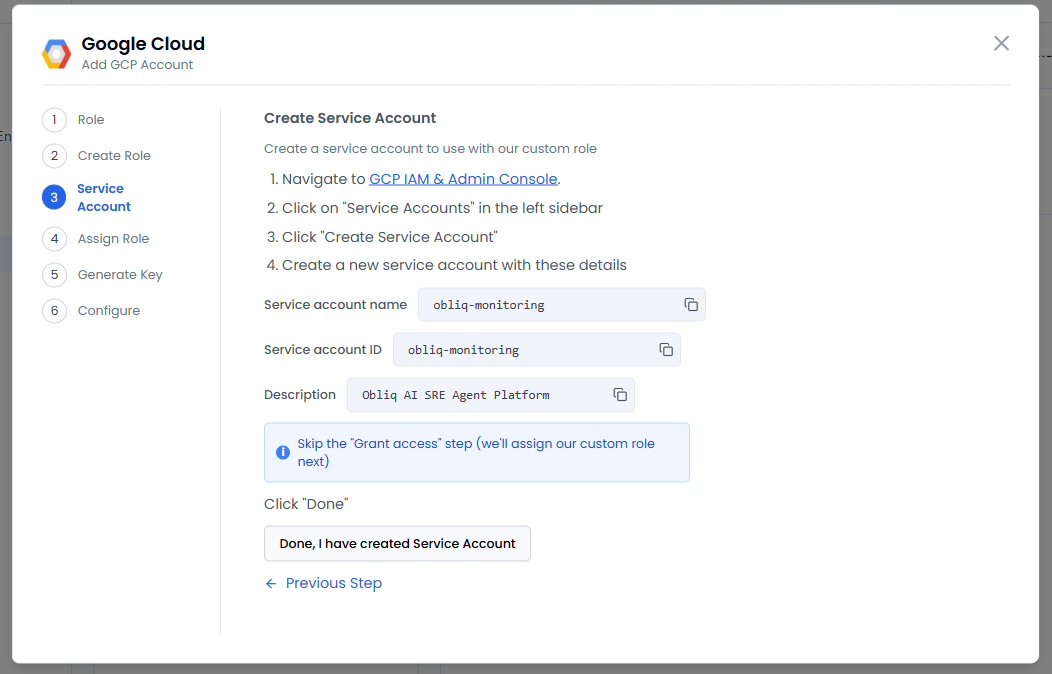
Under Create Service Account, follow the steps to create a service account for the custom role that you just created.
-
Click Done, I have created Service Account to proceed to Assign Role.
-
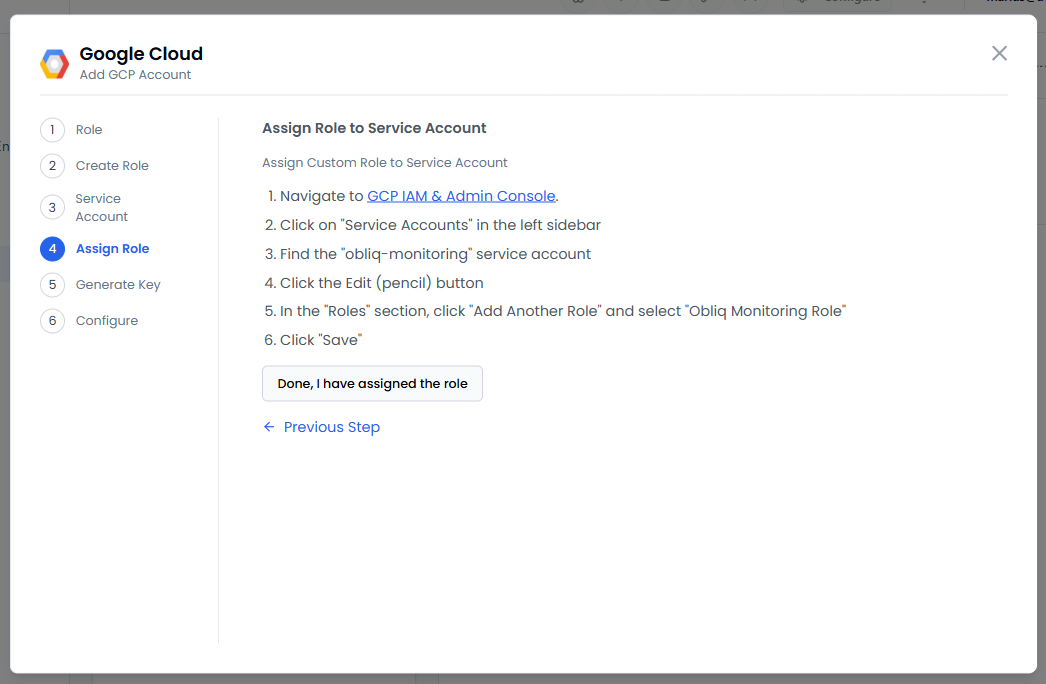
Under Assign Role to Service Account, follow the steps that you should perform on GCP to assign role to the service account you created.
-
Click Done, I have assigned the role to proceed to Generate Key.
-
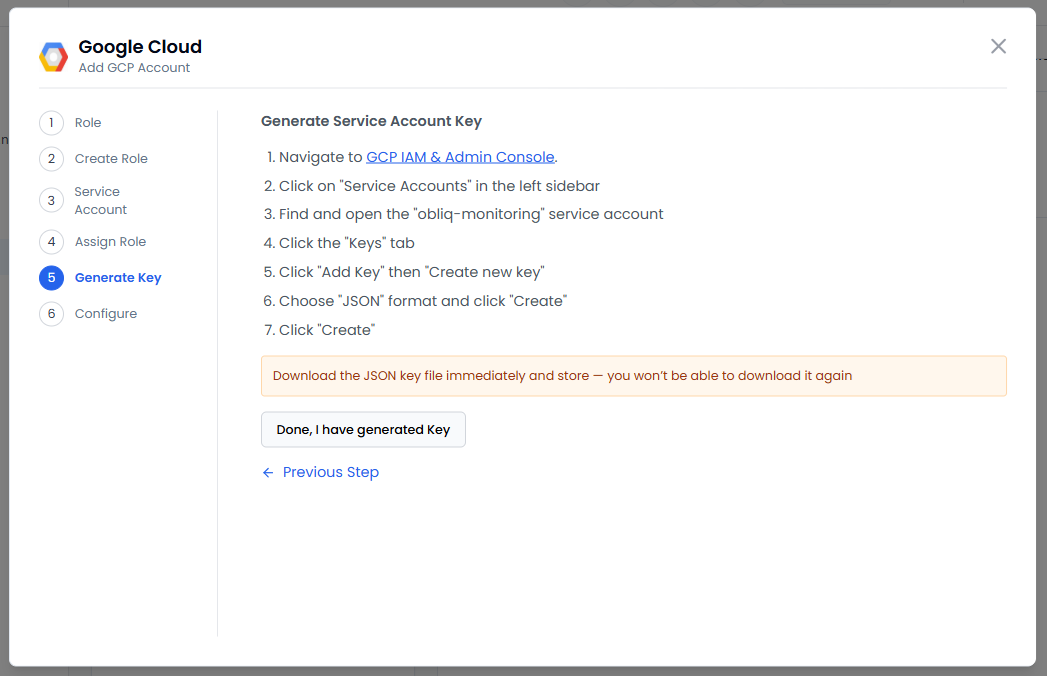
Under Generate Service Account Key, follow the steps that you should perform on GCP to generate a key for the newly created service account.
-
Click Done, I have generated Key to proceed to Configure.
-
Under Configure Obliq:
- Either paste your service account key JSON generated in the previous step in the Service Account Key text box or click Upload Service Account JSON to upload the account-key JSON file.
- Select the GCP region of your GCP Platform account in the Region text box. To know more, see GCP Regions.
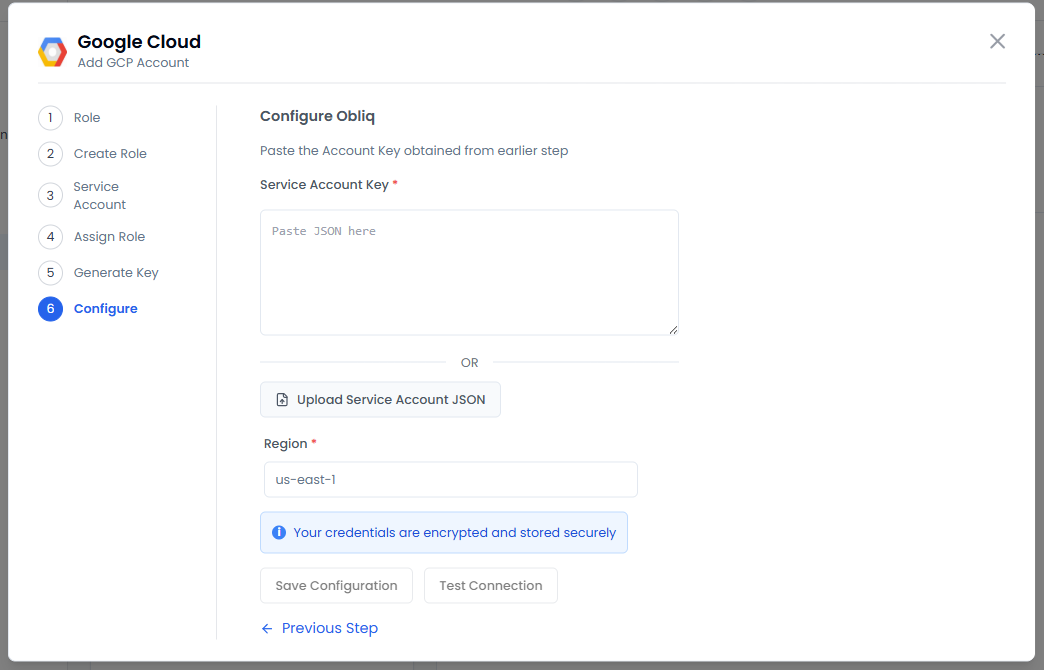
- Click Save Configuration to save the GCP configuration.