Manage Workload Placements
This topic describe the steps to enable the automatic workload placement across clusters in a workspace.
Overview
Workload Placement is a feature that allows you to add steps for distributing workloads across multiple clusters in a workspace. This helps to optimize resource utilization, improve performance, and ensure high availability of applications.
Prerequisites
- You must have an existing workspace with registered worker clusters.
- Ensure that the namespace you want to use is onboarded onto the workspace.
Configuration Overview
You can create a Workload Placement to deploy workloads across multiple clusters in a workspace.
A Workload Placement configuration consists of the following sections:
- Basic Specifications: This section includes the workload name and the number of placements (replicas) to be deployed across the selected clusters.
- Cluster Specifications: This section allows you to select the clusters where the workload will be deployed. You can choose from the available clusters in the workspace.
- Steps: This section allows you to define the specific steps for deploying the workload. You can add multiple steps, such as Command, Helm, or Manifest Resource, to define the deployment process.
- GPU Configuration: This section allows you to configure GPU settings for the workload, including GPU shape, node type, GPUs per node, GPU nodes, priority, and reservation duration.
Create a Workload Placement
To create a Workload Placement in a workspace:
-
Go to Workspace on the left sidebar.
-
Under All Workspaces, select the workspace you want to manage.
-
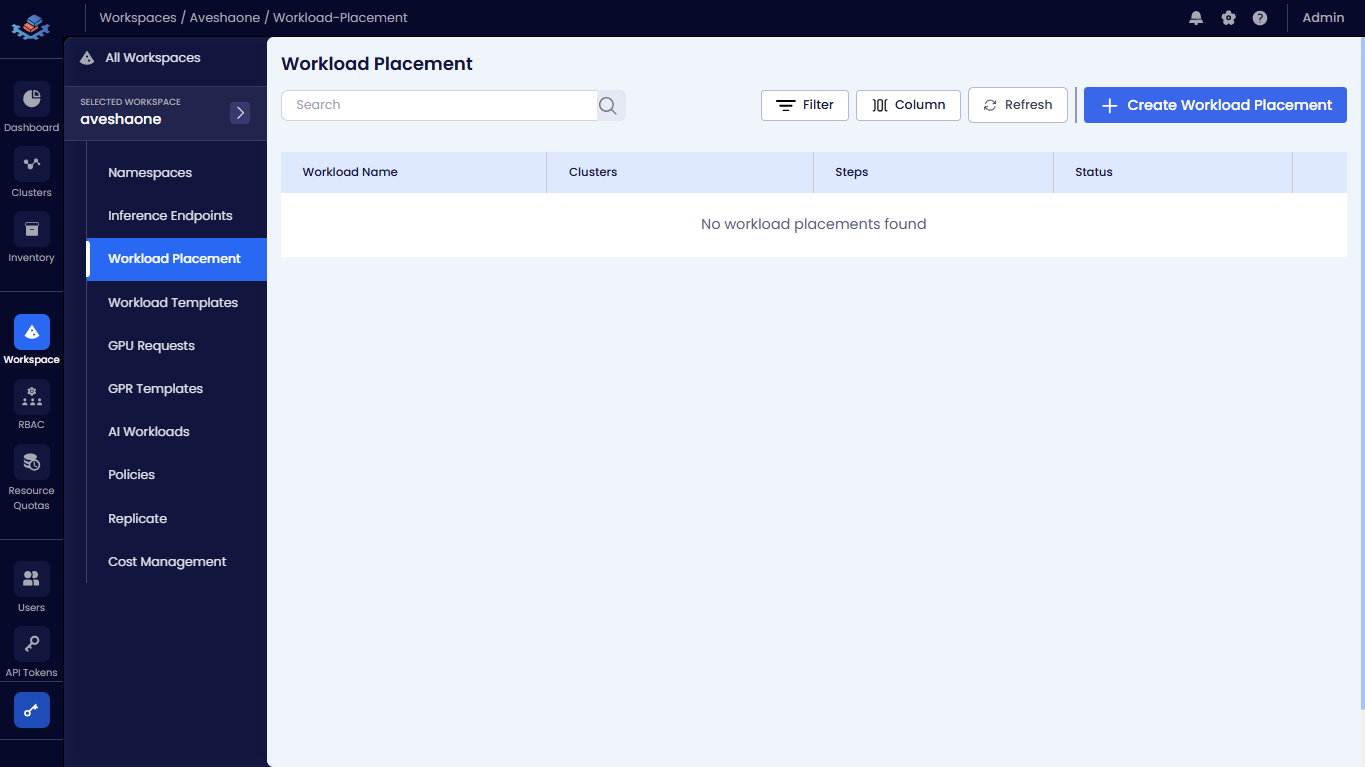
In the menu of the selected workspace, click the Workload Placement submenu.
-
On the Workload Placement page, click the +Create Workload Placement button.
-
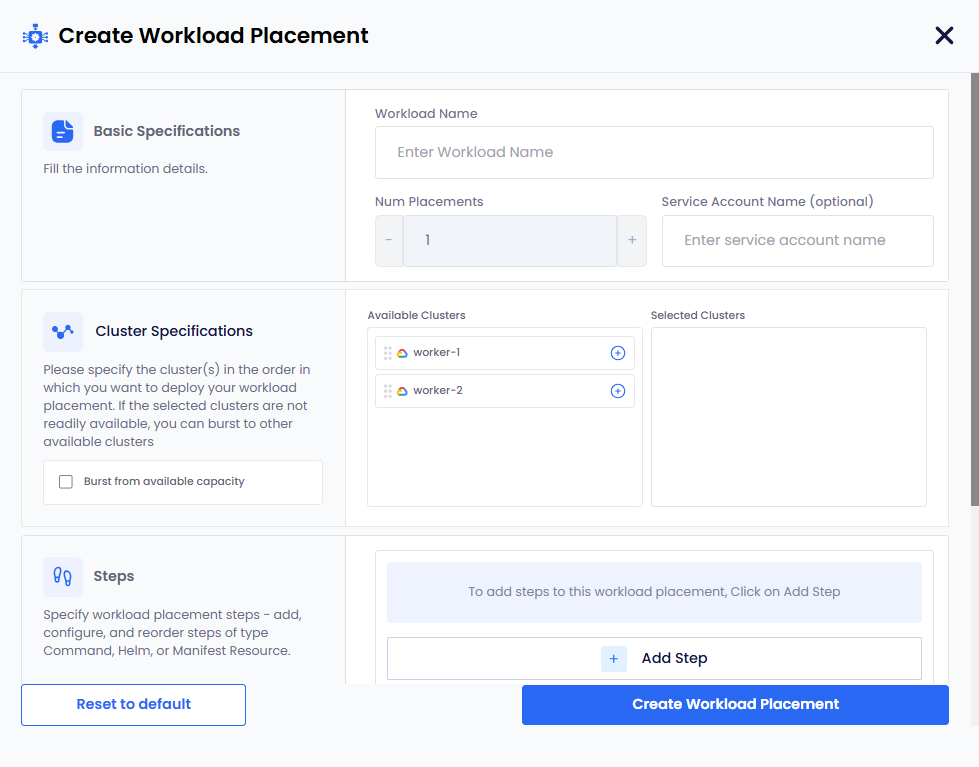
On the Create Workload Placement configuration wizard, enter the following details:
-
In the Basic Specifications section:
-
Enter a unique workload name in the Workload Name text box.
-
Set the number of replicas in the Num Placement selection box. Use the
-and+buttons to adjust the count. This number indicates how many instances of the workload will be deployed across the selected clusters. Each cluster will host one instance of the workload. The default value is1. -
(Optional) Enter a Service Account in the Service Account Name text box. This Service Account must exist in the
kubeslice-systemnamespace in the destination cluster where the workload will be deployed.
-
-
In the Cluster Specifications section:
- Under Available Clusters, review the list of registered worker clusters that available. Click the selection icon to move preferred clusters to the Selected Clusters pane. You must select at least one cluster for workload placement and GPU provisioning.
- (Optional) Select Burst from available capacity if you wish to allow the workload to utilize resources outside the selected clusters if necessary. You can unselect this option to restrict the workload to only the selected clusters.
-
In the Steps section, click the + Add Step button to add steps. This will allow you to add and configure the specific workload steps (Command, Helm, or Manifest Resource) for this template.
Workload steps for command, Helm, and manifest resource types can be added in any order. To add multiple steps, repeat the following sub-steps for each step you want to add.
-
To add the kubectl command, perform the following:
- Select the step type
Commandin the Type drop-down menu. - Under Command Details:
- Enter the descriptive name for this step in the Name text box.
- Enter the command in the Command text box. For example,
kubectl get pods -n vllm-demo.
- Click the Save Step button to save the command step.
- Select the step type
-
To add the Helm configuration, perform the following:
- Select the step type
Helmin the Type drop-down menu. - Under Helm Details:
- Enter the name of the application in the Name text box. For example,
vllm-app. - Enter the chart name in the Chart Name text box. For example,
vllm/vllm-stack. - Enter the application name in the Release Name text box. For example,
vllm. - Enter the release namespace in the Release Namespace text box. For example,
vllm-demo. - Enter the repo in the Repo Name text box. For example,
vllm. - Enter the repo URL in the Repo URL text box. For example,
https://vllm-project.github.io/production-stack/. - (Optional)Enter the repo version in the Version text box.
- Enter the name of the application in the Name text box. For example,
- Under Helm Flags, use the toggle switches to enable or disable specific deployment behaviors.
You can perform the following:
- Enable the Atomic toggle to delete the installation if it fails, rolling back changes.
- Enable the Cleanup On Fail toggle to delete new resources created in this release when it fails.
- Enable the Create Namespace toggle to automatically create the Kubernetes Namespace if it does not already exist.
- Disable the Skip CRDs toggle to ensure Custom Resource Definitions are installed.
- Enable the Wait toggle to force the operation to wait until all Pods, PVCs, Services, and minimum number of Pods of a Deployment are in a ready state before marking the release as successful.
- Enter the duration (hh:mm:ss) in the Timeout textbox. For example, 0h10m0s(10 minutes) is the duration to wait for Kubernetes operation.
- (Optional) Enter the name of the Kubernetes secret to be used for this deployment in the Secret Ref text box.
- You can also enter your Helm values in YAML format in text editor window at the bottom to override defaults in the chart.
For example, you can modify the
replicaCountparameter. This instructs Helm to deploy the specified number of replicas of the application. - Click the Save Step button to save this step.
- Select the step type
-
To add the Manifest Resource configuration, perform the following:
- Select the step type
Manifest Resourcein the Type drop-down menu. - Under Manifest Resource Details:
- Enter the descriptive name for the manifest in the Name Text box.
- Enter the YAML manifest in the text editor window at the bottom.
- Click the Save Step button to save this step.
- Select the step type
-
-
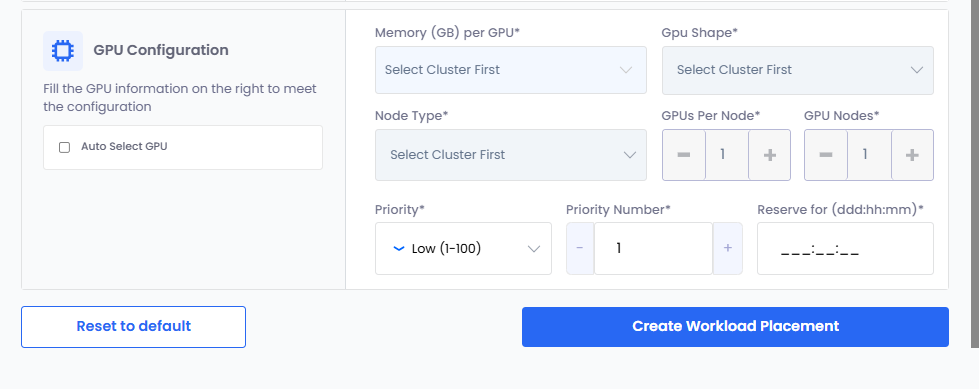
In the GPU Configuration section:
-
Choose how GPU Shape and Node Type are selected:
- Manual Configuration:
- Select a memory value from the Memory (GB) per GPU drop-down list. The list displays the available memory (GB) per cluster.
- Select a GPU shape from the GPU Shape drop-down list.
- Select a node type from the Node Type drop-down list.
- Leave the Auto Select GPU checkbox unselected.
- Auto Provisioning:
- Select the Auto Select GPU checkbox. The GPU shape and node type values are automatically selected based on the memory specified.
- If you manually enter GPU memory in the Memory (GB) per GPU text box, the Auto Select GPU checkbox is selected automatically. The minimum memory value is 1 GB, and the maximum value is the highest allocated memory available for any worker cluster in the workspace.
- Manual Configuration:
-
Set the GPUs Per Node if you want to change its default value, 1.
-
Set the GPU Nodes if you want to change its default value, 1.
-
Set Priority. The default value is Medium (1-200).
You can change the priority of a GPR in the queue. You can change the priority number (low: 1-100, medium: 1-200, high: 1-300) to move a GPR in the queue. When a GPR is moved to the top of the queue, it is provisioned when the resources are available to provision the GPR.
-
Set Priority Number. The default value is 1.
-
Specify Reserve For duration in Days (ddd), Hours (hh), and Minutes (mm). This duration indicates how long the GPU resources are reserved for the workload placement.
-
-
-
Click the Create Workload Placement button to complete the workload placement setup. Alternatively, you can click the Reset to default button to clear all the parameters and start over.
Examples
Example YAML Manifest for CUDA Sample Deployment
The following is an example of a Manifest Resource step YAML manifest that deploys a CUDA sample application using a Deployment resource in a specific namespace with GPU resource limits:
apiVersion: apps/v1
kind: Deployment
metadata:
  labels:
    app: cuda-test
  name: cuda-test
  namespace: complex-namespace
spec:
  replicas: 1
  selector:
    matchLabels:
      app: cuda-test
  template:
    metadata:
      labels:
        app: cuda-test
    spec:
      containers:
        - args:
            - while true; do /cuda-samples/vectorAdd; done
          command:
            - /bin/bash
            - '-c'
            - '--'
          image: nvcr.io/nvidia/k8s/cuda-sample:vectoradd-cuda11.7.1-ubuntu20.04
          name: cuda-sample-vector-add
          resources:
            limits:
              nvidia.com/gpu: 1
      hostPID: true
Example Helm Values for VLLM Deployment
The following is an example of Helm values in YAML format for deploying the VLLM application with specific configurations:
'- name': VLLM_FLASHINFER_DISABLED
cpu: '2'
hf_token: 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
maxModelLen: 4096
memory: 8G
modelURL: meta-llama/Llama-3.2-1B-Instruct
name: llama3
pvcStorage: 100Gi
replicaCount: 1
repository: vllm/vllm-openai
requestCPU: 4
requestGPU: 1
requestMemory: 8Gi
storageClass: compute-csi-default-sc
tag: v0.10.1
value: '1'
View a Workload Placement
To view a Workload Placement in a workspace:
-
Go to Workspace on the left sidebar.
-
Under All Workspaces, select the workspace you want to manage.
-
In the menu of the selected workspace, click the Workload Placement submenu.
-
On the Workload Placement page, you can see the list of existing workload placements and its status in the workspace.
-
Click on a workload placement name to view the workload status and its details, including cluster specifications, steps, GPU configuration.
Delete a Workload Placement
To delete a Workload Placement in a workspace:
-
Go to Workspace on the left sidebar.
-
Under All Workspaces, select the workspace that contains the Workload Placement you want to delete.
-
In the menu of the selected workspace, click the Workload Placement submenu.
-
On the Workload Placement page, select the workload placement you want to delete from the list.
-
Click the delete icon on the right side of the workload placement entry.
-
In the confirmation dialog box, enter the workload placement name to confirm deletion.