Monitor AI Workloads
AI workloads are the machine learning models that run on GPU-enabled pods in your workspaces. You can monitor GPU and CPU utilization of AI workloads running in a workspace or you can monitor the AI workloads for all workspaces in your project.
View GPU Workloads
However, at any given point in time, you can only view the AI model details of one workspace.
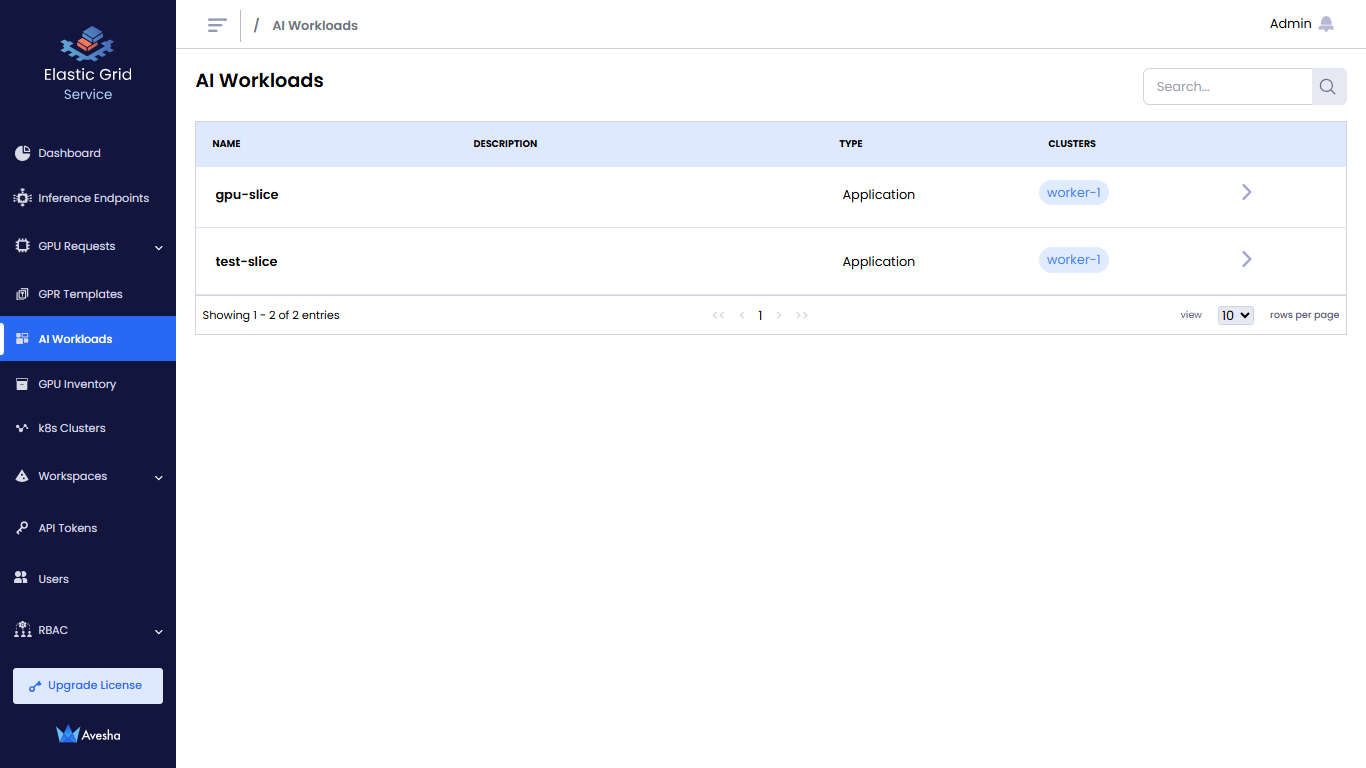
- Go to AI Workloads on the left sidebar.
- On the AI Workloads page, select a workspace to see the AI workloads.
AI Model Details
On the AI Workloads page, click the menu icon against a workspace to view AI workload and model details.
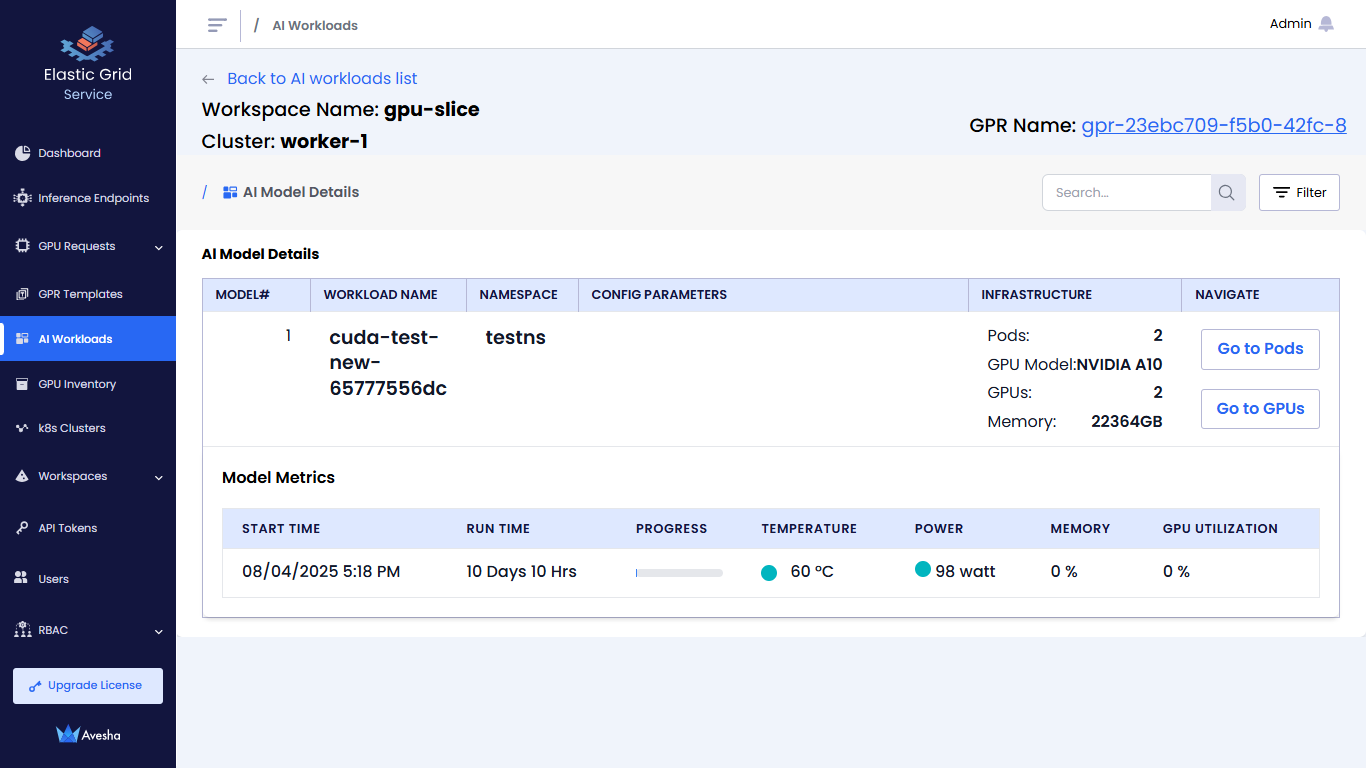
The AI model details:
- Shows the model details, GPU infrastructure committed to the workload
- Shows model summary that includes high power GPU, high temperature GPU, and average utilization values
View Pods
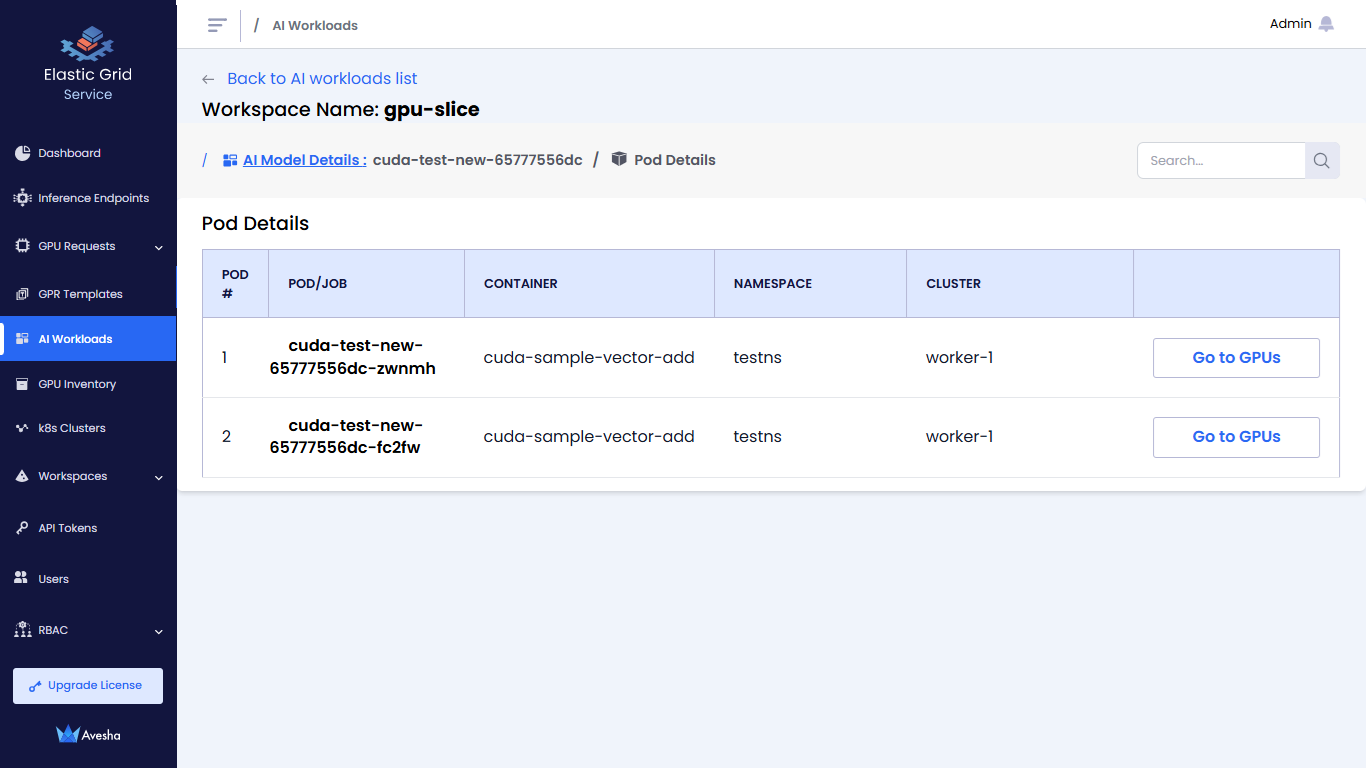
On the AI Model Details page, click Go to Pods to view the pods running with GPUs in a workspace.
View GPUs
On the AI Model Details page (or under Pod Details), click Go to GPUs to view the GPU table page.
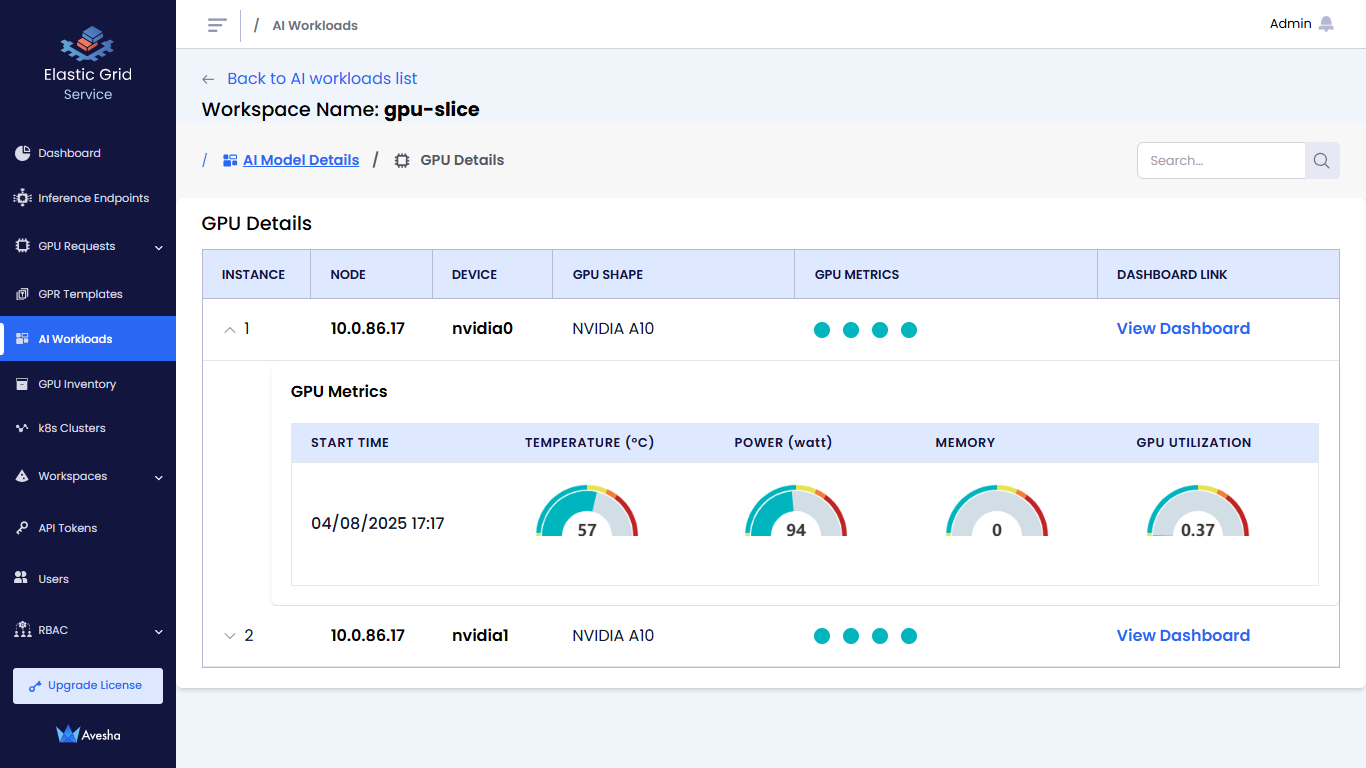
The GPU table:
- Shows sorted list of GPUs with high power and temperature GPUs at the top for quick access
- Shows the hot spot GPUs
Under GPU Details, click View Dashboard in the table to view time-series data for the selected GPU device.
View CPU Workloads
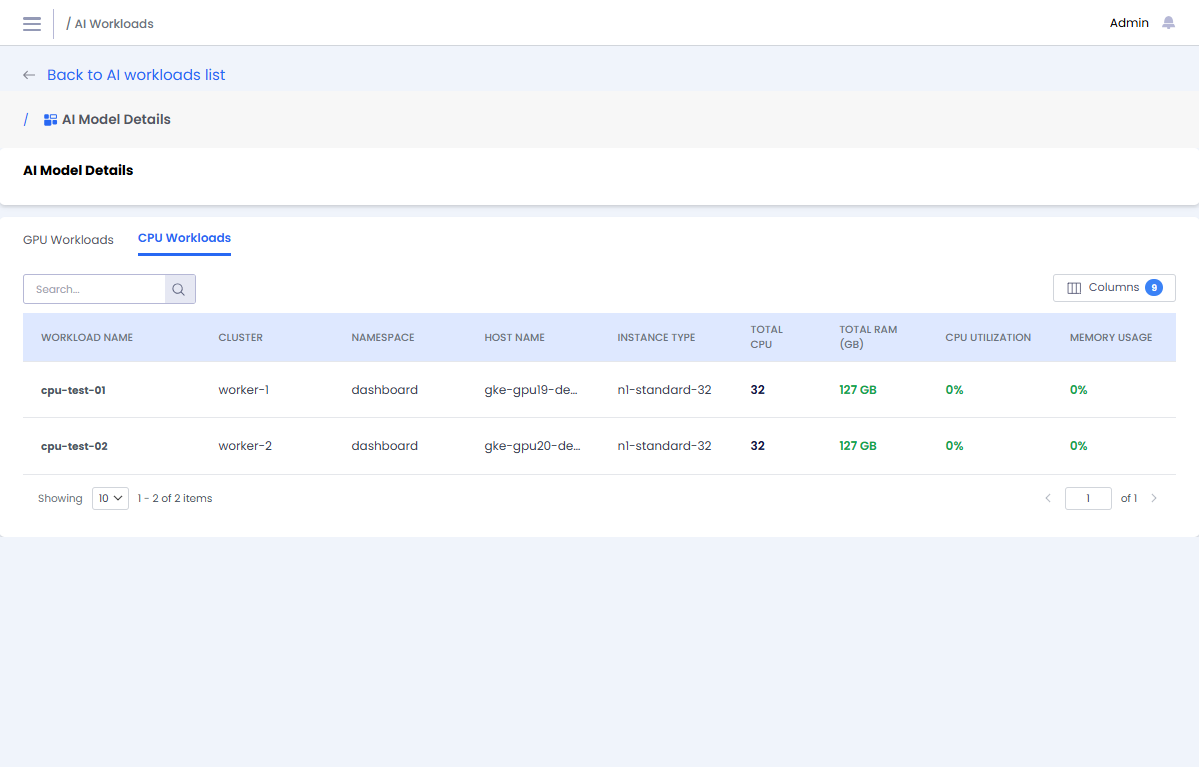
You can view the CPU workloads running in a workspace. For each CPU workload, you can see the CPU and Memory utilization.
To view CPU workloads:
- Go to AI Workloads on the left sidebar.
- On the AI Workloads page, select a workspace.
- On the AI Model Details page, click the CPU Workloads tab.